MANAGING YOUR CATALOG
Library Panel
Use the library panel to access and maintain your song catalog. It allows you to sort, search, add or delete songs, create setlists and print, export or auto-scroll a selected song.

|
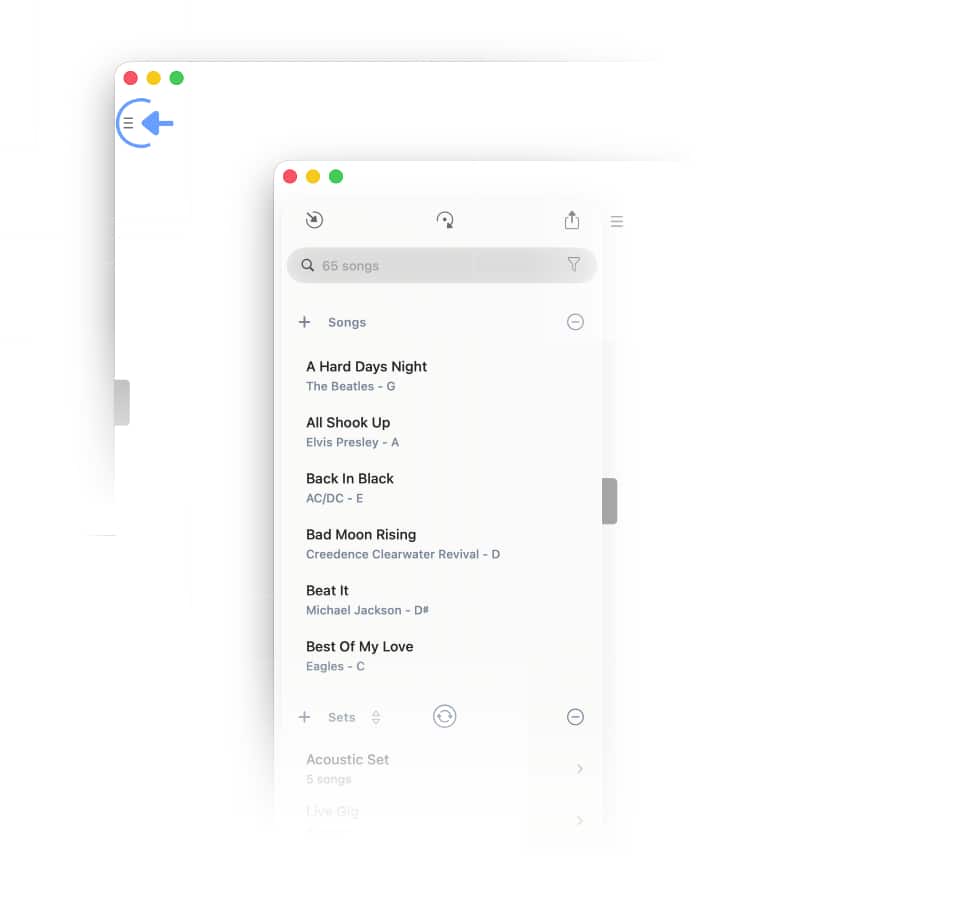
Show/hide the library panel by tapping/clicking on the three lines in the upper left corner of the song editor. |
Adding Songs
|
|
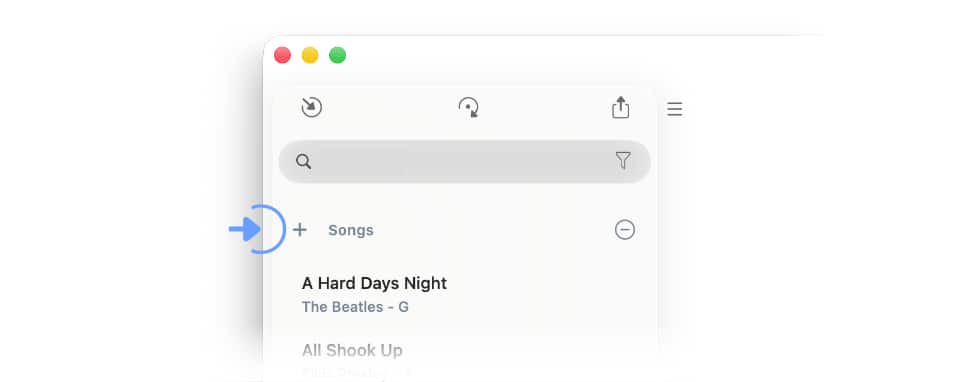
To create a new song tap/click on the plus sign to the left of the label 'Songs'. |
Alternatively you can add songs via the import menu:
|
|
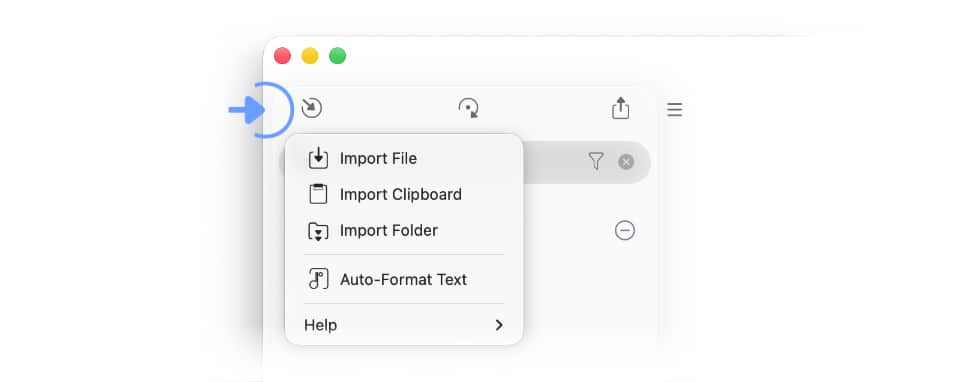
Tap/Click on the button with the inward pointing arrow in the top left corner of the library panel and make a selection from the pop-up menu. |
-
Select 'Import File' to import songs in a variety of formats including that of the Songs app, Text-Based Files, ChordPro, PDF Files, OnSong, Stage Traxx 3, SongSheet Pro and SongbookPro.
-
Select 'Import Clipboard' to import and auto-format text-based content that you have copied to your device’s clipboard.
-
Select 'Import Folder' to import all compatible files contained within a folder.

|
You can also add your songs via the Share menu of other apps including Apple’s Safari browser. See Add To Songs Action Extension to learn more. |

|
|
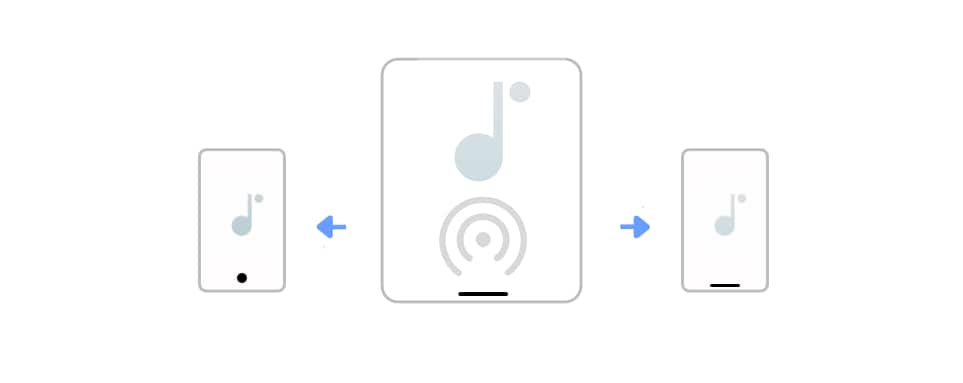
Use AirDrop to forward your songs to bandmates prior to rehearsal. See AirDrop Songs & Sets to learn more. |
Delete Mode
|
|
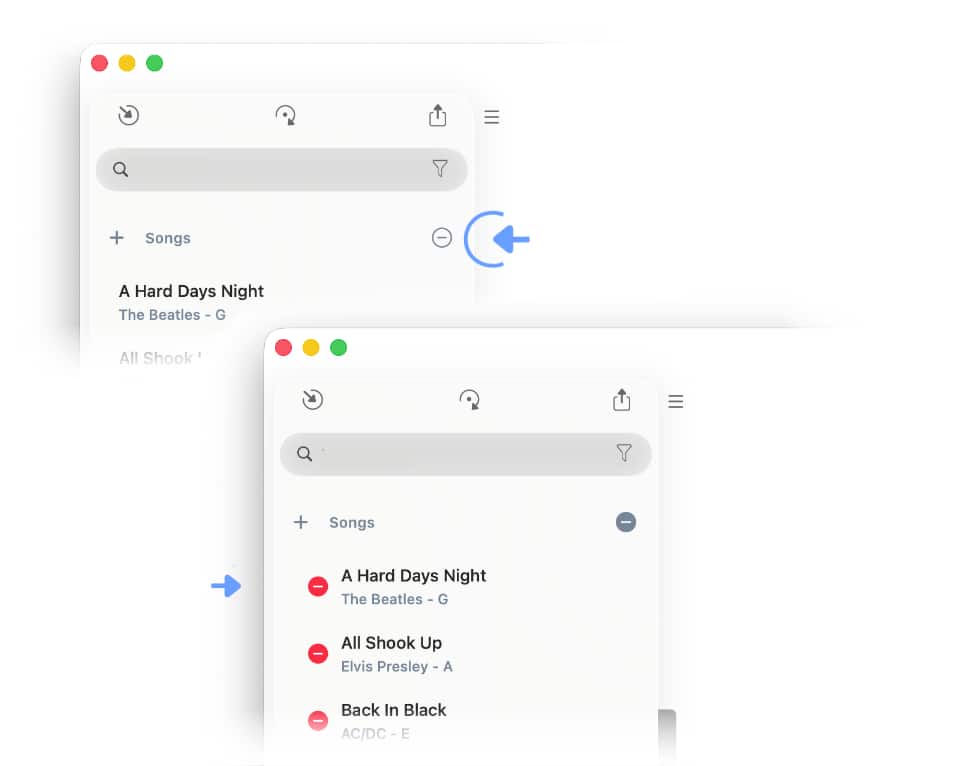
To delete songs activate the delete mode by tapping/clicking on the circled minus sign to the right of the label 'Songs'. |

|
Tapping/Clicking on the red minus icon will irreversibly delete the corresponding song. Afterwards de-activate the delete mode by tapping/clicking on the circled minus sign to the right of the label 'Songs' when you are done. |
Exporting Songs
|
|
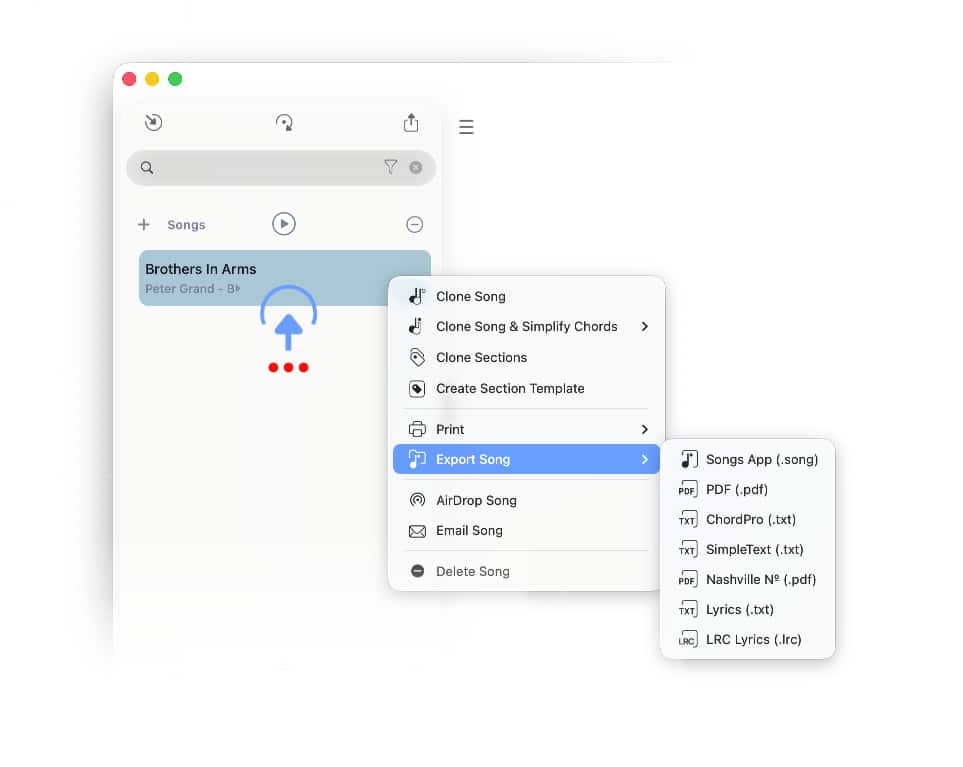
To export a song select it from your library with a long tap / right click / two finger tap. |
|
|
Then tap/click on 'Export Song' and make a selection from the submenu. (See Printing & Exporting to learn more.) |
Sets
A set is a collection of songs in your library. Sets for live performances list the songs in the order they are to be performed.
|
|
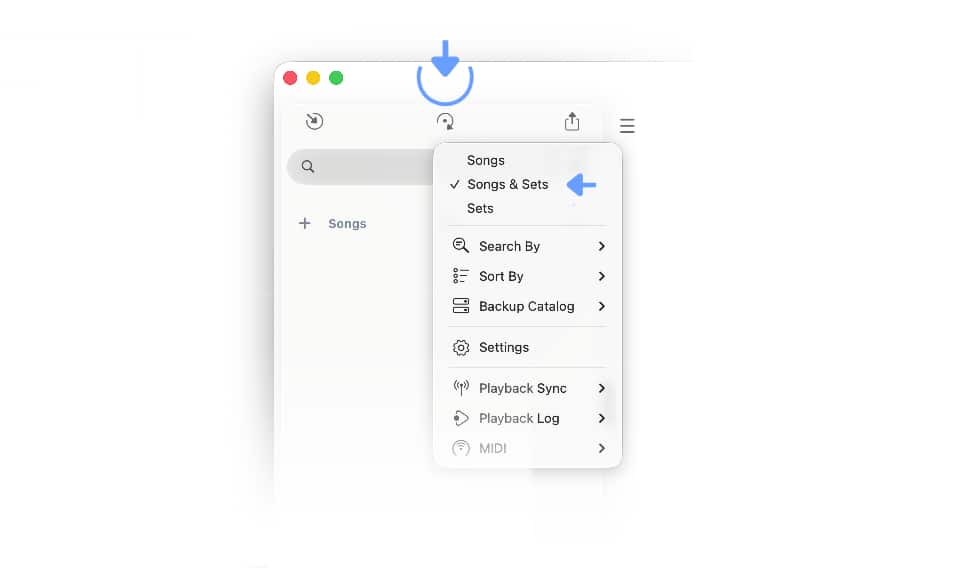
You have the option to show/hide the 'Songs' section or the 'Sets' section of your song catalog. |
|
|
Tap/Click on the circle arrow icon at the top of the library panel and make the appropriate selection in the menu. |
|
|
Tap/Click on the plus sign to the left of the label 'Sets' to create a new set. |

Setlists
|
|
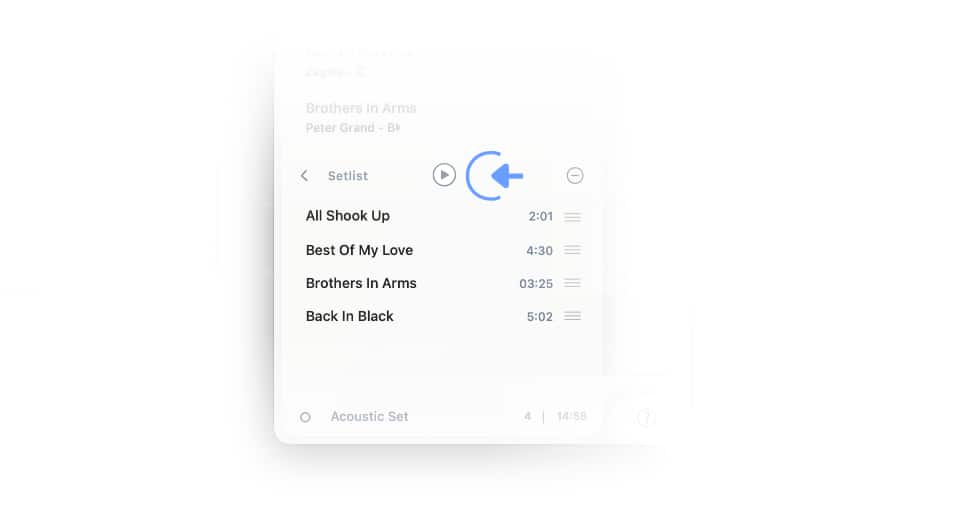
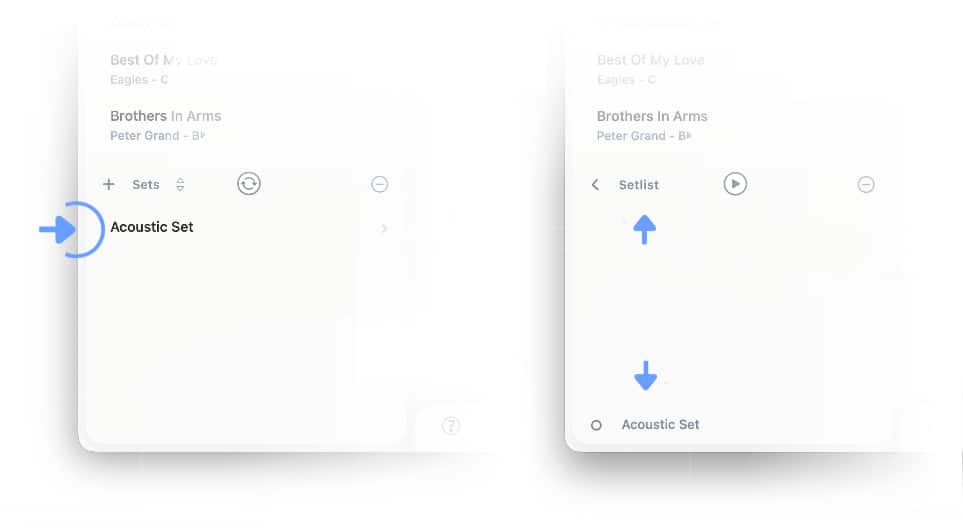
Once a set has been created tap/click on its name to access its setlist. |
|
|
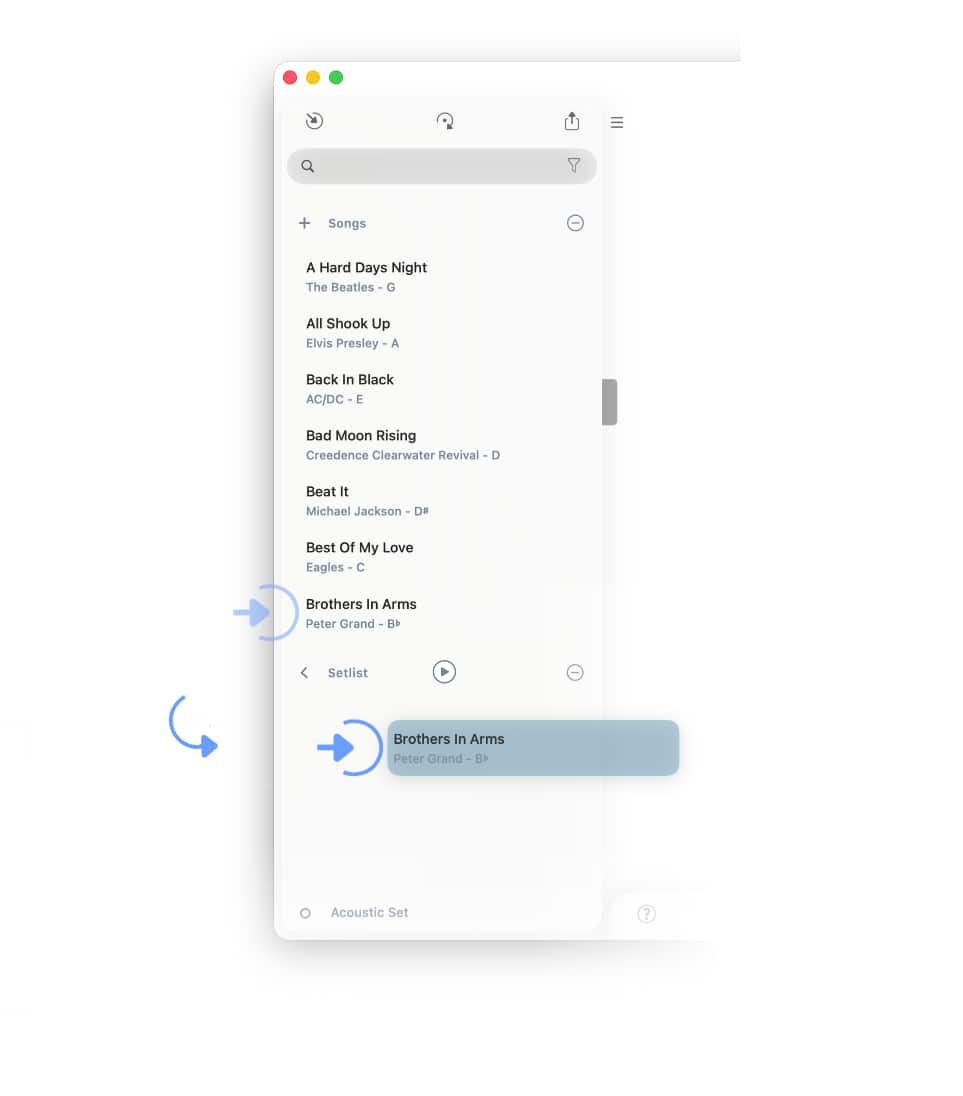
Add songs from the 'Songs' above to the 'Setlist' via drag and drop. (See 'Quick-Select' below to learn how to add songs without using drag & drop.) |
|
|
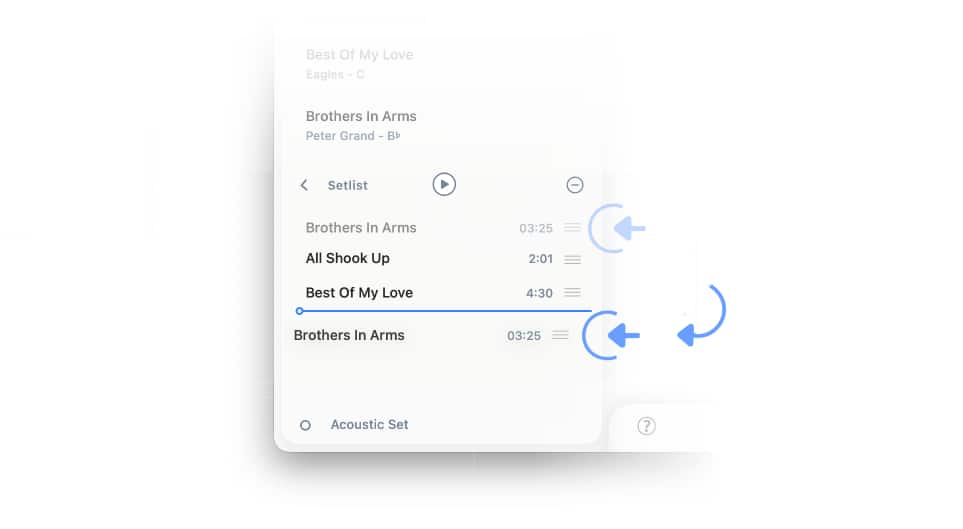
The order of the songs in a setlist can be changed by dragging and dropping the three lines to the right of the song’s title to the desired position. |
Active Sets & Archived Sets
The Songs app displays all the sets of your song catalog in one list named 'Active Sets' (sets you currently use). As this list grows you may create custom set collections to limit the number of visible sets for easier access.
All created sets are automatically added to a collection named 'Active Sets'. You may hide a set that is currently not needed by archiving it:
|
|
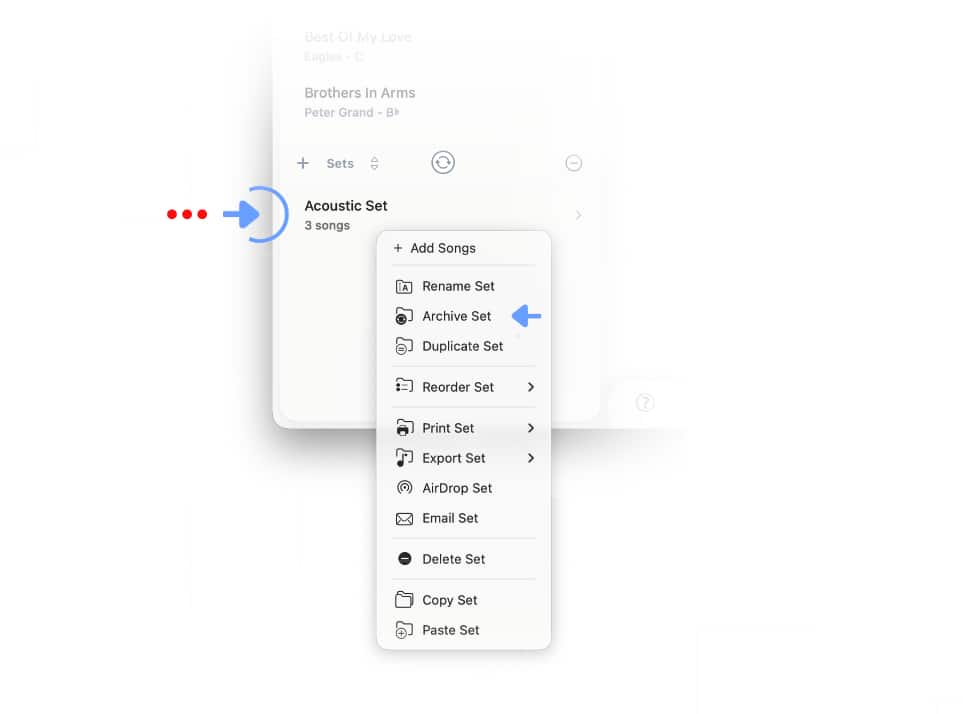
Select the set with a long tap / right click / two finger tap, then tap/click on the 'Archive Set' command in the pop-up menu. |
|
|
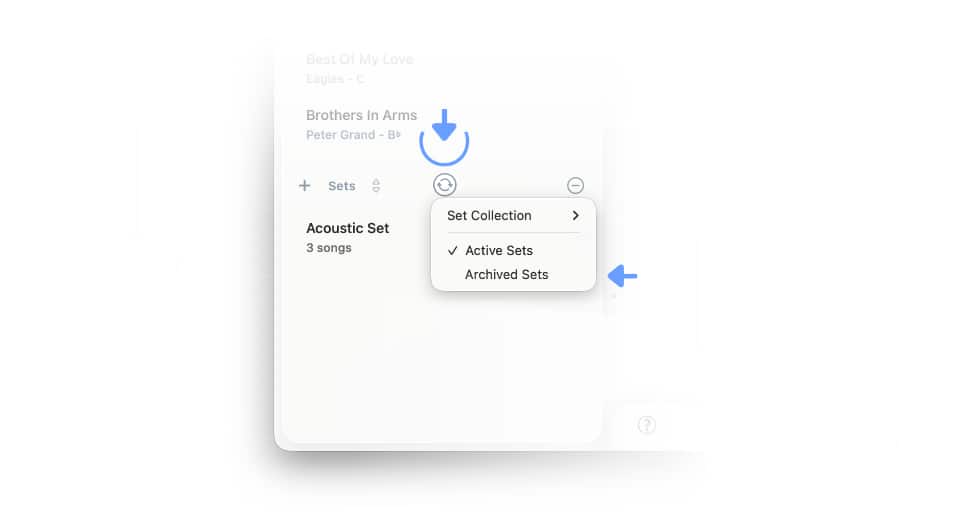
You can access sets that were added to the archive by tapping/clicking on the button with two round arrows above the sets selecting 'Archived Sets' in the menu. |
Custom Set Collections
Custom set collections allow you to organize a large number of setlists. The menu that is used to switch between the 'Active Sets' and 'Archived Sets' (see above) is also used to manage the custom set collections.
|
|
Tap/click on the two round arrows above the sets and select 'Create Collection' under 'Set Collection' |
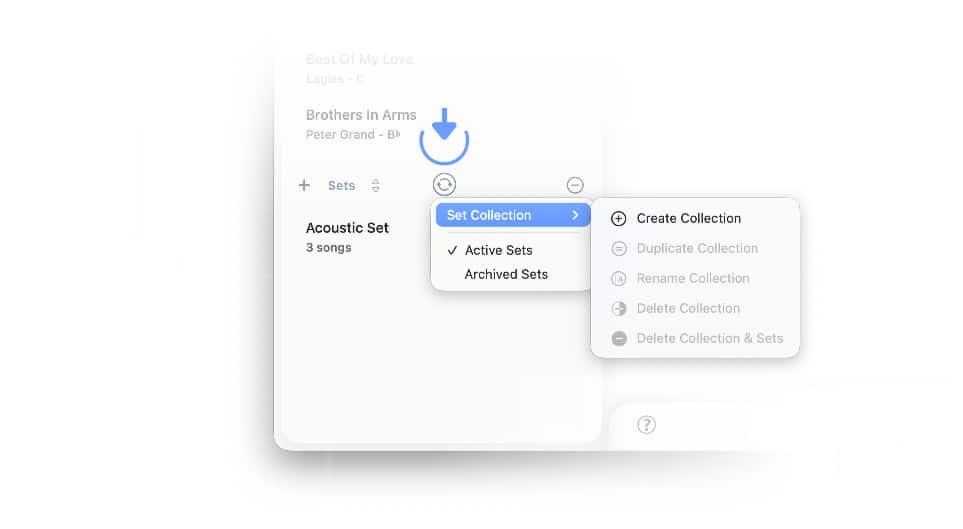
Note: The option to delete a collection are only active if a custom collection has already been selected. The submenu offers two options to delete a collection:
-
'Delete Collection' will only remove the selected custom collection’s name (all of its sets remain in the 'Active Sets' collection).
-
'Delete Collection & Sets' will irreversibly remove all of the sets of the selected custom collection.
With either delete option all songs will remain in the library of your catalog.
|
|
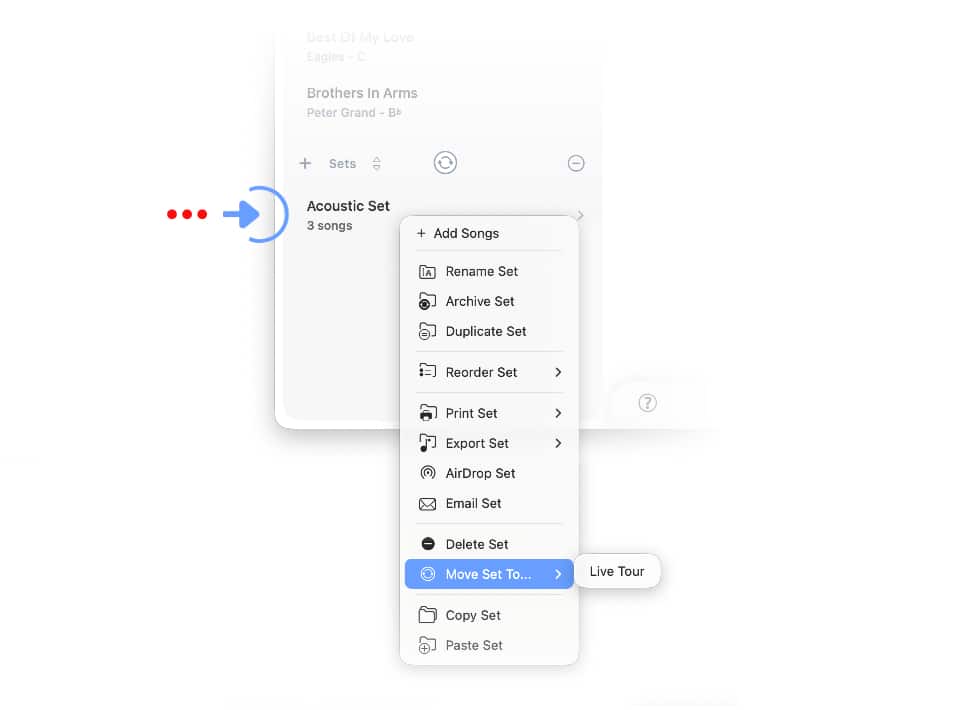
Move a set to a custom collection by selecting the set with a long tap / right click / two finger tap, then tap/click on the 'Move Set To…' command in the pop-up menu. |
|
|
Tap/Click on the desired custom collection in the submenu to move the set to this collection. |
|
|
Sets that are part of a custom set collection are still visible in either the ‘Active Sets’ or the ‘Archived Sets’ collection. |
Note: A set can only be assigned to one custom set collection.
-
Tap/Click on 'Duplicate Set' before moving a set to an additional custom collection to keep the existing custom collection intact.
Quick-Select
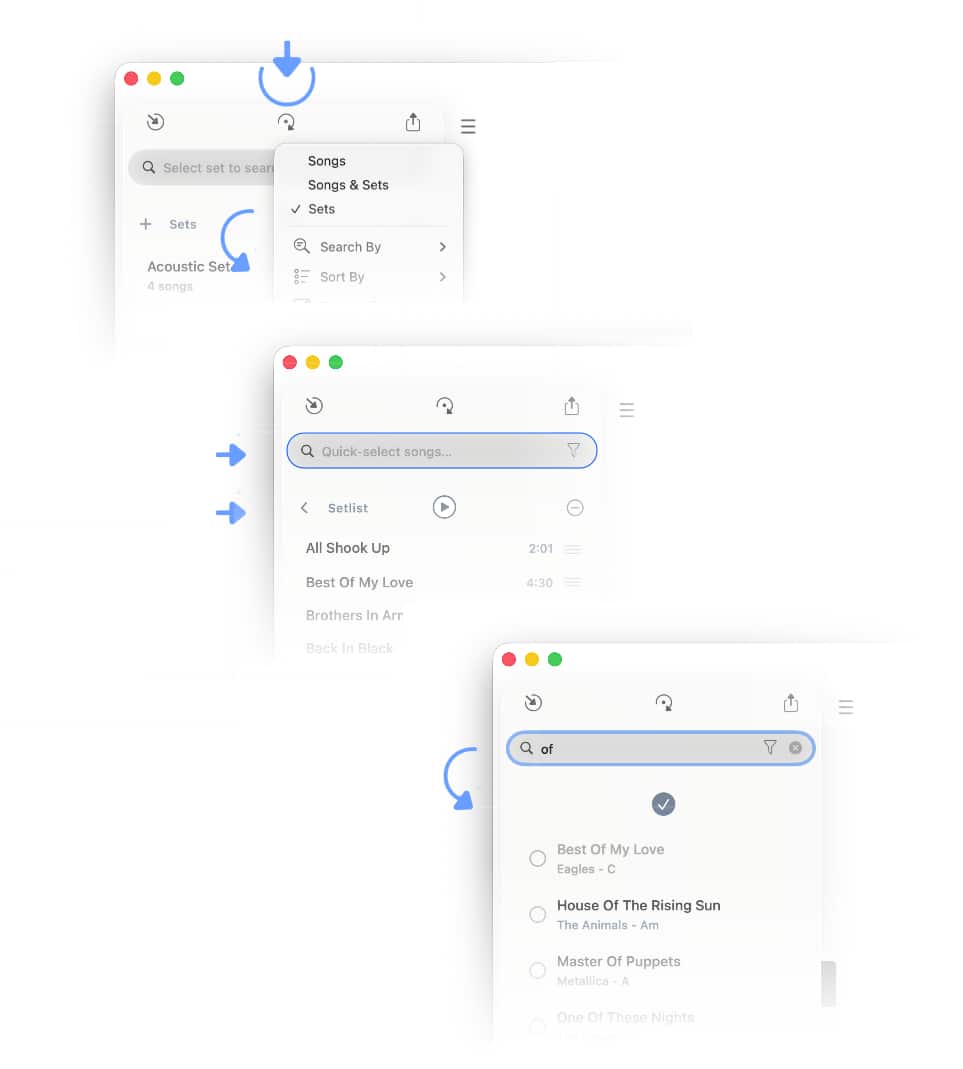
Quick-select allows you to create setlists without using drag & drop. Quick-select can only be initiated when viewing sets, not when viewing the songs of a setlist.
|
|
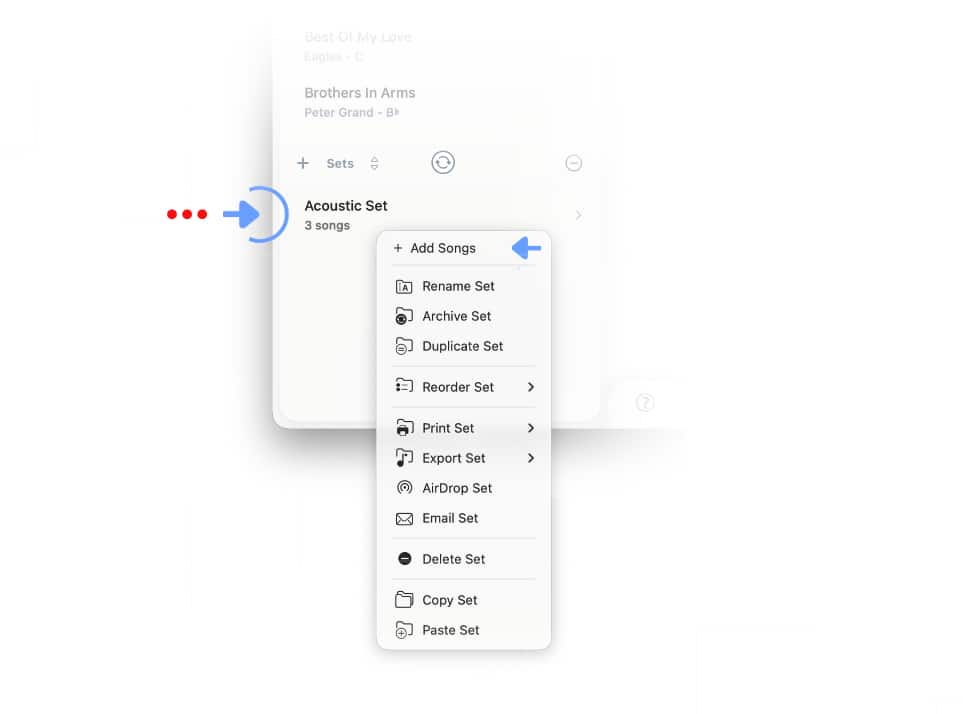
Select the set with a long tap / right click / two finger tap and choose 'Add Songs' from the pop-up menu. |
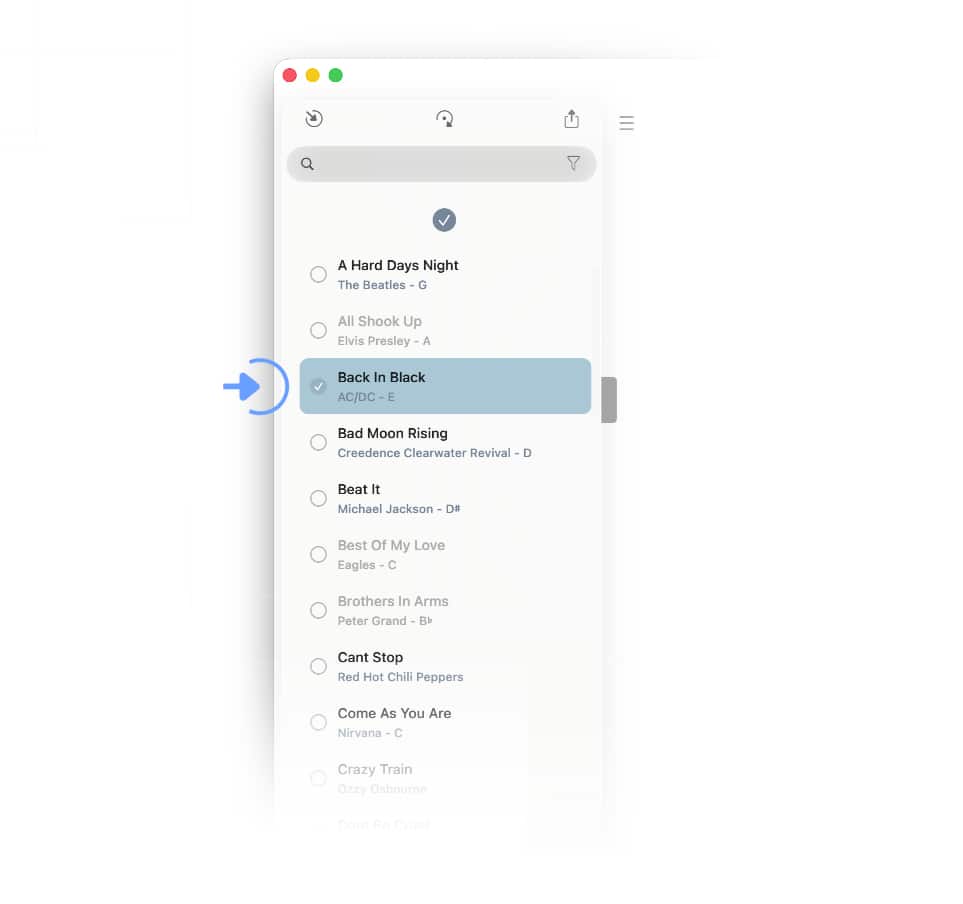
Your song library view will appear in a checklist format:
|
|
Tap/Click on the circles to add check marks to the desired songs. (You may use the search field to find specific songs while using quick-select.) |
|
|
Tap/Click on the check mark icon at the top of the list to add the selected songs to the set. (To cancel quick-select instead tap/click on the minus sign to the right.) |
|
|
You can automatically activate quick select when using the search field by selecting the 'Sets' view option in the library menu. |
Search Field
Use the search field of the library panel to locate specific songs. An empty search field displays the total number of songs in your catalog:
|
|
Tap/Click on the search field and enter the search criteria to find the corresponding song(s). |
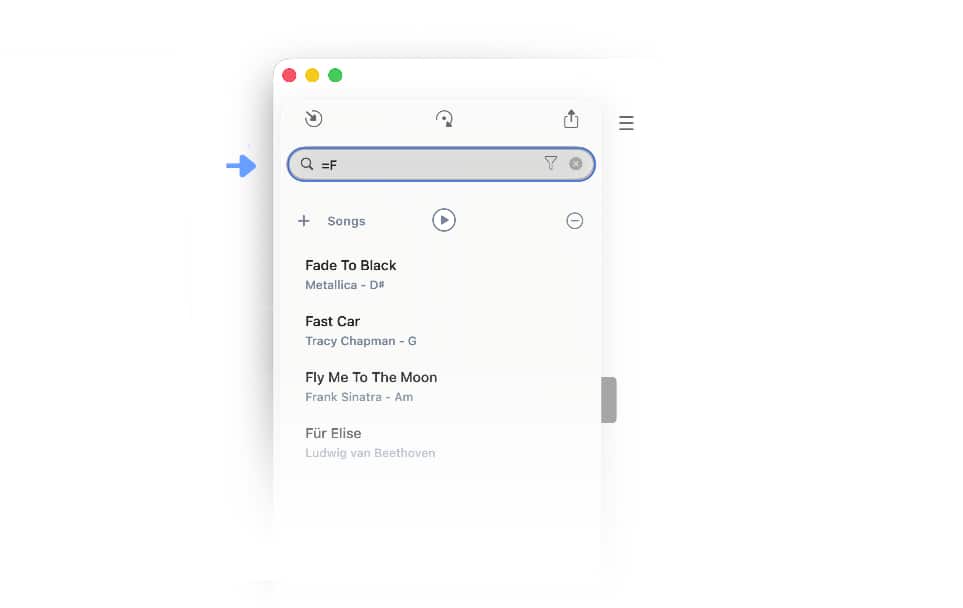
You may use the equal sign to perform alphabetical song title searches:
-
Enter '=F' into the search field to find all song titles starting with the letter 'F'.
-
Enter '=All' into the search field to find all song titles starting with the word 'All'.
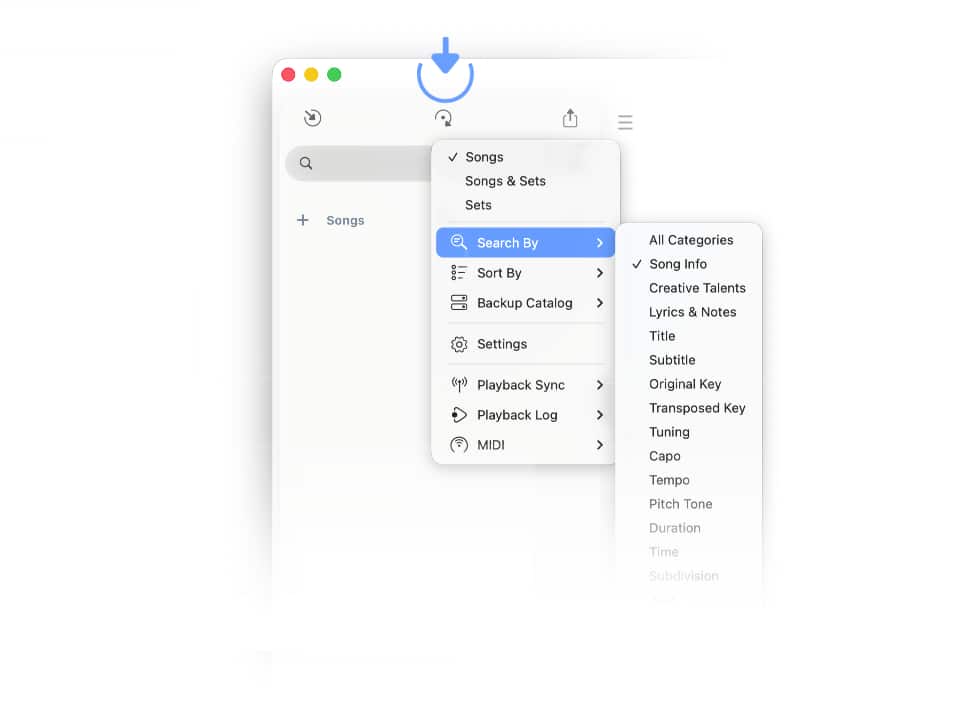
You can expand or limit the search results by specifying in which fields to search.
|
|
Open the library panel’s drop down menu to specify a search category in the 'Search By' submenu. |
-
Select 'All Categories' to search all fields of the song info panel (including the song title, lyrics and notes).
-
Select 'Song Info' to search all categories excluding the lyrics and notes of the songs.
-
Select a specific category to limit the search to a particular field of the song info panel.
Library Filter
The library filter enables you to only show songs that fit a specific criterion. The selectable criteria are the values you have entered into the Song Info panel.
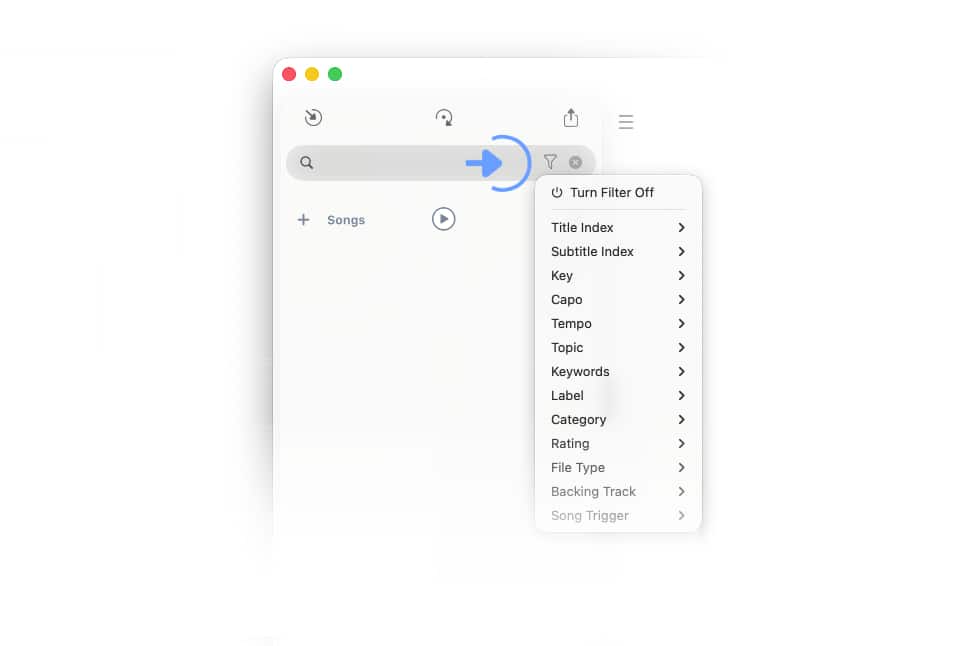
|
|
As an example, when you are a member of more than one band you can use the library filter to only show songs that are played by a specific band: |
|
|
Add the names of your bands to a song info field (e.g. 'Category'). (Use a comma followed by a space to separate multiple values.) |
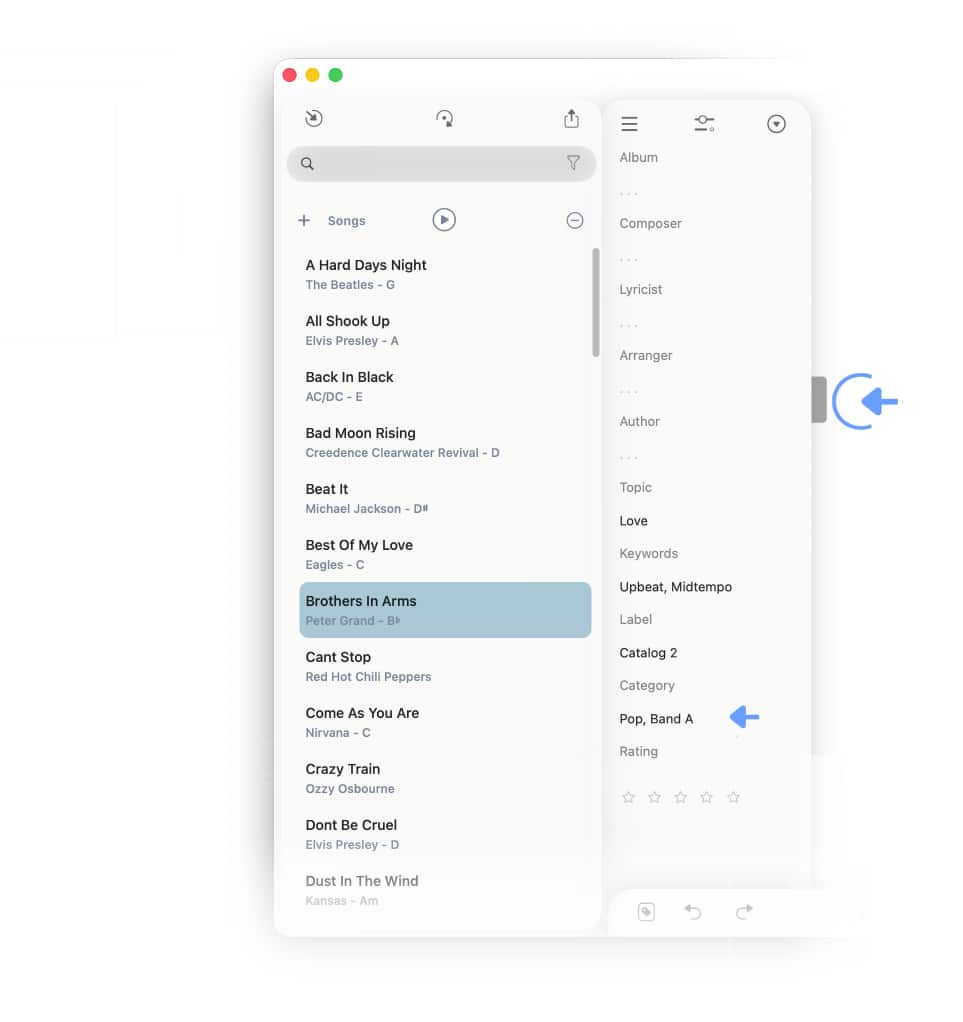
|
|
Tap/Click on the filter icon in the right corner of the search field and select the appropriate library filter (e.g. name of the band under 'Category') in the pop-up menu. |
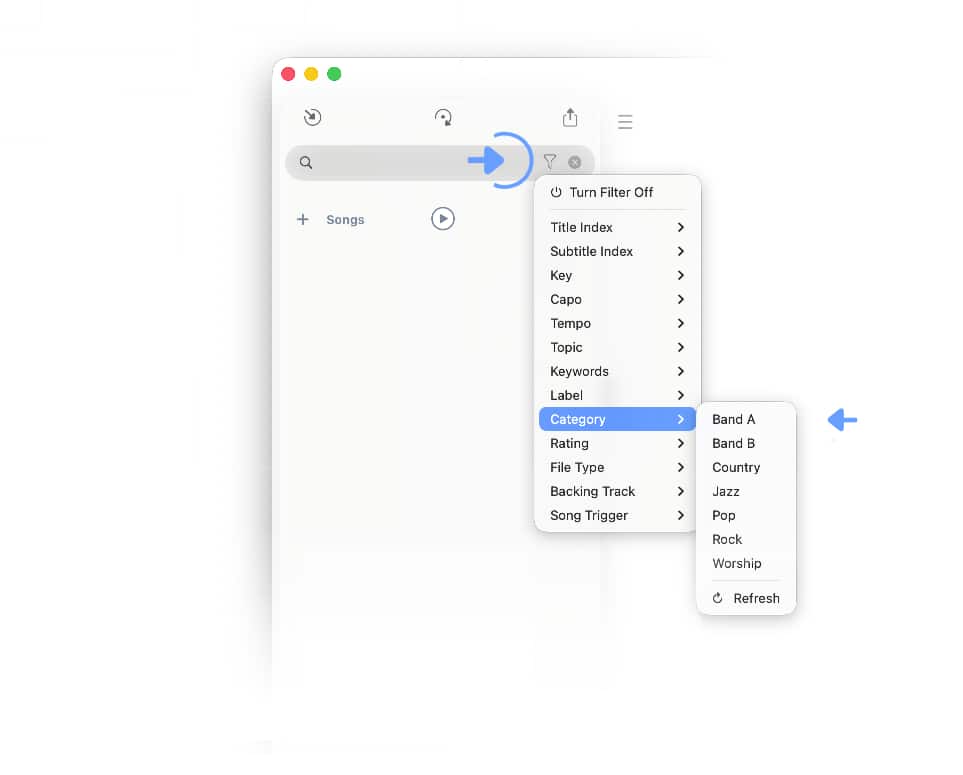
The 'Category', 'Label/No', 'Topic' and 'Keywords' lists are updated automatically by the Songs app each time you add a new value into a particular field of the Song Info panel:
-
You may use a comma followed by a space to separate multiple values (e.g. enter 'Pop, Christian' into the 'Category' field of a song to show the song when either the 'Pop' or the 'Christian' category is selected in the library filter).
-
When the Songs app is synced via iCloud it may be necessary to 'refresh' the lists of the library filter on your additional devices by tapping on the 'Refresh' at the bottom of the menu.
|
|
Regain access to your entire song catalog by disabling the library filter: Tap/Click on the filter icon and select 'Turn Filter Off' in the pop-up menu. |
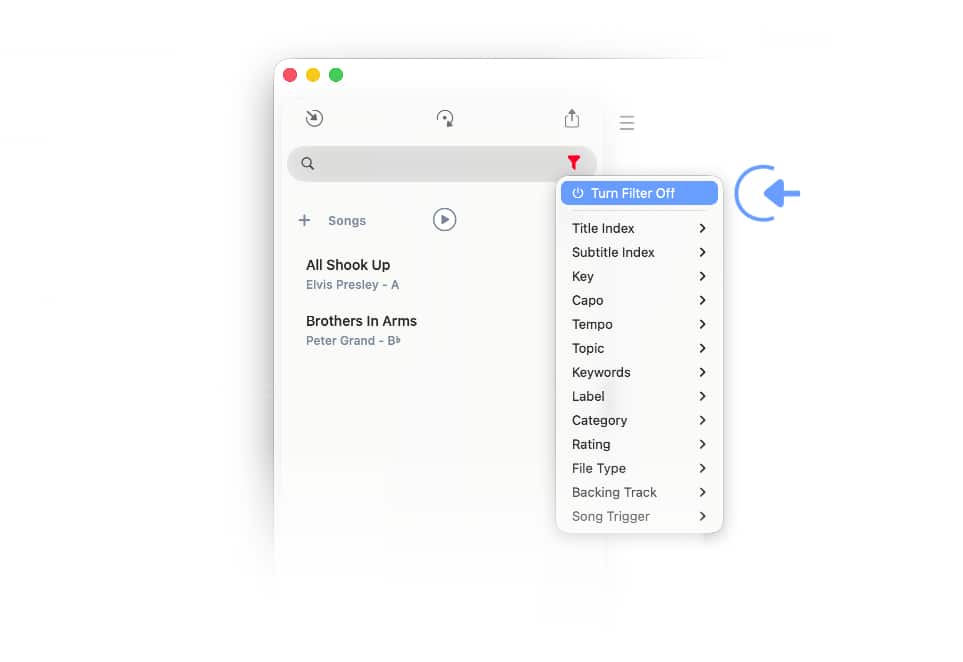
Play Button
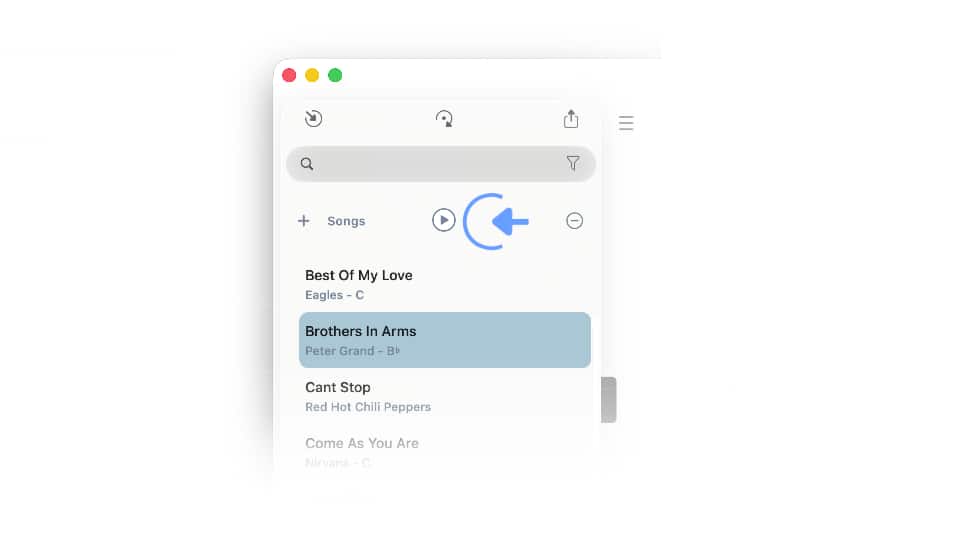
A play button will appear whenever a song title is selected in the 'Songs' section or in the 'Setlist' section.
|
|
Select a song in the 'Songs' section and tap/click on the play button to activate the app’s play mode. (See Play Mode to learn more.) |
|
|
To play back a setlist of songs open the set and tap/click on the play button above the setlist. (See Play Mode to learn more.) |