MANAGING YOUR CATALOG
Printing & Exporting
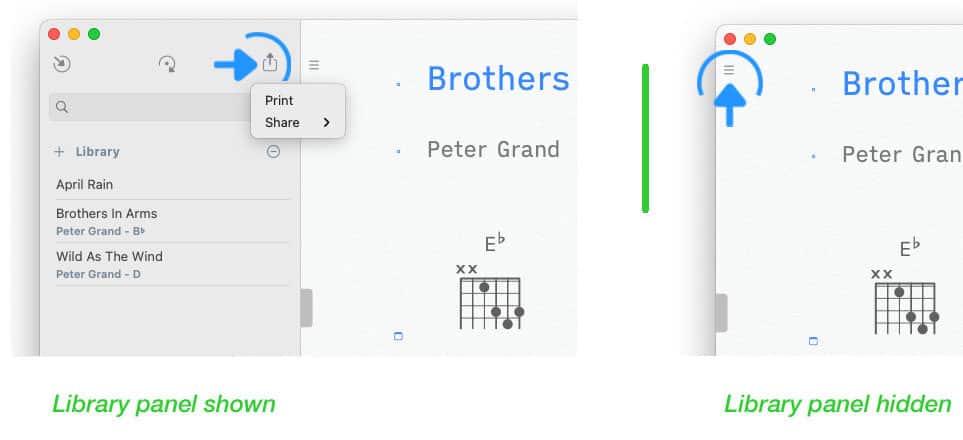
Access the print option by tapping/clicking on the icon with the upward pointing arrow in the upper right corner of the library panel.
If the library panel is not visible tap/click on the three lines in the upper left corner of the song editor.

|
Select 'Print' from the pop-up menu. A print preview of the document will appear to allow for customization. |
Print Settings
|
|
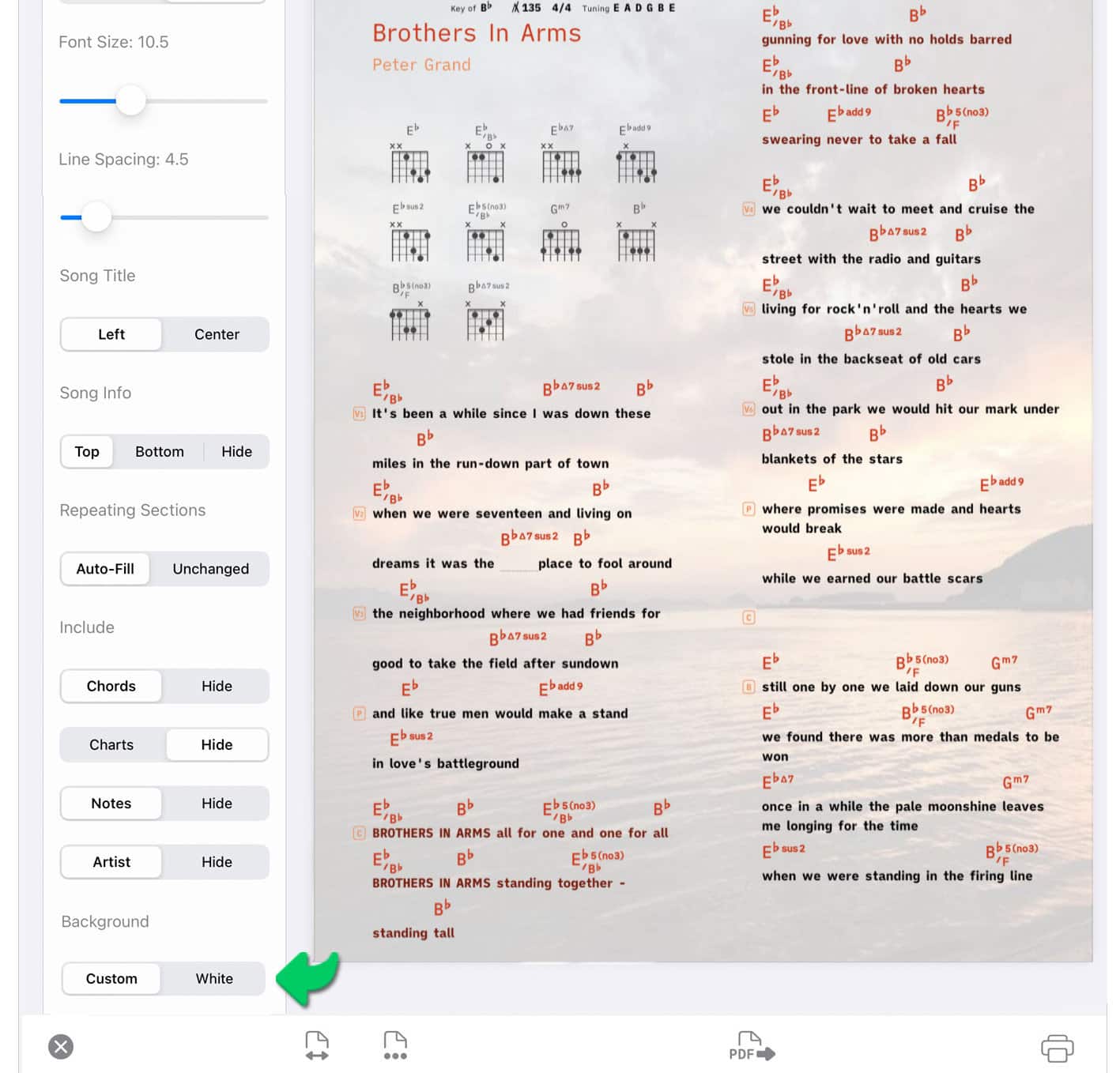
Tap/Click on the page icon with the three dots in the Songs app’s bottom toolbar to customize the print preview. |
A menu will slide in from the left:
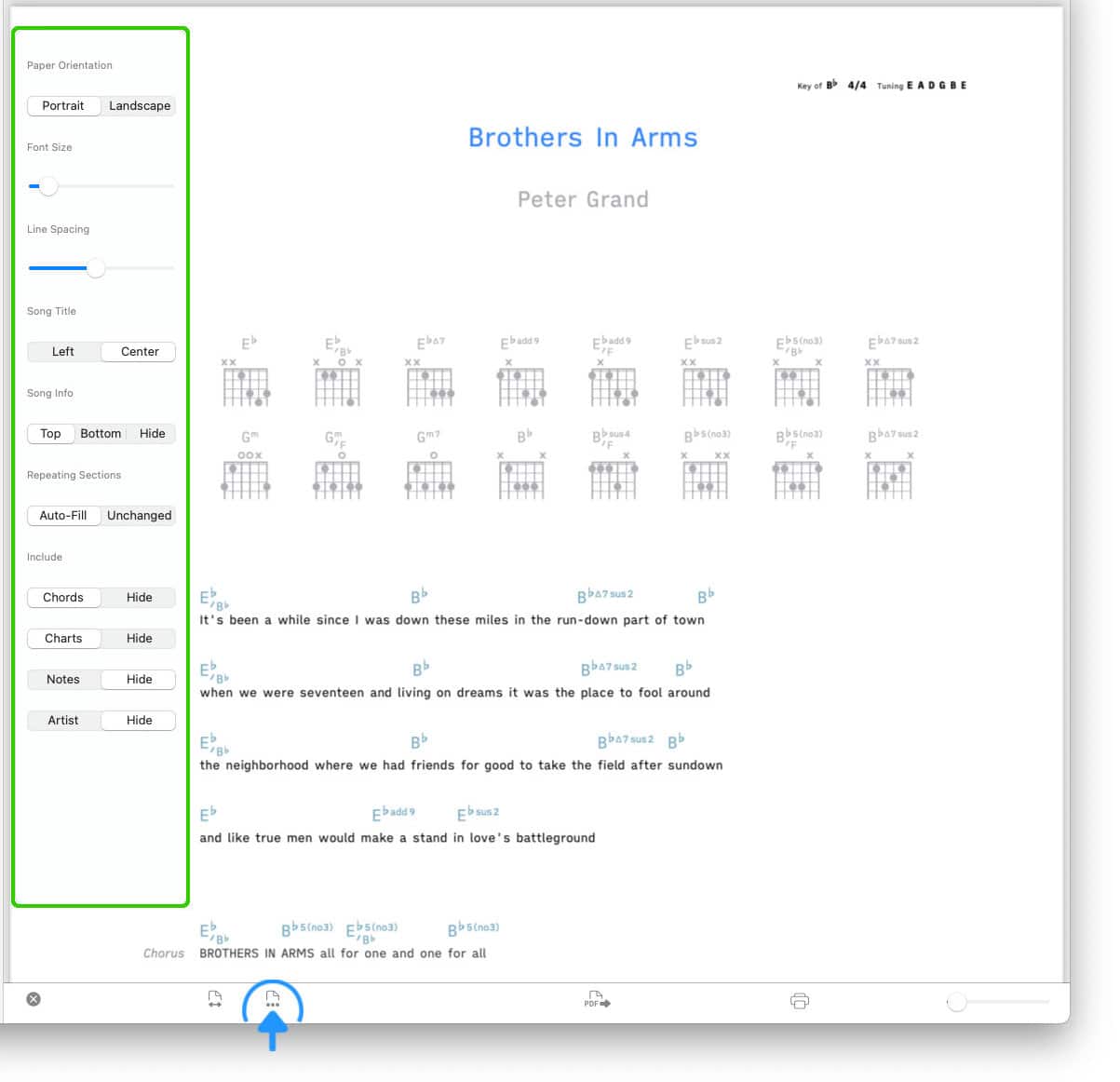
The customization will only affect the printout and will not alter the original document. Only the print previews of Songs files in the native format can be customized, PDF files cannot be changed.

|
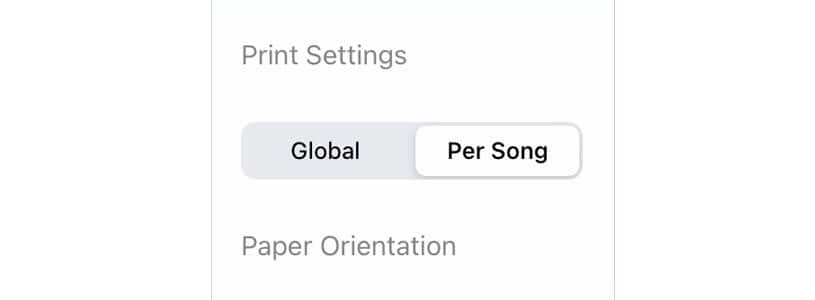
Print settings can either be applied to the entire song catalog or to a specific song: |
-
The Songs app will save (and sync) the print settings for each song individually when 'Per Song' has been selected.
-
Select 'Global' to override the individual print settings and print a set of songs in the same layout style.
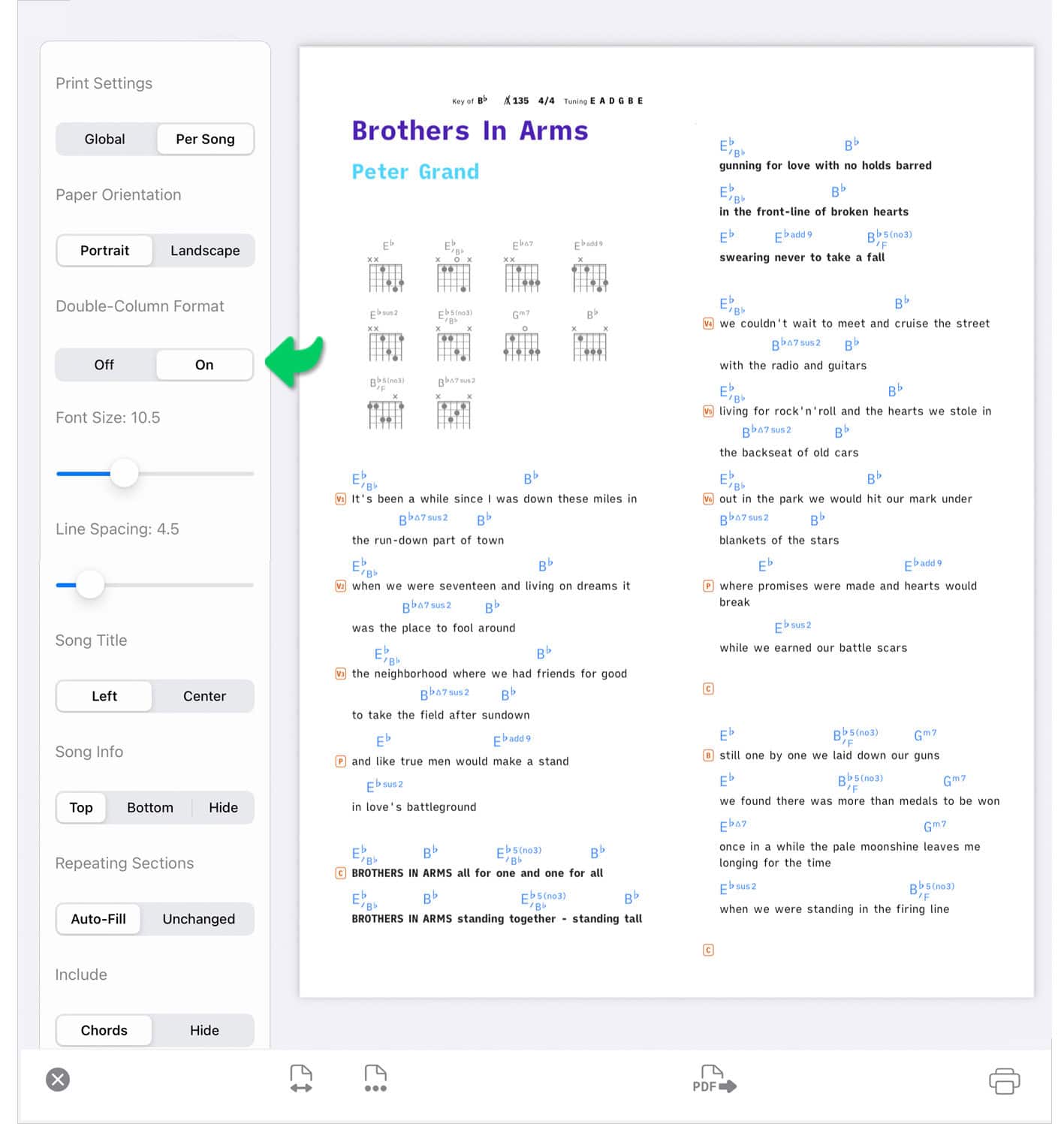
Double-Column Format
The settings include an option to print a song in the double-column format:
Custom Background
You have the option to customize the background of printed/exported PDFs.
|
|
Select 'Custom' under 'Background' to print/export a song with a background image. |
-
The 'Custom' option also lets you print with or without a background image if the program runs in 'Dark Mode'.
-
When 'White' is selected a song is printed on a white background with the theme’s 'Light Mode' colors.
Page Size
|
|
To change the page size tap/click on the page icon with the two arrows in the bottom toolbar. |

Printing/Exporting Songs
|
|
Tap/Click on the print icon (bottom toolbar right corner) to print the document |

|
|
Tap/Click on the PDF paper icon (bottom toolbar) to export and share the PDF. |
Tap/Click on the circled 'x' to cancel and close the print preview (bottom toolbar left corner).
Exporting ChordPro Files
You may also export and share native Songs files in the ChordPro format. Note: Not all of the Songs app’s formatting capabilties are supported by the ChordPro format.
|
|
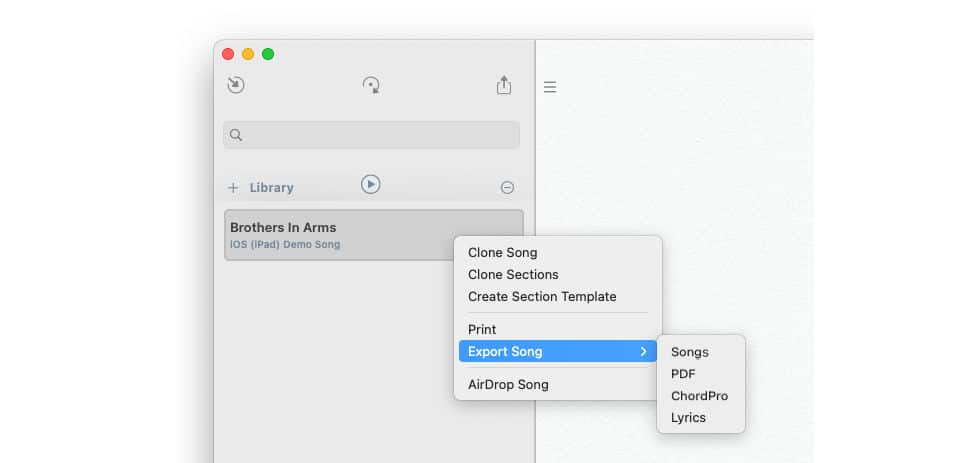
Tap/Click on the upward pointing arrow in the upper right corner of the library panel and select 'ChordPro' in the submenu. |
Exporting PDF Files
You may share a PDF formatted document or export a native Songs document as a PDF file.
|
|
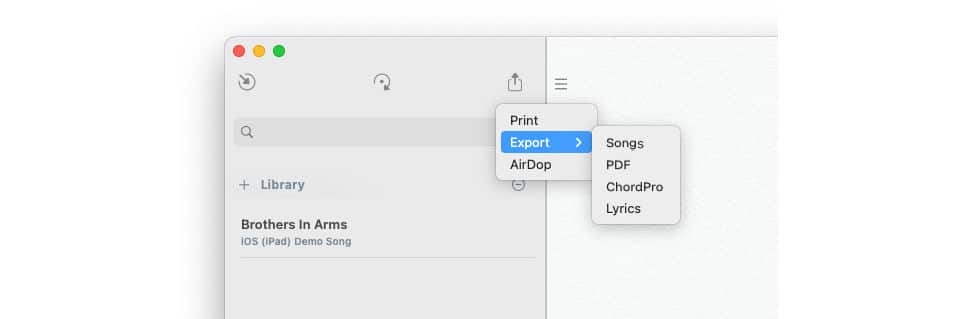
Tap/Click on the upward pointing arrow in the upper right corner of the library panel and select 'PDF' in the submenu. |

|
Exporting a native Songs document as a PDF document is not advisable if plan to re-import the document: |
A Songs generated PDF document includes chord symbols that are not saved in plain text format. If you re-add the exported PDF document to your song catalog the Songs app will not be able to generate chord diagrams.
Printing/Exporting Sets
The Songs app can print/export all songs of a set with a single menu command:
|
|
Perform a long tap / right click / two finger tap on the set’s title and select 'Print Set' (or 'Export Set') from the pop up menu. (See Library Panel to learn more about sets.) |
