MANAGING YOUR CATALOG
Song Info
Use the song info section to manage the song’s metadata, transpose the song and specify a backing track. The song info window is part of the side panel of the song editor.
If the side panel is not visible tap/click on the vertical bar at the left side of the screen.


|
Tap/Click on the icon in the upper right corner of the side panel and select 'Song Info' from the pop-up menu. |

Song Title & Subtitle
Enter a song title and subtitle to be able to identify the songs in your song catalog. (Newly added songs without a specific title will be listed as 'Untitled' in the library panel.)

|
It is common practice to use the artist’s name in the 'Subtitle' field. |

By default Songs 10.0 (or later) will auto-update the song editor after you have modified the title and subtitle fields of the song info panel:
|
|
To customize (or disable) this feature for a particular song tap on the two circles next to ‘Song Title’ and make the appropriate selection in the pop-up menu: |
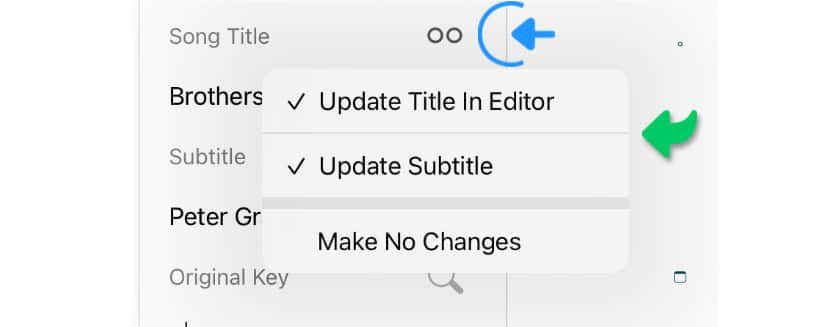
If a song has multiple titles/subtitles the Songs app will only modify the first one of each. Updated titles are automatically repositioned at the top of the song.
Original & Transposed Key
The Songs app can automatically identify a song’s key based on the diatonic chords of the song. (Key changes within a song are not recognized.)
|
|
Tap/Click on the magnifying glass to the right of 'Original Key' to automatically specify the current key of the song. |

You may manually type in the values of the 'Original Key' and 'Transposed Key' of a song. (Manually entered values will not affect the song’s chord symbols or its chord diagrams.)
|
|
Tap/Click on the mote icon to the right of 'Transposed Key' to transpose a song and automatically update its chord symbols and chord diagrams. (See Transposing Songs to learn more.) |

Tuning
This field shows the tuning of string instruments. You may type in up to eight pitches (separated by spaces). The song’s chord charts will be automatically updated whenever the tuning is changed.
|
|
Specify a default value for the tuning field (and the virtual fretboard) in the settings (preferences). |
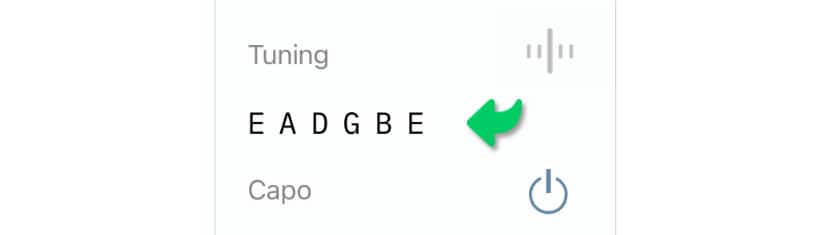
Use the 'Virtual Fretboard' instead of this field when you wish to specify the octave in addition to the pitch. The virtual fretboard updates the tuning field automatically whenever the tuning is changed.
|
|
Tap/Click on the icon to the right of the 'Tuning' label to tune the strings of your instrument with the Songs app’s built-in chromatic tuner. (See Chromatic Tuner to learn more.) |

Capo Position
Enter a number between 1 and 11 to specify a capo position. The song’s chord chart/symbols will be automatically updated whenever the capo position is changed.
|
|
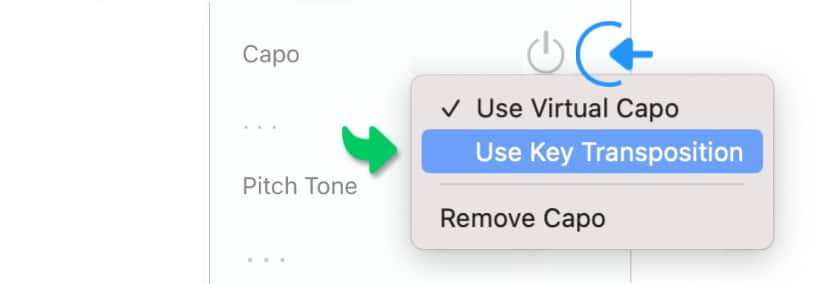
Tap/Click on the power icon to the right of the 'Capo' field to switch between transposed chord shapes ('Use Key Transposition') and capo diagrams ('Use Virtual Capo'). (See Capo to learn more.) |
Pitch Tone
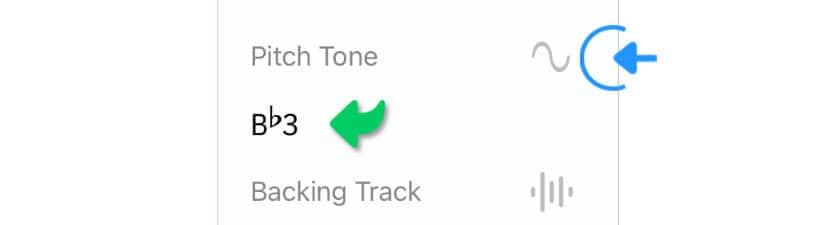
Pitch tones may be used to guide singers in 'a capella' performances or to tune your string instrument. The Songs app generates pitch tone(s) from note(s) you entered into the song info section. You may enter a number between 3 and 8 immediately after the note to specify its octave. Separate multiple values using spaces (multiple pitch tones are played in succession).
|
|
Tap/Click on the sine wave icon to play the specified pitch tone(s). |
Backing Track
The Songs app can automatically play an audio backing track whenever the play mode is activated. (This section provides a brief overview on backing tracks: see Playback Via Apple’s Music Apps and Importing Audio Tracks to learn more.)
|
|
To add a specific track tap/click on the audio wave icon to the right. |
-
Select 'Import Audio Track' from the pop-up menu to import an audio track directly into the Songs app.
-
Select 'Link Apple Music Track' from the pop-up menu to create a link to an audio track in your music library (maintained by Apple’s Music app).
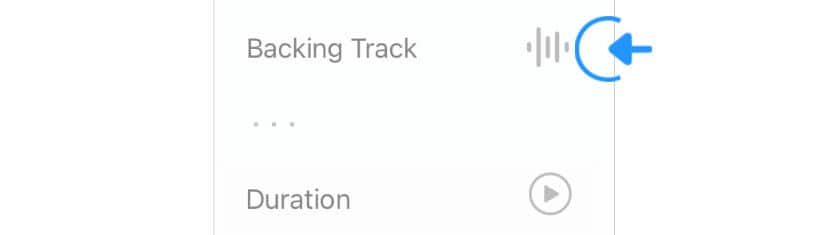
A file browser will appear to allow you to select the appropriate audio file for the current song. Once a backing track has been chosen it will be linked to the current song.
-
This will enable the automatic playback of the audio file when the lyrics are auto-scrolled. (see Play Mode to learn more.)
|
|
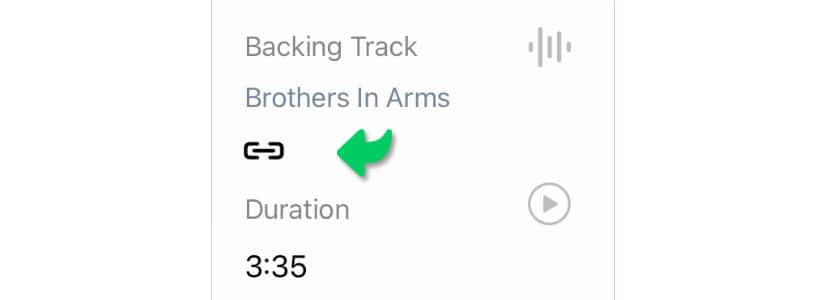
The Songs app supports the linking of 'Apple Music' songs provided they are downloaded to your device. |
|
|
Tap/Click on the chain link icon to mute a backing track when the lyrics are auto-scrolled. |
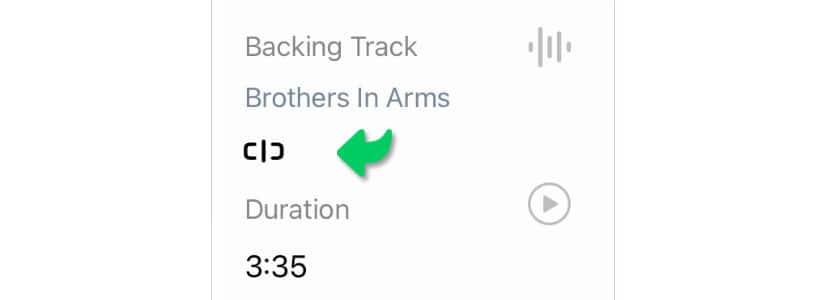
The icon will change into an open chain link icon:
|
|
Tap/Click on the open chain link icon to unmute the linked backing track. |
|
|
Tap/Click on the play button to activate the Songs app’s play mode. |
|
|
Remove a backing track link via a long tap / right click / two finger tap on the chain link icon. |
A backing track will not be played if the Songs app is unable to locate the original audio file. A broken chain link icon is shown. (See Playback Via Apple’s Music Apps to learn how to fix a broken link.)

Duration
The duration is the length of a song in minutes and seconds (mm:ss). When adding a backing track the duration is entered automatically. Change it manually to adjust the scrolling speed if needed.
|
|
Duration represents the time it takes to auto-scroll the lyrics from the beginning to the end. In most cases this time frame is identical to the playback duration of an added audio backing track. |

|
|
Tap/Click on the play button to activate the Songs app’s play mode. |
Tempo
Enter the song’s tempo in 'BPM' ('beats per minute'). The entered value will determine the speed of the metronome. (see Metronome to learn more.)
|
|
Alternatively tap/click on the tap icon in the desired speed to have the Songs app determine and fill in the tempo for you: |

Changing the 'Tempo' value will not influence the scrolling speed of the lyrics during playback. (Change the value in the 'Duration' field to adjust the scrolling speed.)
Time
The time signature represents the meter of a song in beats per measure. (see Metronome to learn more.)
|
|
Tap/Click on the three dots below 'Time' to specify the time signature (tempo) of the song. |

The beats per measure value is expressed in two numbers separated by a slash. The first number represents the number of beats in each bar. The second number represents the note value that is equivalent to the beat (e.g. 2/4 means two quarter-note beats per bar).
Subdivision
Subdivision refers to a song’s time signature (see above) divided into smaller units. This allows you to keep accurate time when performing a song. For instance, a time signature of 2/4 is divided into eighth notes (the duration of a quarter-note halved). (see Metronome to learn more.)
|
|
Tap/Click on the three dots below 'Subdivision'. A pop-up menu will appear to allow you to select the desired value. |

To enter a custom value tap/click on the three dots (or an already entered value) a second time.
Copyright & CCLI
Enter the copyright info and CCLI license number of the song by tapping/clicking on the three dots.
|
|
This information is automatically added to the lyrics provided you have set the appropriate CCLI and copyright tags. (see Section Labels to learn more.) |
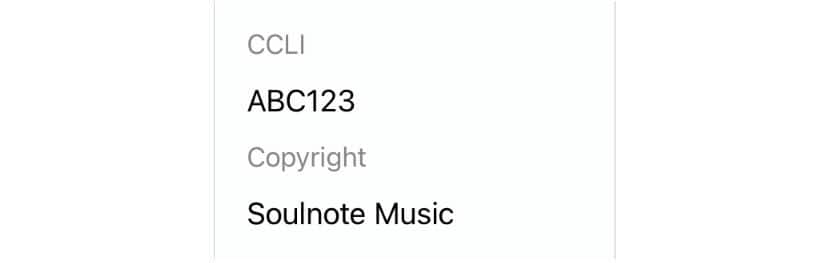
CCLI (Christian Copyright Licensing International®) issues copyright licenses for churches covering the projection and printing of songs for congregational singing. These licenses require the issued CCLI number to be displayed on the projected/printed songs. Consult CCLI guidelines for more details.
Standard Metadata
|
|
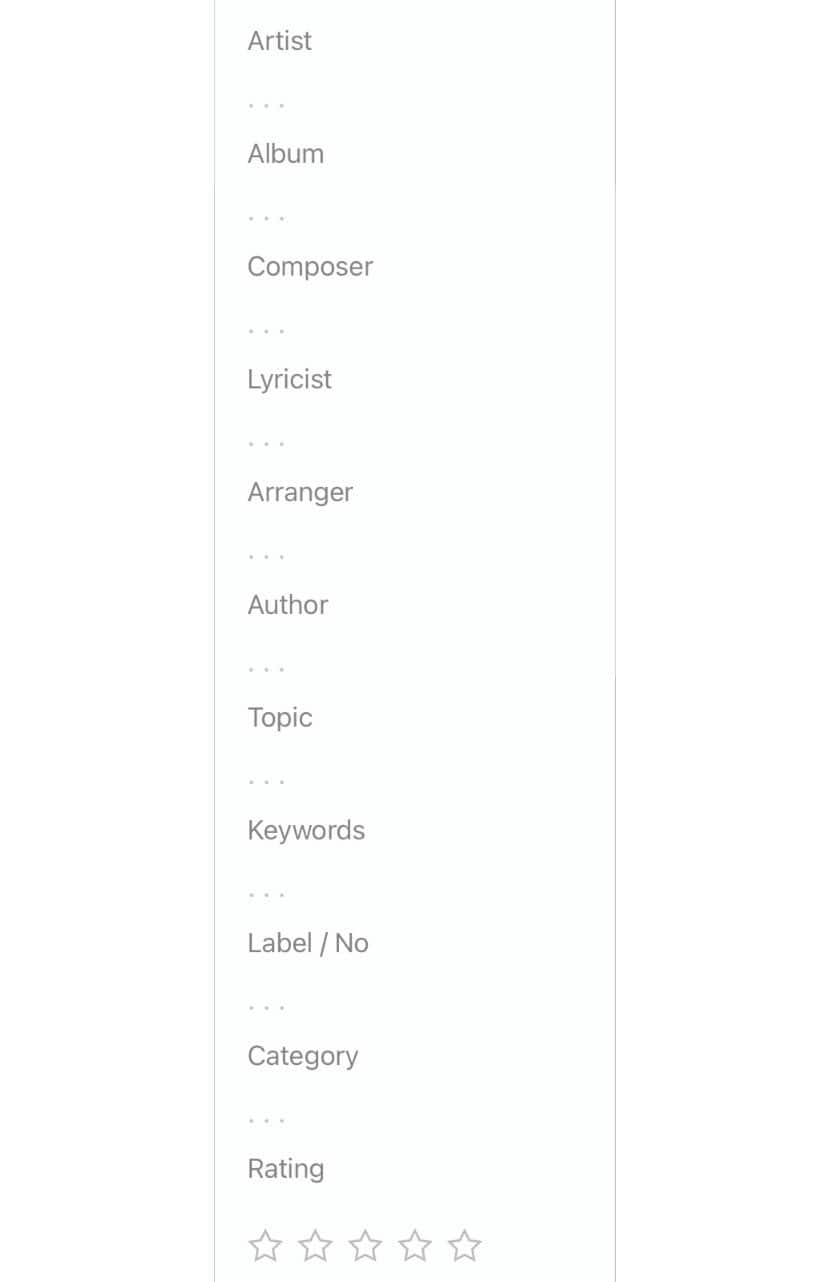
Tap/Click on the three dots below the following standard categories to enter the appropriate values. (Tap/Click on the stars below the last category to rate the song.) |
|
|
Use a comma followed by a space to separate multiple values. |
|
|
Use the 'return' key to auto-complete typed entries in the 'Category', 'Keywords', 'Label/No' and 'Topic' fields based on previously entered terms. |
|
|
Values entered into the song info fields are searchable when browsing your song catalog in the library panel. (see View Options in 'Library Panel' to learn more.) |
|
|
Values entered into the 'Category', 'Label/No', 'Topic' and 'Keywords' fields are selectable in the submenu of the 'Library Filter'. |
Song Info Pop-Up
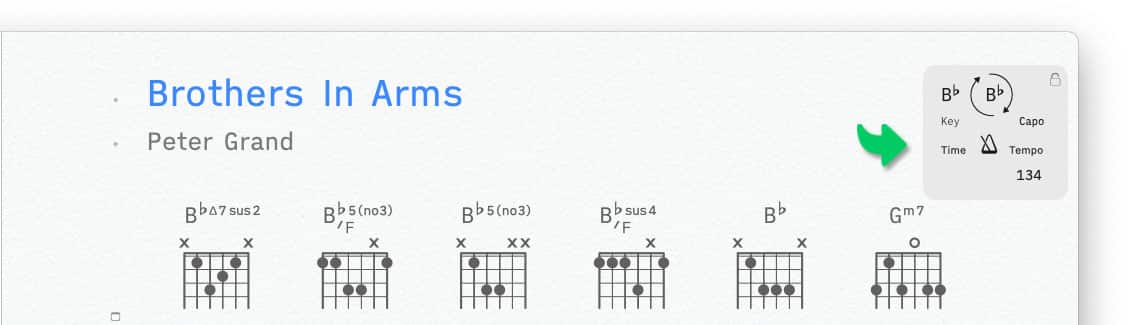
The song info pop-up shows the song’s key, capo position, time signature, tempo as well as the metronome icon. The pop-up window appears when the 'Play Mode' is active and the song is at its beginning (scrolled to the top).
|
|
The song info pop-up disappears when a song begins to scroll. |
The values of the song info pop-up are entered into the song info panel. (See Song Info panel to learn more.)
-
When you have entered the appropriate values you may…
|
|
…start/stop the metronome by tapping/clicking on the metronome icon of the song info pop-up. (see Metronome to learn more.) |

|
|
…transpose the song by tapping/clicking on the round arrows at the top of the song pop-up. (see Transposing Songs to learn more.) |

Note: The song info pop-up remains hidden when a song is being edited and the cursor is visible.
Exit the song editor to make the info pop-up reappear by either:
-
hiding the on-screen iOS keyboard,
-
placing the cursor into a text field of the song info panel,
-
re-selecting the song in the library panel
-
or activating the play mode.
|
|
The Songs app’s settings provide an option to hide the song info pop-up under 'Song Info & MIDI Queue Pop-Up' in the 'Song Editor' section. |