PRACTICING & PERFORMING
Metronome
Songs offers a high precision metronome that can be configured to generate guide clicks and count ins when the play mode is active. The metronome also offers the option to auto-generate MIDI beat clock messages to remote control external MIDI devices such as drum machines.
Tempo
To activate the metronome you have to specify the tempo of the song in the 'Song Info' panel.

|
Enter the song’s tempo in 'BPM' ('beats per minute'). The entered value will determine the speed of the metronome. |
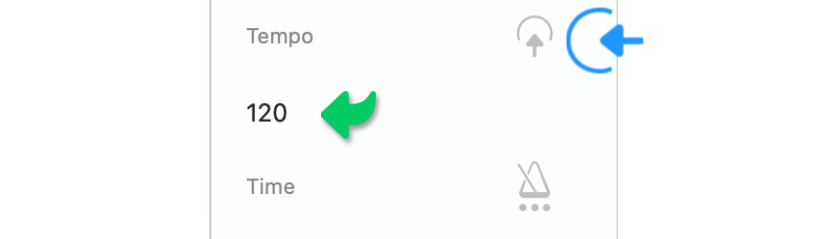
Alternatively tap/click on the tap icon several times in the desired speed to have the Songs app determine and fill in the tempo for you.
Time
|
|
Specify the time signature of the metronome in the song info panel (below 'Time'). The time signature represents the meter of a song in beats per measure. |

The beats per measure value is expressed in two numbers separated by a slash. The first number represents the number of beats in each bar. The second number represents the note value that is equivalent to the beat (e.g. 2/4 means two quarter-note beats per bar).
Subdivision
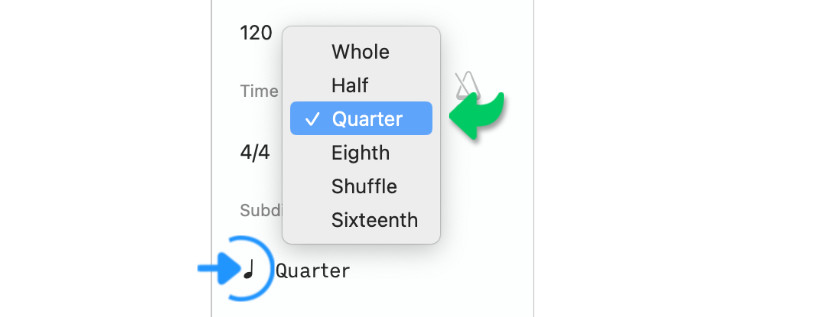
By default the metronome produces a signal at quarter note intervals. You may customize the frequency of the metronome’s signal in the 'subdivision' field.
|
|
Tap/Click on the three dots below 'Subdivision'. A pop-up menu will appear to allow you to select the desired value. |
Start & Stop
Once the tempo has been specified you may start and stop the metronome by either:
|
|
… tapping/clicking on the metronome icon of the 'Song Info' panel and selecting 'Start / Stop' from the pop-up menu. |

|
|
… or scrolling to the beginning of the song and tapping/clicking on the metronome icon of the song’s pop-up window. |
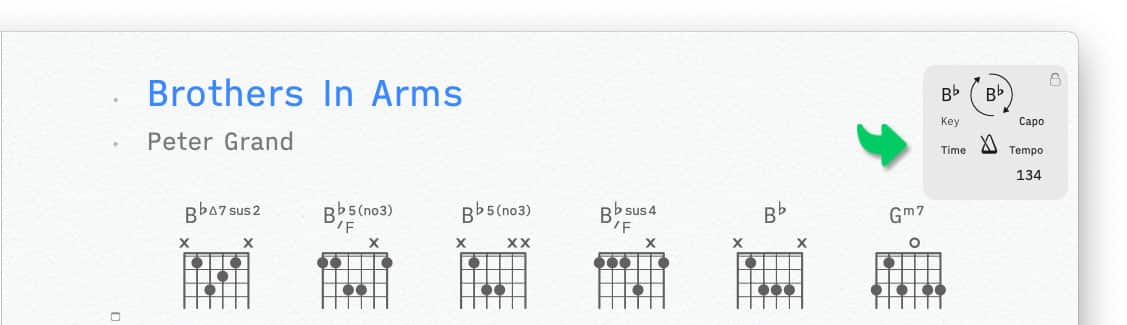
The song’s pop-up window disappears when a song begins to scroll.
-
When the play mode is active the metronome cannot be enabled/disabled via the song’s pop-up window. Use the following options to auto-generate a count in and a guide click when playback begins:
Count In & Guide Click
When the play mode is active the metronome can generate a count in before the playback begins and a guide click during playback.
Both the count in and the guide click are based on the 'BPM' ('beats per minute') that you enter into the 'Tempo' field.
-
For greater accuracy you may enter the 'BPM' in a decimal format (104.2).
|
|
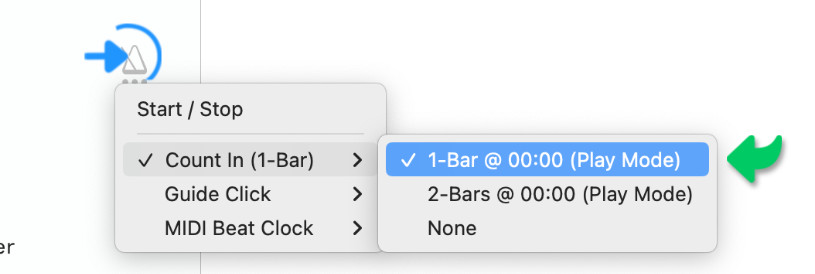
To enable the count in or the guide click tap/click on the metronome icon and make the appropriate selection from the pop-up menu. |
|
|
Then activate the play mode and start the playback. (See Play Mode to learn more.) |
The count in and the guide click are calculated in real time during playback. The metronome determines when to generate the beats based on the specified 'BPM' and the sample frames of the audio file(s).
-
The guide click will not be in sync with the audio material when the multitrack does not have a constant 'BPM' (or when the 'BPM' of the multitrack and the 'Tempo' field do not match).
-
The metronome will automatically adjust its tempo when you use the the varispeed dial to slow down or speed up a song. (See Varispeed to learn more.)
MIDI Beat Clock
The metronome is capable of generating MIDI beat clock signals. This enables you to sync external MIDI devices like drum machines and keyboards with the Songs app’s timeline/playhead position.
The Songs app transmits its playback state and position by sending Start (0xFA), Stop (0xFC), Continue (0xFB) and Song Position Pointer (0xF2) messages. To provide accurate tempo sync the Songs app generates a MIDI clock pulse (consisting of 24 MIDI clock messages per quarter note) when playback is engaged. The MIDI clock pulse is auto-adjusted when you increase or decrease the playback speed via the varispeed dial. (See Varispeed to learn more.)
|
|
Tap/Click on the metronome icon to enable the 'MIDI Beat Clock' option via the pop-up menu. |

|
|
MIDI needs to be enabled in the app settings to generate the MIDI beat clock: Tap/Click on 'Enable MIDI (Settings)' in the MIDI beat clock’s submenu to do so. (This option is only visible when MIDI is disabled). |
Consult the user guide of your MIDI hardware device to learn more about its MIDI beat clock synchronization.
Global Metronome Options
The 'Instruments' section of the Songs app settings offers global metronome options (applicable to all songs):
-
Changing the sound of the metronome.
-
Accenting the 1st beat of the metronome.
-
Showing/Hiding and customizing the beat indicator. (When active the beat indicator appears at the top right corner of the lyrics).
-
Specifying the default pan position of the metronome. (The volume and the pan position of the metronome can be customized on a per song basis via the built-in mixer. See Multitrack Mixer to learn more).