PRACTICING & PERFORMING
Varispeed
The Songs app’s varispeed allows you to speed up or slow down the playback of a song. Varispeed may be used with or without backing tracks.
Speed adjustments can be made in real time without stopping the playback of a song. The Songs app will perform automatic pitch correction of backing tracks and auto-recalibration of all timeline events when varispeed is active.
Access the varispeed dial when the play mode is active. (See Play Mode to learn more.)

|
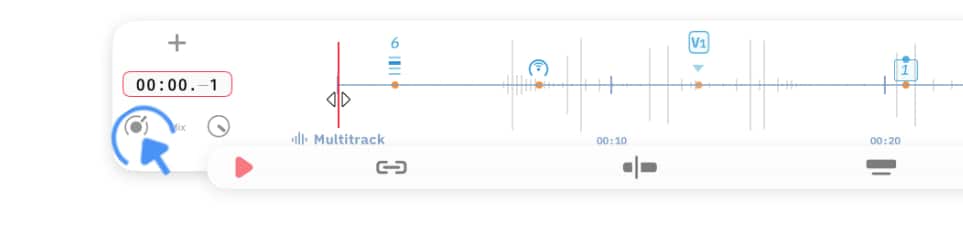
Tap/Click on the timeline icon of the play mode toolbar and then tap/click on the varispeed icon in the left corner of the timeline |

|
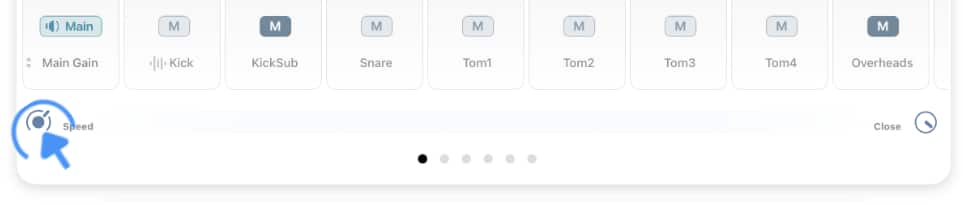
Alternatively you may double tap on the song view to access the varispeed dial via its button in the lower left corner of the mixer. (Or enable the option to show the varispeed dial instead of the mixer when double tapping on the song view in the 'Play Mode' app settings.) |
A dial pops up enabling you to adjust the playback speed:
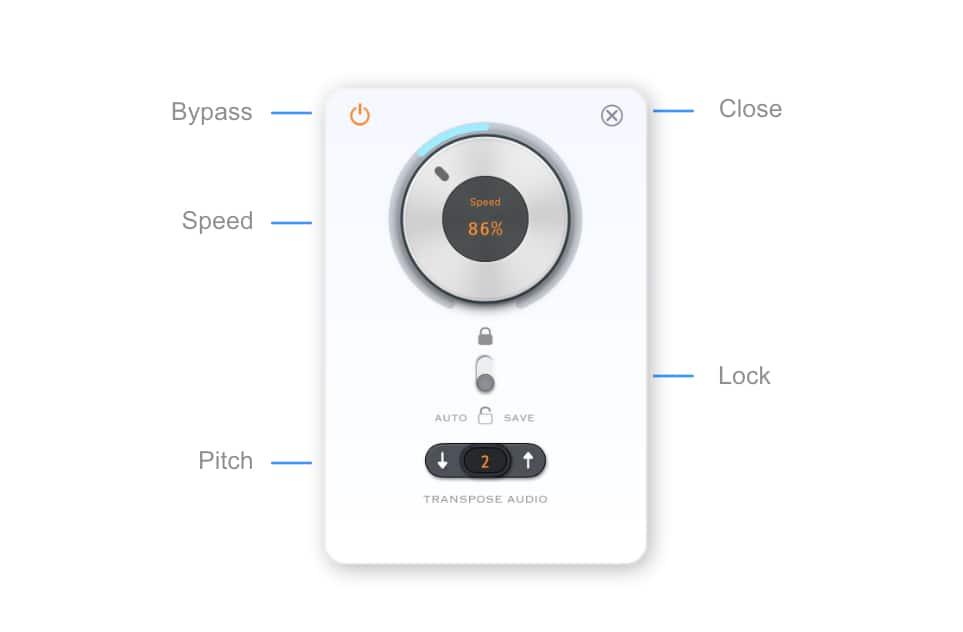
As you move the dial to increase or decrease the playback speed the Songs app will automatically adjust…
-
the vertical scrolling speed of the lyrics,
-
the horizontal scrolling speed of the timeline,
-
the execution of all timeline events,
-
and the playback speed/rate of audio backing tracks (without affecting their pitch).
A separate 'Transpose Audio' button allows you to change the pitch of the audio tracks to match the singer’s vocal range.
|
|
Tap/Click on the up (or down) arrow to increase (or decrease) the pitch of the song’s backing track(s) by half a semitone (half step). |

|
After adjusting the speed prevent accidental changes by activating the lock. |
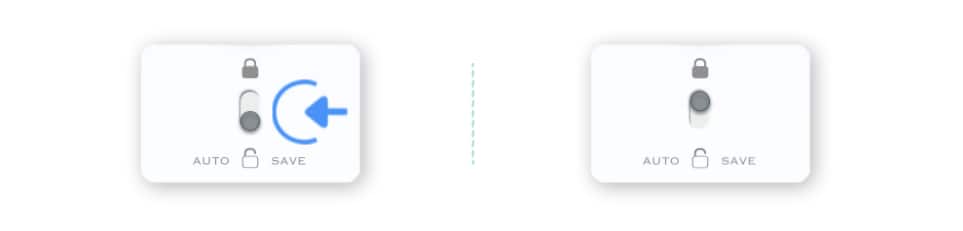
When the lock is engaged any further varispeed adjustments are applied to the song but not saved. This allows you freely adjust the tempo when needed and automatically recall the default tempo of a song when it is re-opened.
|
|
When performing live you may prefer to use screen taps or a Bluetooth controller to incrementally increase/decrease the speed setting of the varispeed dial. |
Go to the app settings of Songs to:
-
select the option to control varispeed via the left/right/upper/lower touch zones ('Play Mode' section),
-
or select the option to control varispeed via the up/down arrow key commands ('Bluetooth & MIDI' section).
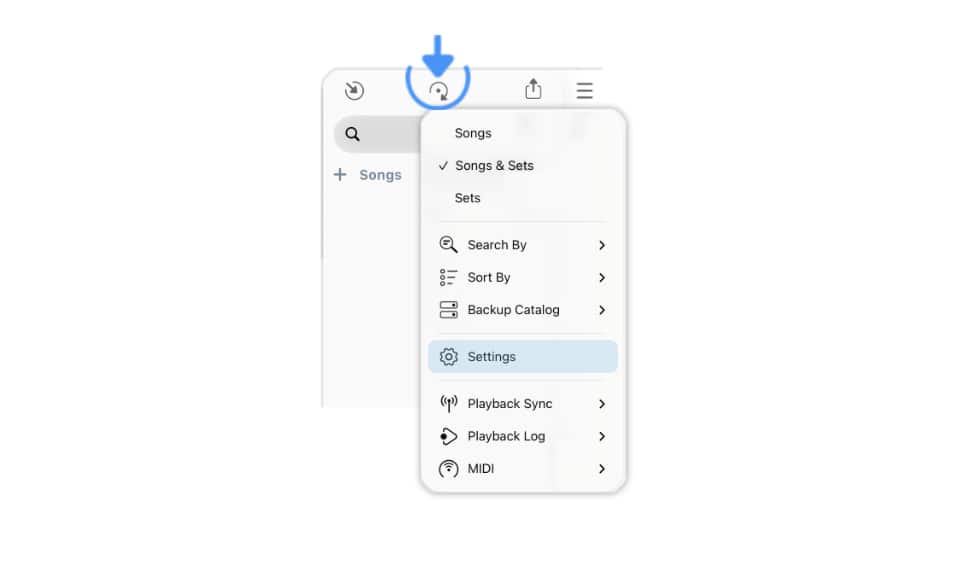
|
|
Tap/Click on the 'x' (top right) to close the varispeed window and exit the play mode to access the app settings via the library’s main menu. |