PRACTICING & PERFORMING
Importing Audio Tracks
You can import audio files into the Songs app to use them as backing tracks.
-
Imported audio backing tracks are downloaded to all your macOS/iOS devices automatically when the option 'Sync Imported Backing Tracks' is enabled in the Songs app’s settings (under 'Devices').
-
Synced audio backing tracks are stored permanently inside the Songs app’s app container for instant playback of backing tracks regardless of internet connectivity.
The following audio file formats can be imported provided they are not protected by DRM (Digital Rights Management):
-
AIFF (.aiff)
-
WAVE (.wav)
-
MP3 (.mp3)
-
MPEG 4 Audio (.m4a)
Audio backing tracks are imported in the Songs app’s 'Song Info' window:

|
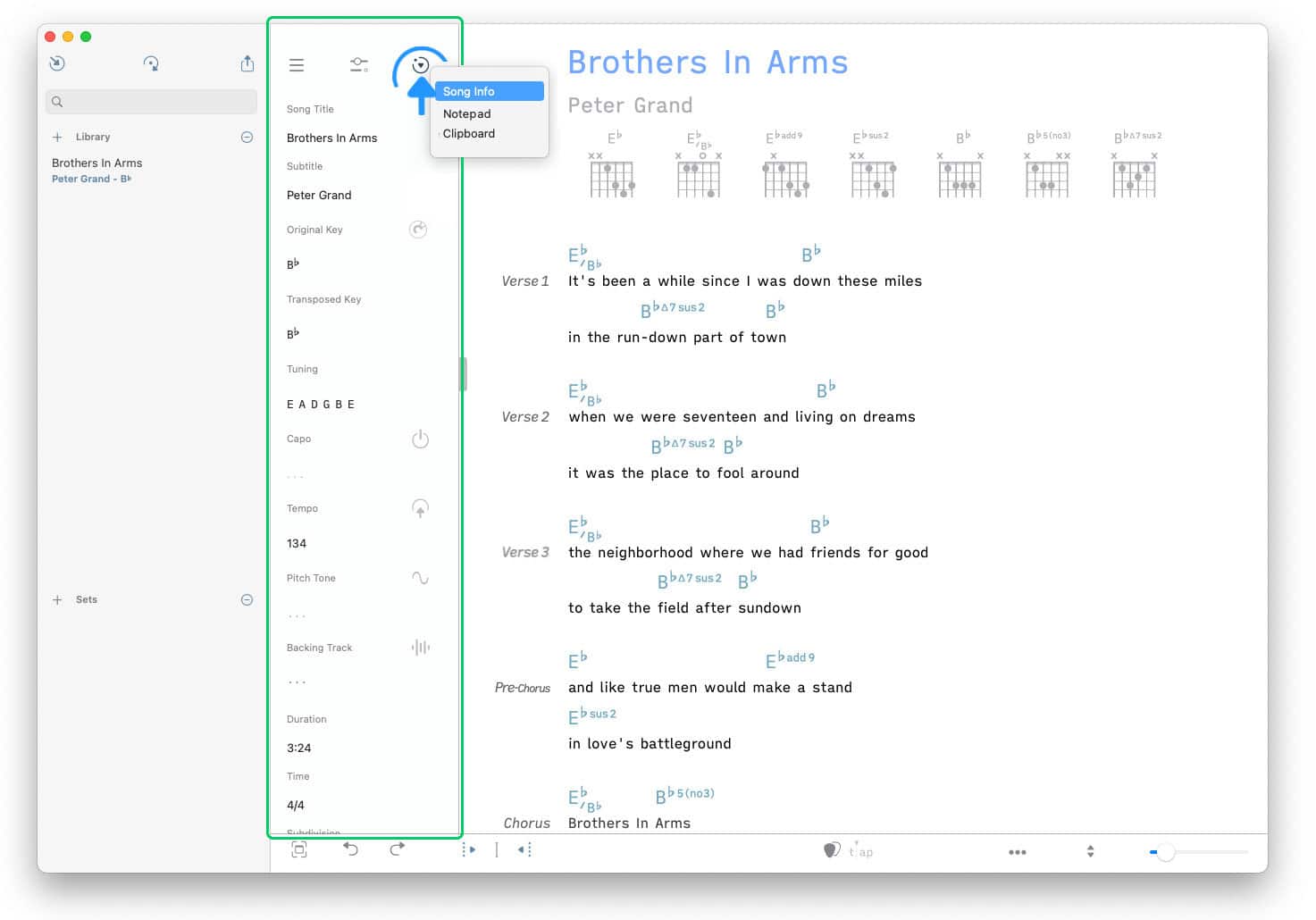
Tap/Click on the icon in the upper right corner of the side panel and select 'Song Info' from the pop-up menu. |
If the side panel is not visible tap/click on the vertical mark at the left side of the screen.
|
|
Go to the 'Backing Track' label and tap/click on the audio wave icon to the right. |

|
|
Select 'Import Audio Track' from the pop-up menu. |
A file browser will appear.
|
|
Tap/Click on the desired file to import it into the Songs app. |

|
See Dropbox & Google Drive to learn how to import audio files from your cloud storage. |
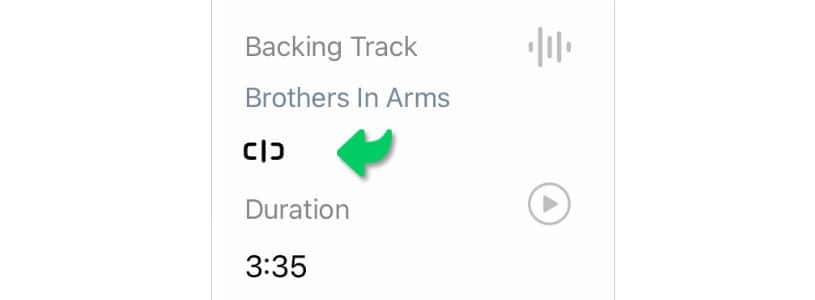
The imported backing track will be linked to the current song in the Songs app as indicated by the chain link icon:

This will enable the automatic playback of the audio file in the Songs app when the lyrics are auto-scrolled. (See Play Mode to learn more.)
|
|
Tap/Click on the chain link icon to mute a backing track when the lyrics are auto-scrolled. The icon will change into an open chain link icon. (Tap/Click on the open chain link icon to unmute the linked backing track.) |
|
|
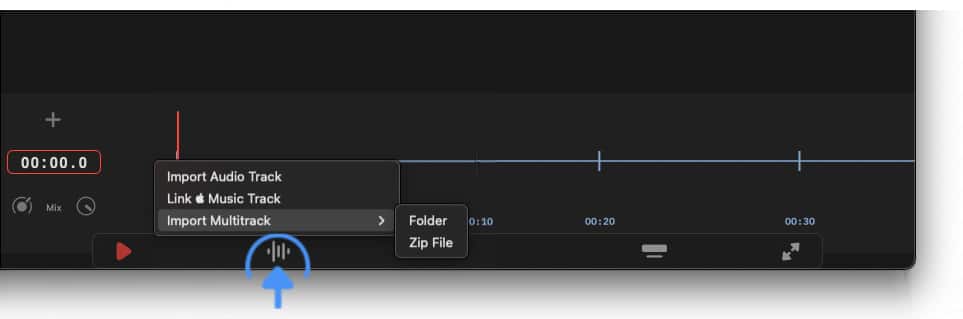
Alternatively you may import a multitrack by tapping/clicking on the waveform icon of the play mode toolbar. (See Play Mode to learn more.) |

|
If a link icon is shown instead of a waveform icon you access the menu by performing a long tap/click on the link icon. |
The Songs app’s 'Documents' Folder
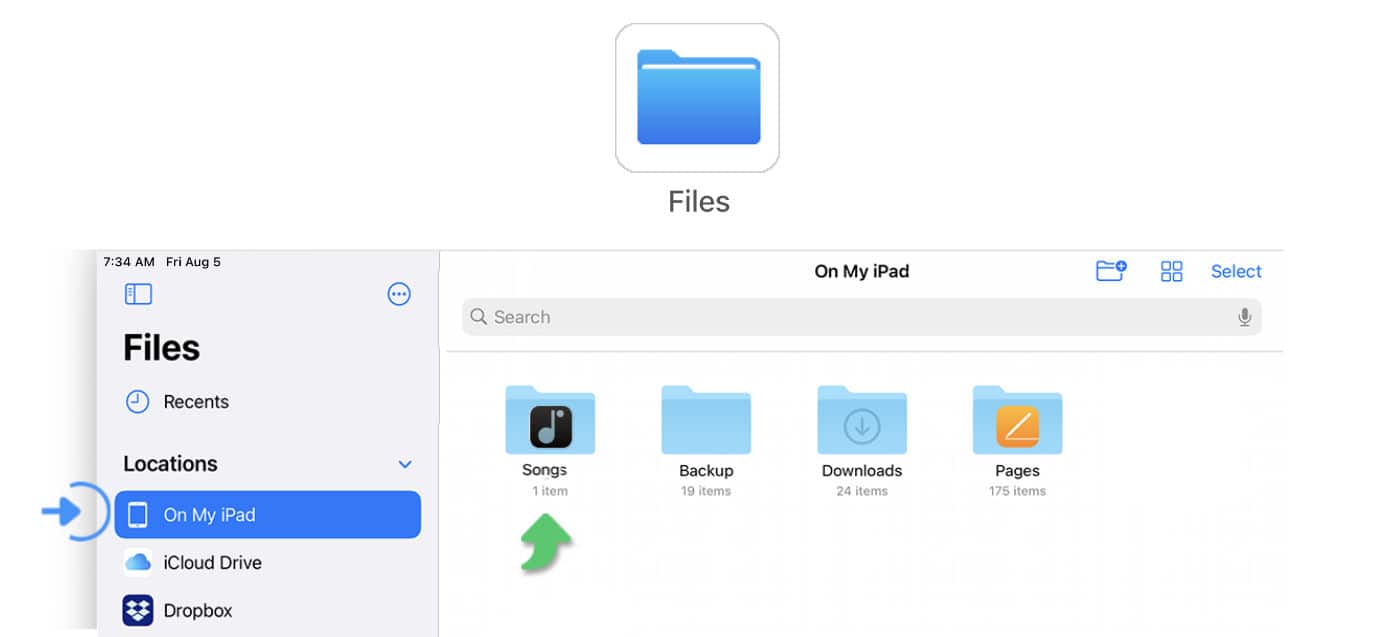
The imported audio files are stored in the Songs app’s 'Documents' folder. When using iOS, the Songs app’s Documents folder can be viewed by launching the 'Files' app (the built-in iOS file browser):
When using macOS, the Songs app’s Documents folder can be viewed in the system’s file browser:

-
Files that reside in the Songs app’s Documents folder should not be renamed or edited via the finder.
-
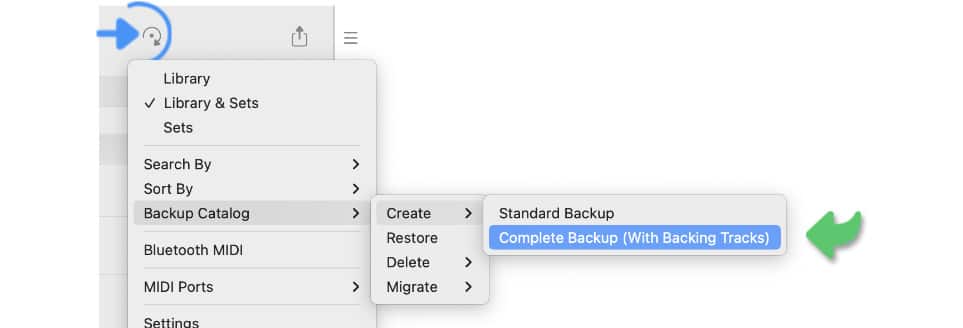
Imported audio files can be included in song catalog backups by selecting 'Complete Backup (With Backing Tracks)' in the 'Backup Catalog' submenu.
Syncing Of Backing Tracks
Imported audio backing tracks are synced in the background via iCloud:
-
An audio file imported on an iOS device is automatically downloaded to your desktop computer(s).
-
An audio file added to a song on your desktop computer is automatically downloaded to a specific iOS device when the song is opened on that iOS device.
|
|
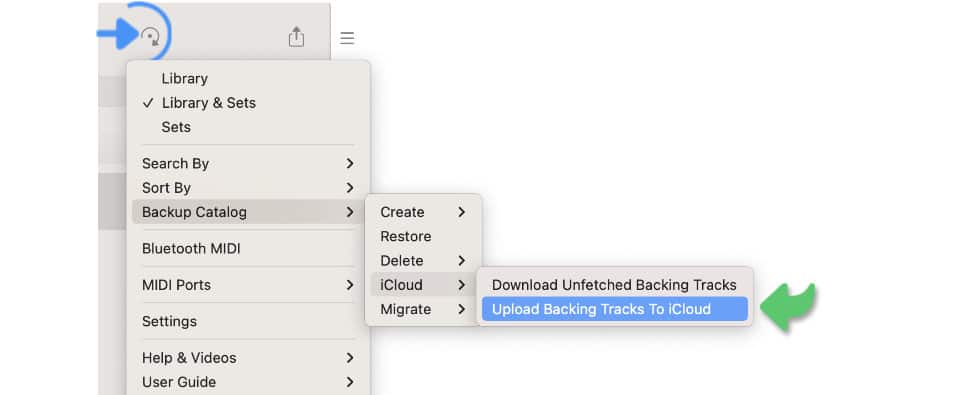
You have the option to download all backing tracks from iCloud that are not yet stored locally on your iOS device via the menu option ‘Download Unfetched Backing Tracks’ in the 'Backup Catalog' submenu. |

|
|
You have the option to upload locally stored backing tracks that you have mistakenly deleted from iCloud via the menu option ‘Upload Backing Tracks To iCloud’ in the 'Backup Catalog' submenu. |