IMPORTING CONTENT
Dropbox & Google Drive
Enabling Dropbox
The Songs app is able to access files on your Dropbox as easily as local files. It only requires a one-time setup procedure:
-
Download the Dropbox app from the App Store.
-
Launch the Dropbox app and sign into your Dropbox account.
-
Launch the 'Files' app (the built-in iOS file browser).
-
Tap on the button with the three dots (top right).
-
Select 'Edit' from the dropdown menu.
-
Enable access to your Dropbox by moving the slider.
-
Tap on 'Done' (top right).
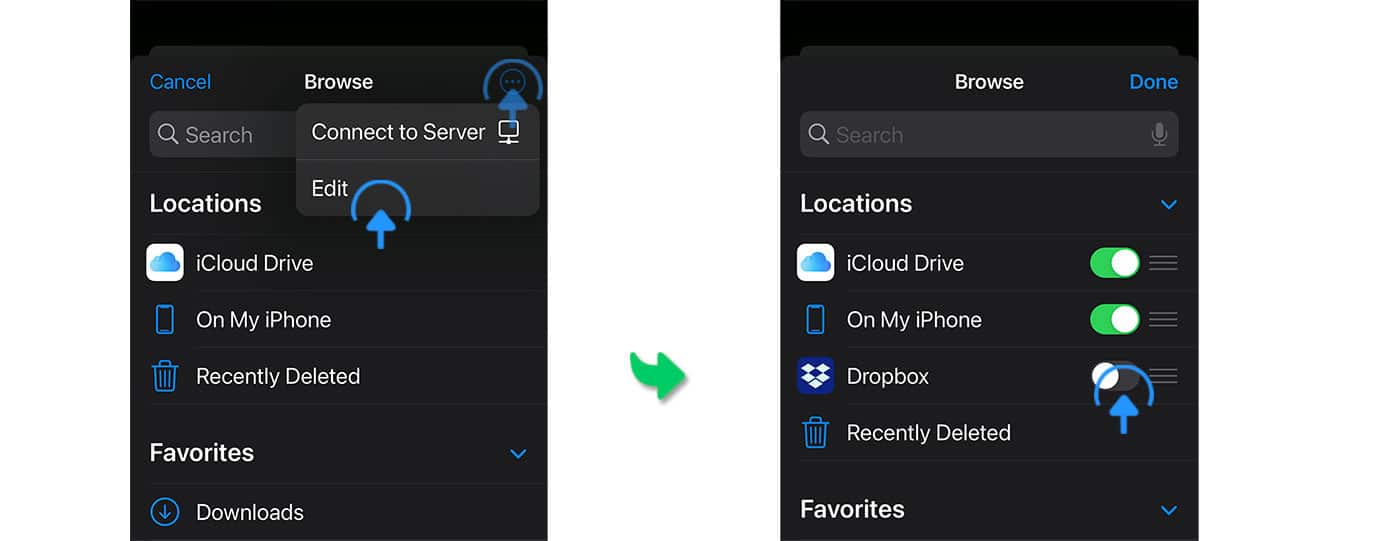
You now have full access to your Dropbox account via the Songs app’s file browser:
-
to import/export content,
-
to import DRM-free audio backing tracks,
-
to create and restore song catalog backups.
Enabling Google Drive
The Songs app is able to access files on your Google Drive as easily as local files. It only requires a one-time setup procedure:
-
Download the Google Drive app from the App Store.
-
Launch the Google Drive app and sign into your Google Drive account.
-
Launch the 'Files' app (the built-in iOS file browser).
-
Tap on the button with the three dots (top right).
-
Select 'Edit' from the dropdown menu.
-
Enable access to your Google Drive by moving the slider.
-
Tap on 'Done' (top right).
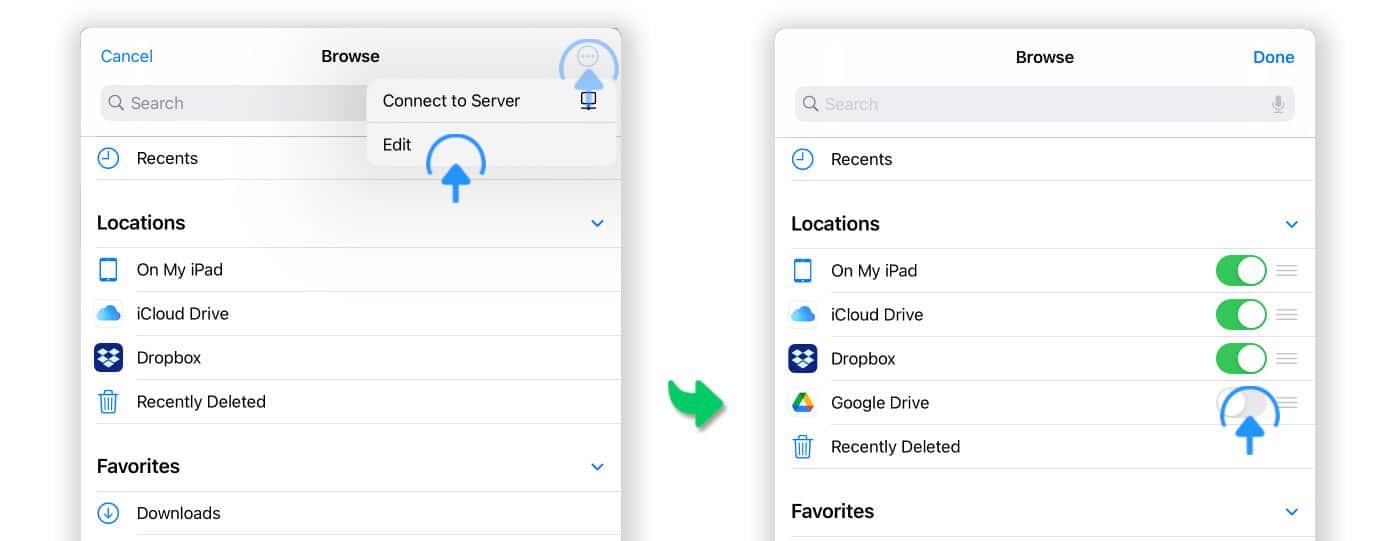
You now have full access to your Google Drive account via the Songs app’s file browser:
-
to import/export content,
-
to import DRM-free audio backing tracks,
-
to create and restore song catalog backups.