PRACTICING & PERFORMING
Playback Via Apple’s Music App
The Songs app is able to control the playback of songs you have added to Apple’s music library. The music library is part of the macOS and iOS operating systems. You access and maintain it with Apple’s Music app.
Store individual backing tracks in Apple’s Music app when:
-
…you subscribe to Apple Music and wish to play back songs downloaded from the Apple Music / iTunes Store that are protected by DRM (Digital Rights Management),
-
…you have imported a catalog from an app that plays back your own backing tracks via Apple’s Music / iTunes app.

|
In all other cases import backing tracks directly into the Songs app. Imported backing tracks are played back via the Songs app’s built-in audio player and are synced in the background via iCloud. (See Importing Audio Tracks to learn more.) |
Playback Of Externally Stored Audio Files
The Songs app is able to play back audio files stored in Apple’s Music app when:
-
…you have added the songs to Apple’s music library,
-
…you have downloaded the songs to your device from the Apple Music / iTunes Store (or dragged the audio files into Apple’s Music app via the macOS finder).
|
|
The Songs app controls the audio player of Apple’s Music app remotely to play back downloaded music protected by DRM (Digital Rights Management). All other audio is played back with the Songs app’s built-in audio player. |

|
Using Apple’s Music app on macOS may cause your computer to temporarily lock up when a downloaded music track cannot be selected or authorized for playback. (This does not apply to audio files you have added to Apple’s Music app via the macOS finder.) |
When performing live only play back backing tracks imported into the Songs app (or audio files added to Apple’s Music app via the macOS finder).
-
The Songs app’s settings offer the option to "Disable Audio Playback Via Apple’s Music App". Activate this option to avoid playing back music downloaded from the Apple Music / iTunes Store.
Creating Links
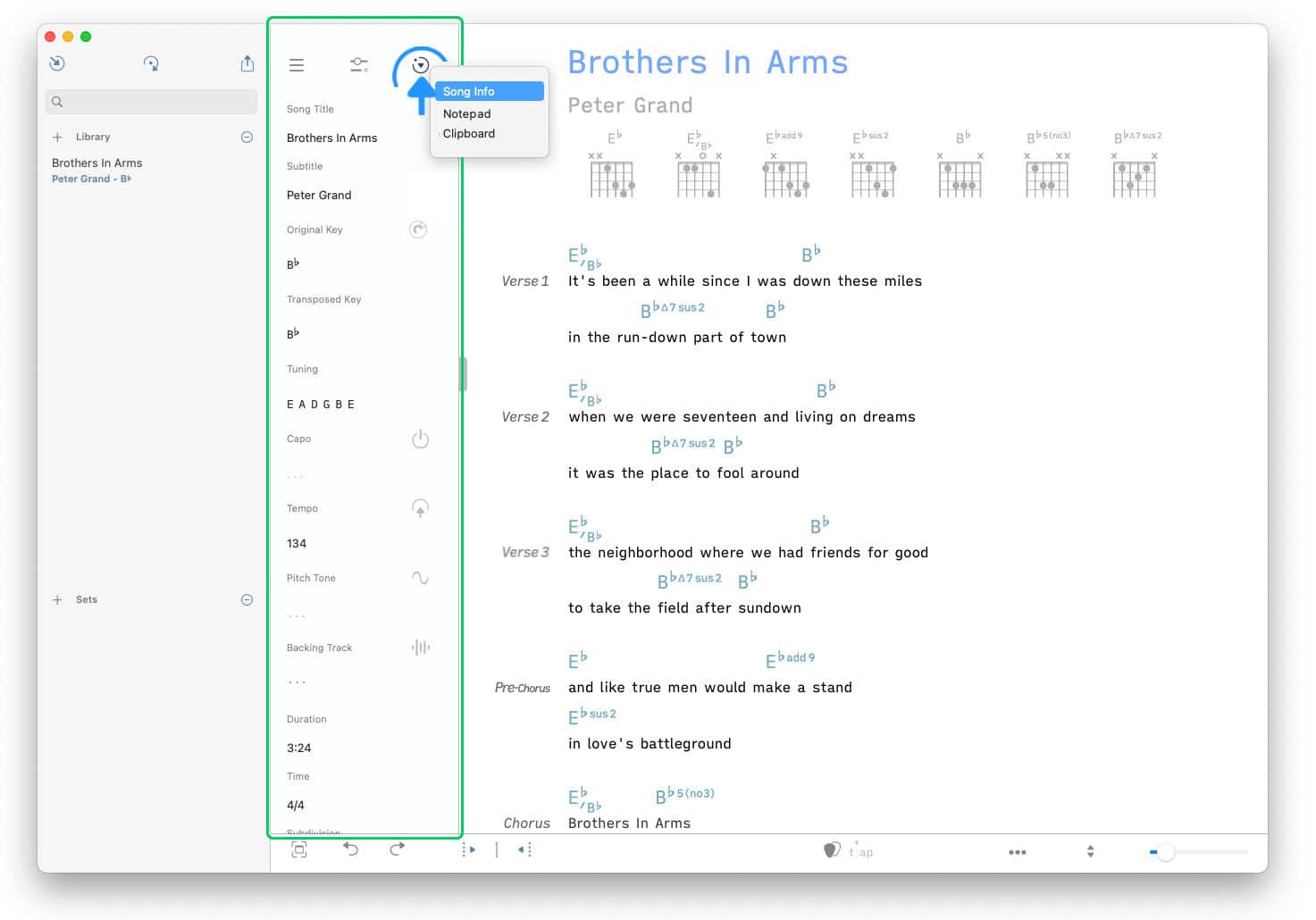
To allow the Songs app to control a song in your music library you must create a link to it. Links are added in the Songs app’s 'Song Info' window:

|
Tap/Click on the icon in the upper right corner of the side panel and select 'Song Info' from the pop-up menu. |
If the side panel is not visible tap/click on the vertical mark at the left side of the screen.
|
|
Go to the 'Backing Track' label and tap/click on the audio wave icon to the right. |

|
|
Select 'Link Apple Music Track' from the pop-up menu. |
A window will open with the content of your music library.
|
|
Choose the 'Songs' section and select a backing track by tapping/clicking on the desired song or audio track. |
If the 'Songs' section is empty see 'Downloading Songs' and 'Adding Audio Tracks (macOS Finder)' below.
The selected backing track will be linked to the current song in the Songs app as indicated by the chain link icon:
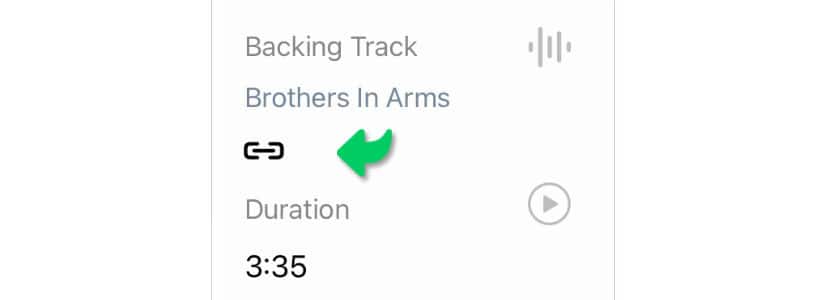
This will enable the automatic playback of the audio file in the Songs app when the lyrics are auto-scrolled. (See Play Mode to learn more.)
Downloading Songs
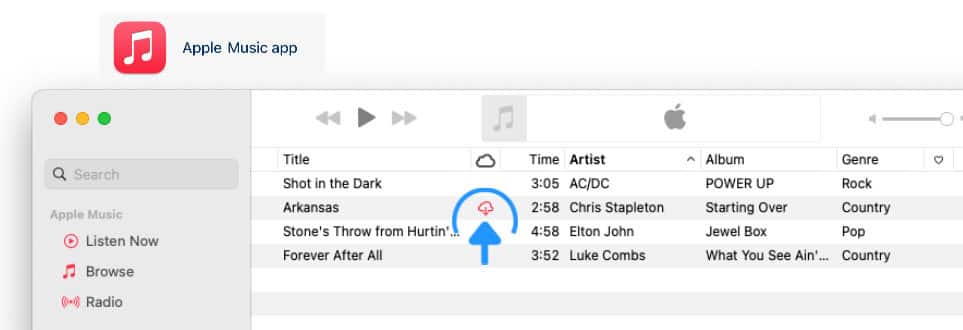
Songs that are streamed from the cloud have to be added to the music library of your device and downloaded to your device before they can be linked to the Songs app.
|
|
Tap/Click on the downward pointing arrow in Apple’s Music app to download a song to your music library. |
Alternatively you can select 'automatic downloads' in the settings/preferences of Apple’s Music app.
Broken Links
A broken chain link icon is shown in the Songs app’s 'Song Info' panel when a linked backing track cannot be located:

To fix a broken link launch Apple’s Music app to verify if:
…the originally linked audio track has been removed from the music library of the device: add the audio track again.
…a cricled red arrow is shown next to the audio track indicating the song has not been downloaded to the device: download the audio track to the device.
…you have not signed in with your Apple ID, enabled iCloud or authorized the computer device to access the songs of your music library: see 'iCloud Syncing' at the bottom of this chapter.
|
|
To optimize storage space iOS/macOS may remove downloaded music files maintained by Apple’s Music app without notification. Disable 'Optimize Storage' in the settings of Apple’s Music app to avoid the removal of downloaded music files. |
Muting Backing Tracks
|
|
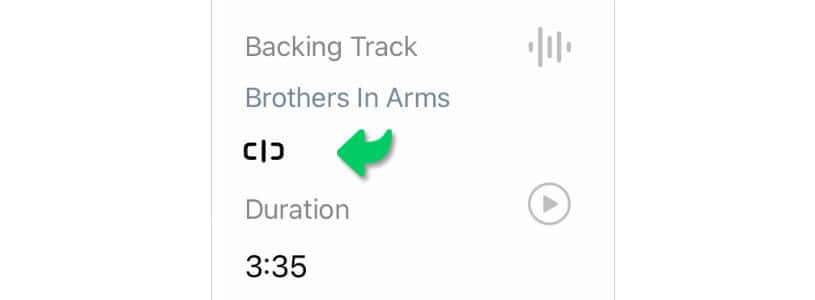
Tap/Click on the chain link icon to mute a backing track when the lyrics are auto-scrolled. The icon will change into an open chain link icon. |
|
|
Tap/Click on the open chain link icon to unmute the linked backing track. |
Adding Audio Tracks (macOS Finder)
|
|
Add your own audio tracks to your music library by dragging them into the Apple Music app. |

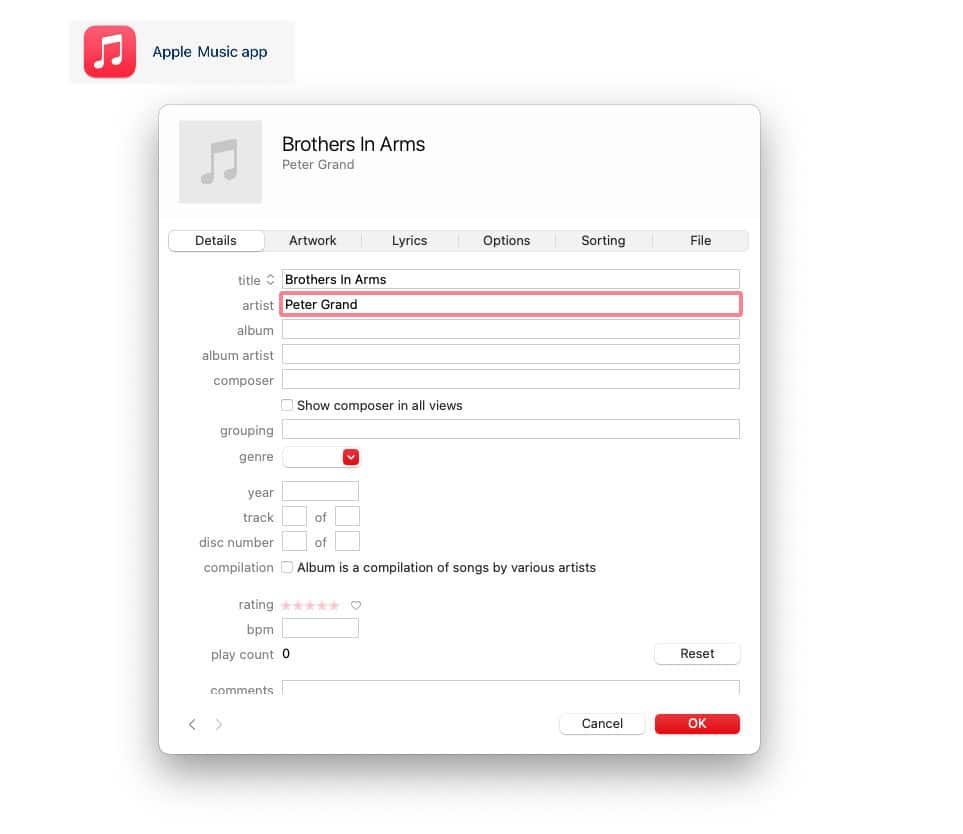
The Apple Music app allows you to add metadata to the songs in your music library. Basic metadata such as artist and title are automatically transferred to the Songs app when you create a link to the song.
When you sync your music library via iCloud the metadata are used by the Songs app to locate the linked backing tracks on each device. The following metadata values are examined:
-
title
-
artist
-
album
-
album artist
Add at least a title and an artist to ensure the correct audio file is identified.
|
|
Add metadata to your own audio tracks by selecting them individually in the Apple Music app and choosing 'Info' in the 'Song' menu. |
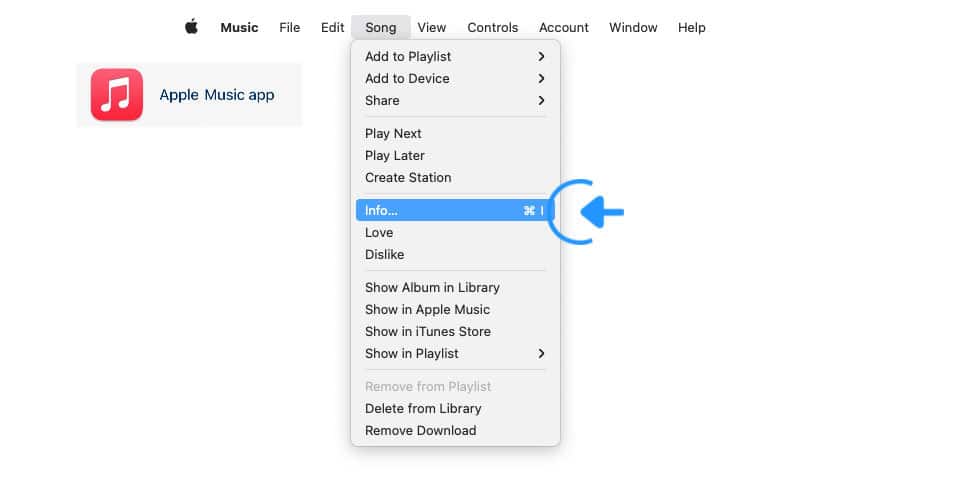
|
|
Enter the metadata values before linking an audio track to the Songs app. Changing them afterwards will break the link. |
iCloud Syncing
Linked backing tracks are playable on all your iCloud-synced computer devices with a one-time setup. Your music library and the Songs app’s backing track links are synced, provided:
|
|
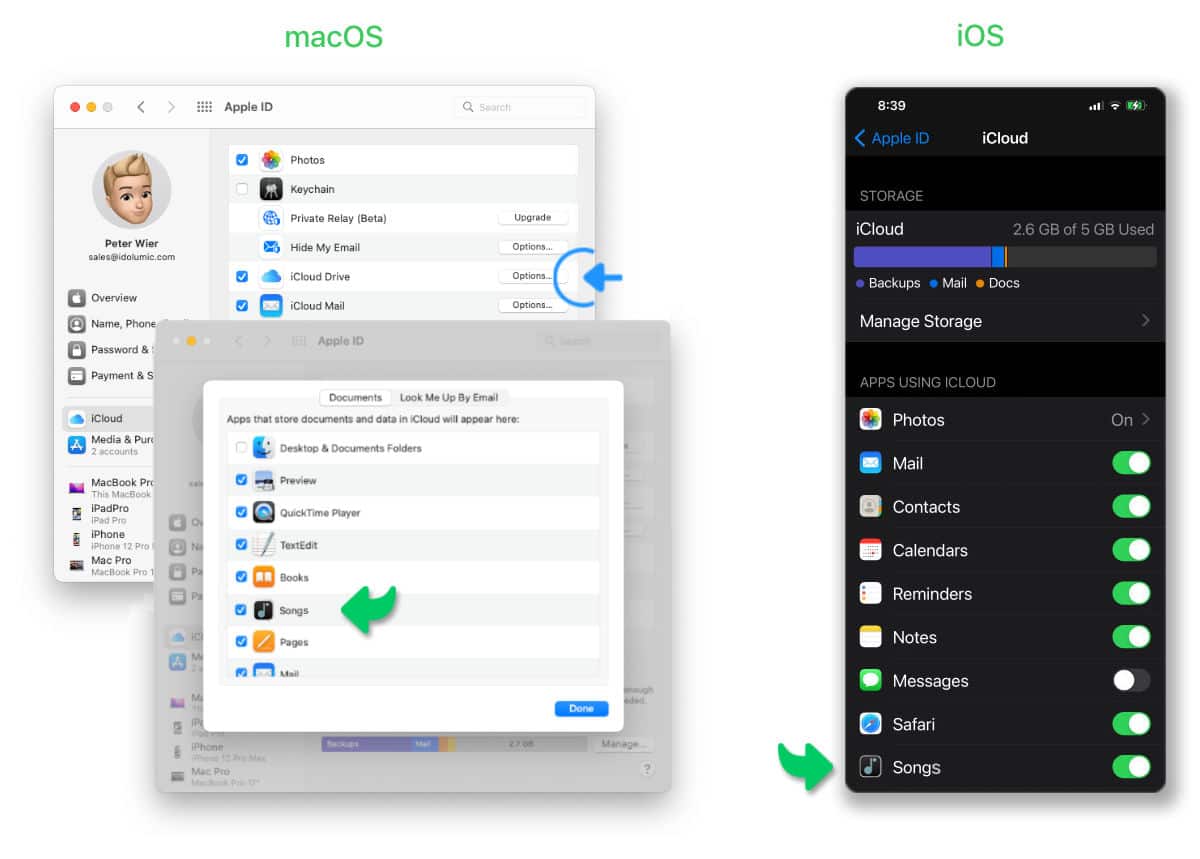
…you are signed in with the same Apple ID on each device and the Songs app is enabled to use iCloud. |
Go to
-
macOS: System Preferences > Apple ID > iCloud (Documents)
-
iOS: (System) Settings > Apple ID > iCloud (Apps using iCloud)
|
|
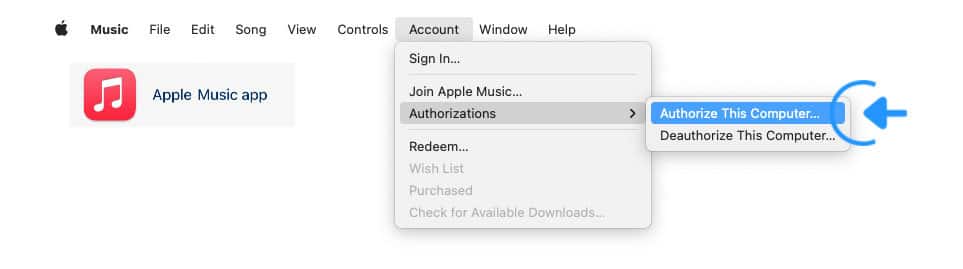
…you have authorized/enabled each device to access the media content of your music library. |
Go to
-
macOS: (Apple Music app) Account > Authorizations
-
iOS: (System) Settings > Music (Home Sharing)
|
|
…you are signed into your Apple Music account on each device. |
Go to
-
macOS: (Apple Music app) Account > Sign In
-
iOS: (System) Settings > Media & Purchases (Account Settings) > Apple ID

|
|
…you have selected the option to automatically download and sync your songs to each device’s music library in Apple’s Music app. |
Go to
-
macOS: (Apple Music app) Preferences > General
-
iOS: (System) Settings > Music
