IMPORTING CONTENT
Stage Traxx 3
This chapter explains how to export your content from the Stage Traxx 3 app and import it into the Songs app. The Songs app is not affiliated with or endorsed by Stage Traxx 3. Any use of third party trademarks, logos, brand names and products is only referential.
The Songs app can read Stage Traxx 3 files. The supported file formats include the Stage Traxx 3 Backup file (.st3) and Stage Traxx 3 native files (.stsa) consisting of a single song with backing tracks in either text-based format or PDF format. (See 'Avoid exporting files in the PDF format' below.)
The Songs app automatically adds chord diagrams to imported songs that include chords. You may disable this feature (or specify the tuning/string instrument to be used to generate the diagrams) in the Songs app’s settings/preferences.


|
To import songs tap/click on the inward pointing arrow in the upper left corner of the Songs app’s main window. |
If the library panel is not visible tap/click on the three lines in the upper left corner of the screen.

|
|
Choose 'Import File' to either… |
|
|
select a 'Stage Traxx 3 Backup' file (.st3) and import the entire song catalog including all songs, sets, imported audio tracks, MIDI events, mixer settings and time tags, |
|
|
or select and add a single song saved by Stage Traxx 3 in its native file format (.stsa). |
See Text-Based Files and PDF Files to learn how added songs are transformed.
Importing 'Stage Traxx 3 Backup' Files
A 'Stage Traxx 3 Backup' file is the most convenient way to import your entire song catalog into the Songs app (including songs, sets, imported audio tracks, MIDI events, mixer settings and time tags).
This requires the following steps:
Generating a 'Stage Straxx 3 Backup' file with Stage Traxx 3:
-
Tap/Click on the 'Settings' button icon in the lower right corner of Stage Traxx 3.
-
Scroll down and select 'Ceate Full Backup' from the list (under 'Backup').
-
Specify the file name of the backup.
-
Save the 'Stage Straxx 3 Backup' file in a directory of your choice.
Importing the 'Stage Straxx 3 Backup' file into the Songs app:
|
|
Choose 'Import File' in the Songs app’s import menu and select the 'Stage Straxx 3 Backup' file. |
Audio Backing Tracks
All imported audio backing tracks included in the backup file are imported into the Songs app. Their volume and EQ settings are transferred to the Songs app’s built-in mixer. Stage Traxx 3 is capable of playing back a maximum of 8 stereo backing tracks that have the same sample rate (either 44.1kHz or 48kHz). The Songs app is capable of playing back up to 50 stereo backing tracks at any sample rate and bit rate.
Imported audio backing tracks are downloaded to all your macOS/iOS devices automatically when the option 'Sync Imported Backing Tracks' is enabled in the Songs app’s settings (under 'Devices'). (See Importing Audio Tracks to learn more.)

|
Synced audio backing tracks are stored permanently inside the Songs app’s app container for instant playback of backing tracks regardless of internet connectivity. |
The Songs app sends the stereo signal of its mixer to the audio output specified in the sound settings of your operating system. Sending a specific track to a separate additional output is not supported.
Stage Traxx 3 'Keywords'
Keywords added to songs in Stage Traxx 3 can be viewed with the help of the Songs app’s library filter:
|
|
Tap/Click on the filter icon in the right corner of the search field and make a selection in the 'Keywords' submenu. |

See Library Filter to learn more.
MIDI & Time Tags
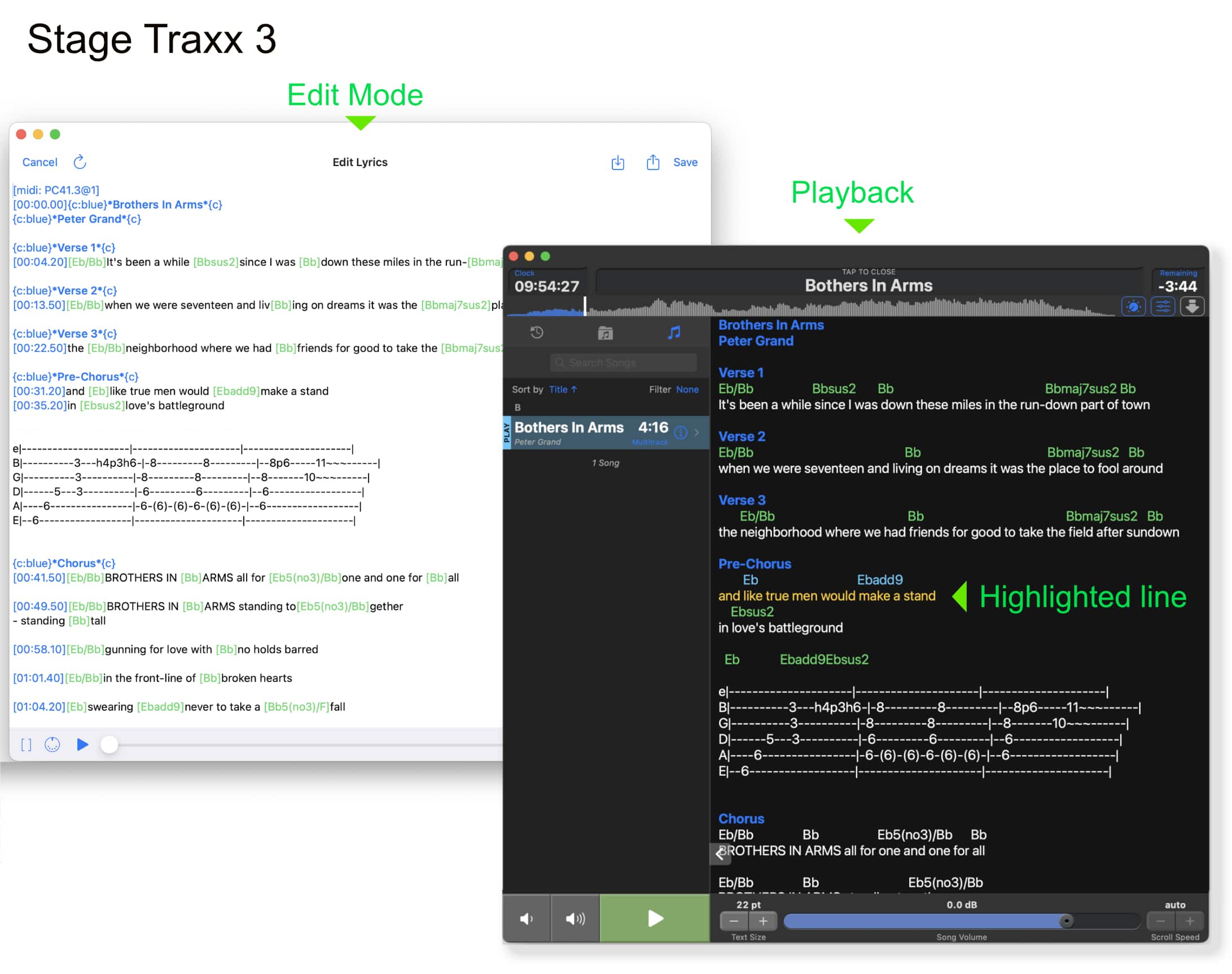
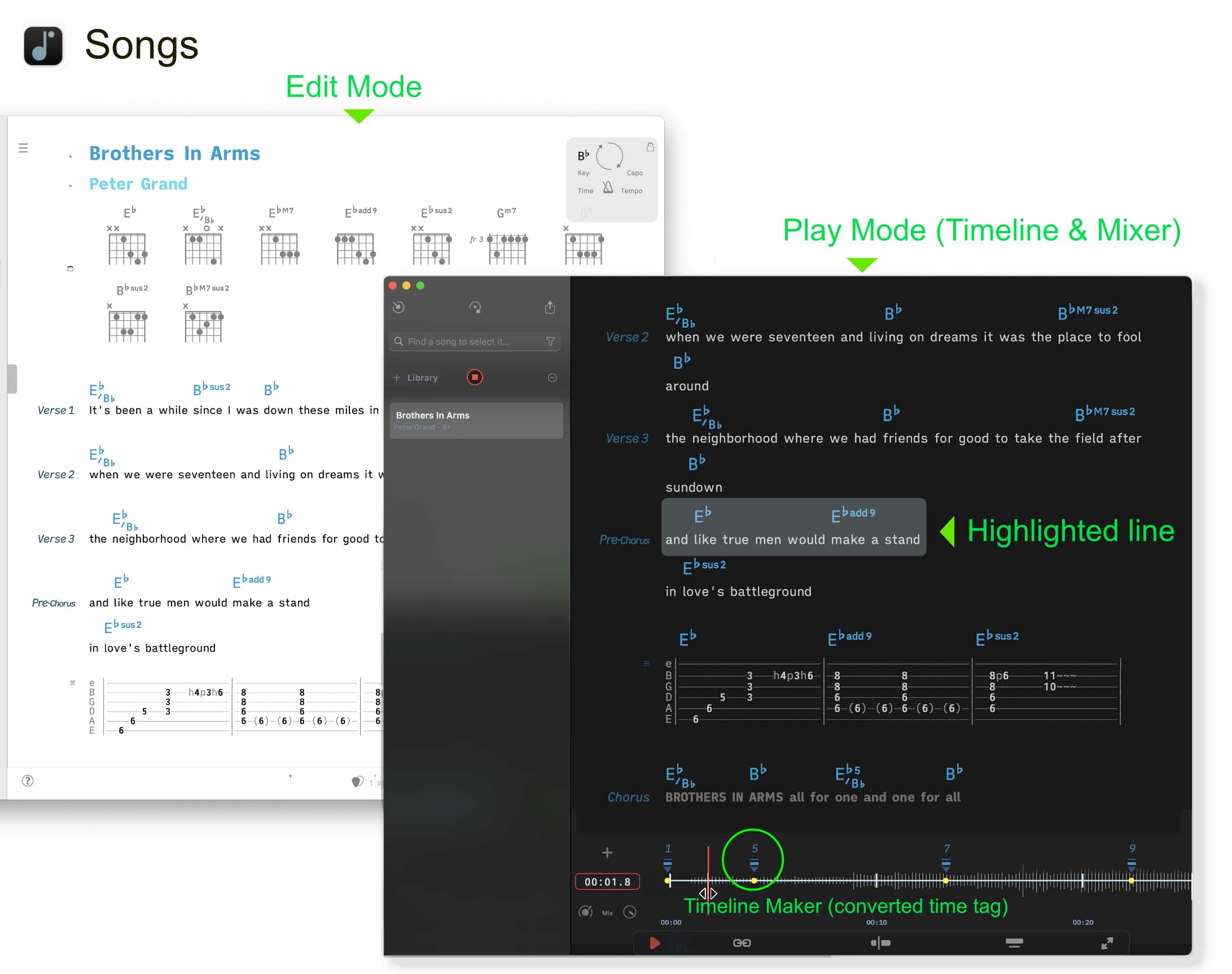
Stage Traxx 3 uses markup language that is added to the lyrics of a song to highlight specific lines and execute MIDI commands during playback. When importing your lyrics the Songs app automatically…
-
removes the time tags and generates the appropriate timeline markers to highlight the same lines during playback.
-
removes the MIDI commands and generates the appropriate timeline markers to execute the same MIDI events during playback.
|
|
The Songs app’s timeline markers can be easily repositioned via drag-and-drop and offer more capabilities than a traditional markup language can provide. (See Timeline to learn more.) |
|
|
The settings of the Songs app’s theme panel determine how your imported Stage Traxx 3 catalog is displayed. (See Themes to learn more.) |
Importing Individual Songs
If you do not wish to import your entire song catalog you may also import a single song saved in the native Stage Traxx 3 format (.stsa).
This requires the following steps:
Exporting a song from Stage Traxx 3:
-
Tap/Click on the 'Edit' button in the upper right corner of Stage Traxx 3.
-
Add a checkmark next to the desired song. Do not select more than one song if you wish to import its backing tracks into the Songs app. (Importing the backing tracks of multiple songs at once is only possible with a Stage Traxx 3 Backup file.)
-
Tap/Click on the 'Share' icon near the bottom right corner.
-
Save the Stage Traxx 3 file (.stsa) in a directory of your choice (e.g. iCloud Drive).
Importing a single song into the Songs app:
|
|
Choose 'Import File' in the Songs app’s import menu and select the exported Stage Traxx 3 file. |
See Text-Based Files and PDF Files to learn how added songs are transformed.
Avoid exporting files in the PDF format:
Text-based PDFs have to be transformed into the native Songs file format to:
-
edit the lyrics or the chords in the song editor
-
use custom chord diagrams
-
transpose songs
-
take advantage of themes.
Only import songs into the Songs app in the PDF format if you wish to keep (or add to) your PDF annotations.
* The Songs app is not affiliated with or endorsed by OnSong, Stage Traxx 3, Songsheet Pro, SongbookPro or Ultimate Guitar. Any use of third party trademarks, logos, brand names and products is only referential.