EDITING SONGS
Themes
The Songs app offers four customizable themes to format the lyrics. Themes determine the color, size and font style of song sections that have been assigned 'Section Labels'.
Themes are not linked to a specific song; their formatting is applied to your entire song catalog. All theme settings are synchronized via iCloud. This provides a consistent appearance, which can be changed for live performances, band practice or studio work.
-
Use 'Print Snapshots' in addition to themes to pre-determine the layout of individual songs.
-
Themes cannot be applied to PDF documents unless they are transformed into native Songs documents. (See import PDF Files to learn more.)

|
The themes are selectable in the side panel of the lyrics editor. |
If the side panel is not visible tap/click on the vertical mark at the left side of the screen.
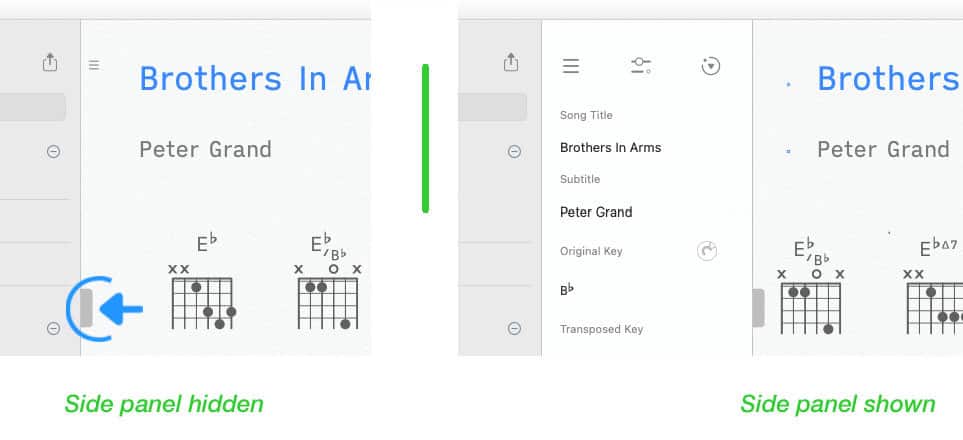

|
Tap/Click on the icon in the upper middle of the side panel to show or hide the 'Theme' settings. |

Theme Selection
|
|
Tap/Click on a number at the top of the theme panel to choose a theme and customize it to your liking. |

Your customizations are applied to your entire song catalog and are automatically saved.
The following options are availlable:
Text Font
The Songs app comes pre-installed with a default font that offers two typefaces ('Sans Serif' & 'Serif'). The default font is used when the Focus Mode is active and when a custom font from the iOS/macOS font library has not been specified.
|
|
If you do not wish to use the default font select 'Custom' under 'Text Font'. |

Custom Font
|
|
Select a font by tapping/clicking on the downward pointing arrow: |

A pop-up window will open:
|
|
Select a font from the operating system’s font library. |

If the selected custom font does not offer a bold version a red 'x Bold' warning appears. The 'Bold' formatting options of the theme will not be applied.


|
A macOS font may not be availlable on iOS (and vice versa). The Songs app will select an alternative custom font when syncing your song catalog. (Consult Apple’s online resources to learn how to install additional fonts to macOS and iOS.) |
Custom Font Size
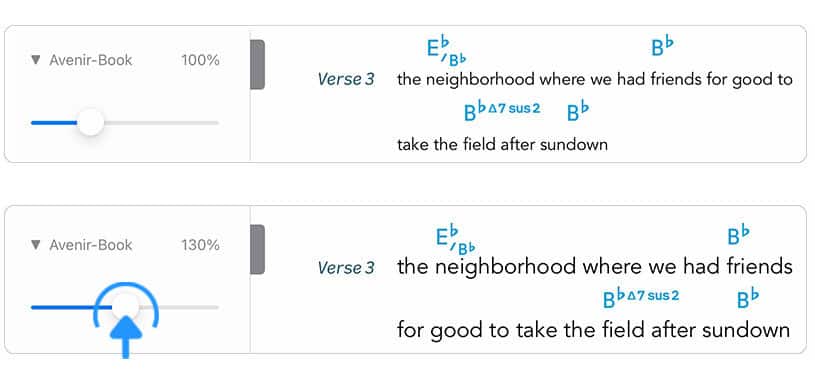
Custom fonts differ in height and width:
|
|
To increase/decrease the size of a custom font move the slider in the 'Text Font' section. (The size of the chord symbols remains unchanged.) |
Default Font
|
|
Use 'Sans Serif' or 'Serif' as the typeface/style of the default font. |

-
The Songs app’s 'Sans Serif' typeface offers a modern look with minimal width variations to achieve maximum readability. Its 'Bold' font style is particularly useful in low light conditions.
-
The Songs app’s 'Serif' typeface offers a traditional look reminiscent of a 19th century hymn book.
|
|
Note: The song’s section labels are always presented in the default font (even when a custom font is used for the lyrics). |
Chord Symbols
The Songs app auto-formats all recognized chord symbols and displays them in their most commonly used format. You may choose between 'Jazz' notation or 'Pop/Rock' notation.
|
|
Tap/Click on either 'Jazz' or 'Pop/Rock' to apply the desired format to all chord symbols of your song catalog. |

Tap/Click on the dot to the right of 'Chord Symbols' to assign a specific color to the chord symbols. (When dark mode is active an alternative color may be specified and saved.)
Line Spacing
|
|
Move the slider to increase or decrease the space between the lines of the lyrics. |

The vertical spacing between the lyrics and the chord symbols is automatically maintained.
Chord Chart Size
|
|
Move the slider to increase or decrease the size of all chord diagrams of the chord chart. (See Chord Diagrams to learn more.) |

The chord chart size may be independently adjusted in the print preview when printing a song.
The 'Song Editor' section of the app settings offers a global option to sort the chord diagrams by root note or by the chord appearance within songs.
|
|
Tap on the arrow to the left of 'Chord Chart' if you wish to customize the sorting order of chord diagrams on a per song basis. |

Diagram Format
|
|
Select 'Keyboard' to add auto-generated piano diagrams to your song. Select 'Fretboard' to add auto-generated chord diagrams of string instruments. |

Tap/Click on the dot to the right of 'Diagram Format' to assign a specific color to the diagrams.
-
When dark mode is active an alternative color may be specified and saved.
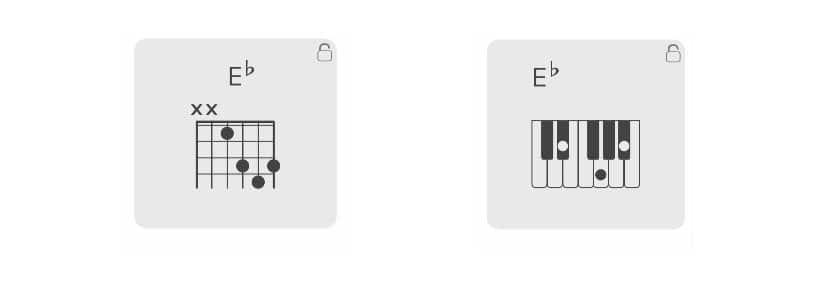
|
|
Tap on the arrow to the left of 'Diagram Format' to customize the chord diagram format of specific songs independently of the theme settings. |

Auto-generated 'Fretboard' and 'Keyboard' chord diagrams are customizable (see Chord Diagrams to learn more).
Section Labels
The left margin of the lyrics is automatically adjusted whenever section labels have been added. To make the margin as small as possible you have the option to format the labels as icons. (See Section Labels to learn more.)
|
|
Set the 'Section Labels' selector to 'Icons' when using the Songs app on smaller screens. |

Tap/Click on the dot to the right of 'Section Labels' to assign a specific color to the labels.
-
When dark mode is active an alternative color may be specified and saved.
Title & Subtitle Style
Identify a line as a (sub)title by adding the appropriate section label. (See Section Labels to learn more.)
|
|
Set the 'Regular'/'Bold' selector to specify the font style of the (sub)title. |
Use the slider underneath to adjust the size of the (sub)title.
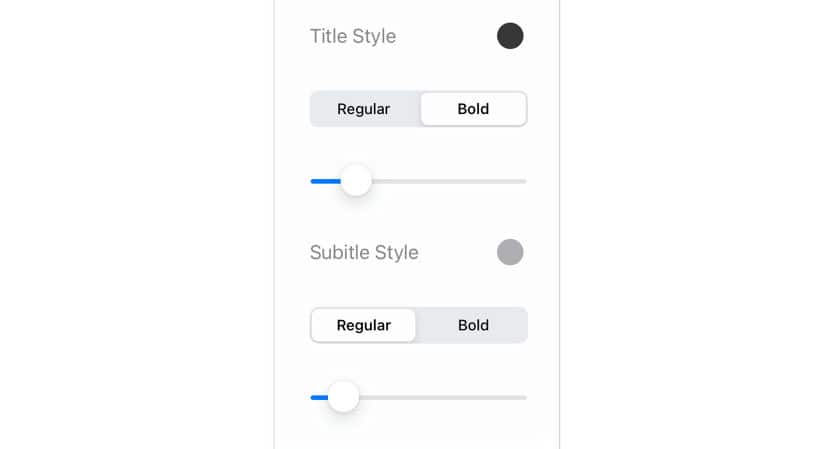
Tap/Click on the dot to the right of 'Title Style' or 'Subtitle Style' to assign a specific color to the (sub)title.
-
When dark mode is active an alternative color may be specified and saved.
Chorus Style
Identify a line/paragraph as a chorus by adding the appropriate section label. (See Section Labels to learn more.)
|
|
Set the 'Regular'/'Bold' selector to specify the font style of all choruses of the song. |
|
|
The 'Regular'/'Bold' selector has no affect when the 'Font Style' of the entire song has already been specified as 'Bold'. |

Tap/Click on the dot to the right of 'Chorus Style' to assign a specific color to the chorus.
-
When dark mode is active an alternative color may be specified and saved.
Background Image
|
|
Select 'Show' to give the background of the lyrics a paper-like appearance or display a custom background image. |
|
|
Add a custom background image from your device’s photo library by tapping/clicking on the plus button to the right of 'Background Image'. |
|
|
You may also import images that are not stored in your photo library. To do so perform a long tap/click on the plus button to select the desired file in the file browser. |

This selector does not affect the background of PDF documents.
Background Opacity
|
|
Use the 'Background Opacity' slider to increase the legibility of the lyrics after adding a custom background image. |

The setting of the slider affects all songs with background images. This allows quick global changes to be able to print, project or view songs on different devices.