EXPLORING CHORDS
Chord Diagrams
Guitar
Guitar chord diagrams show you how to play a chord on a stringed instrument. The Individual notes of a chord are indicated by dots. The character ‘x’ above a string represents a muted string while a circle in this position represents an open string.
If a chord does not begin at the neck position a number to the left of the chord diagram indicates its fret position. The fret position of a capo is shown to the right of the diagram.
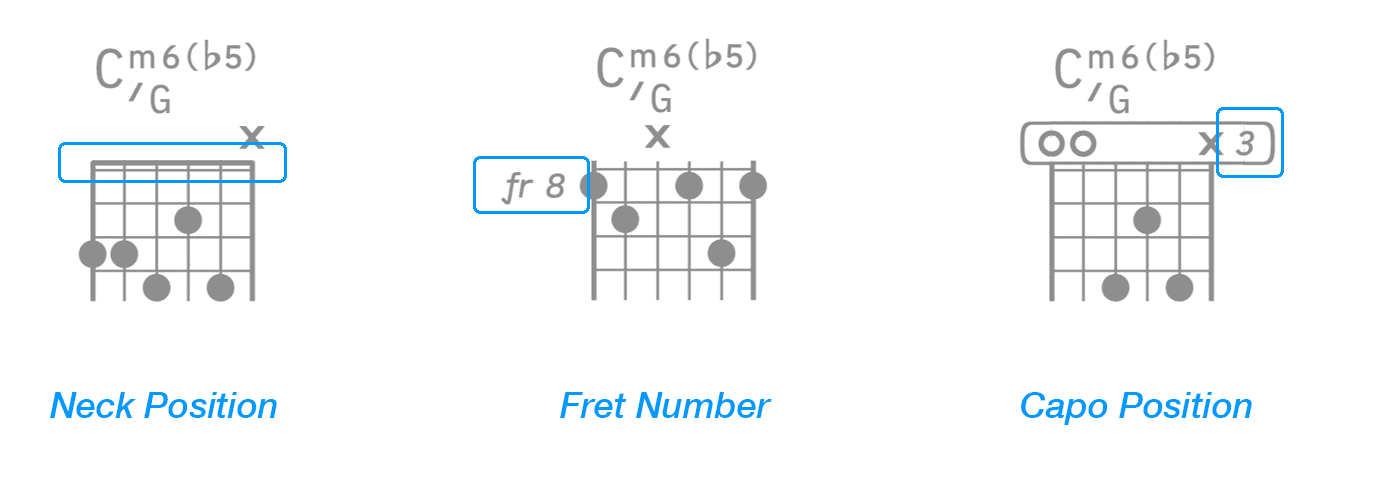
The Songs app automatically creates chord diagrams for string intruments with 2 - 8 strings in any tuning and capo position.

|
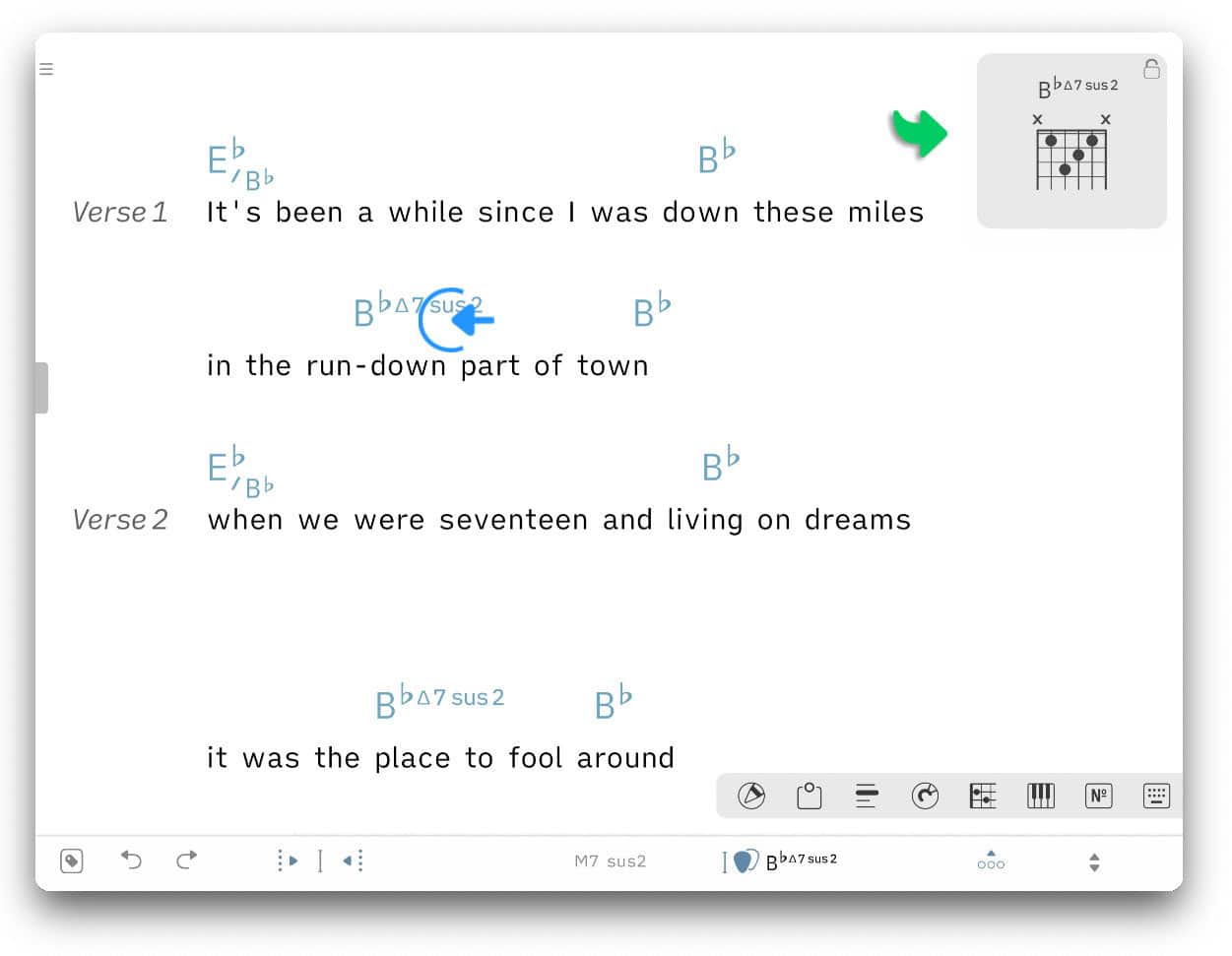
Tap/Click on a chord symbol in the song editor to show its chord diagram in a pop-up window (upper right corner). |

|
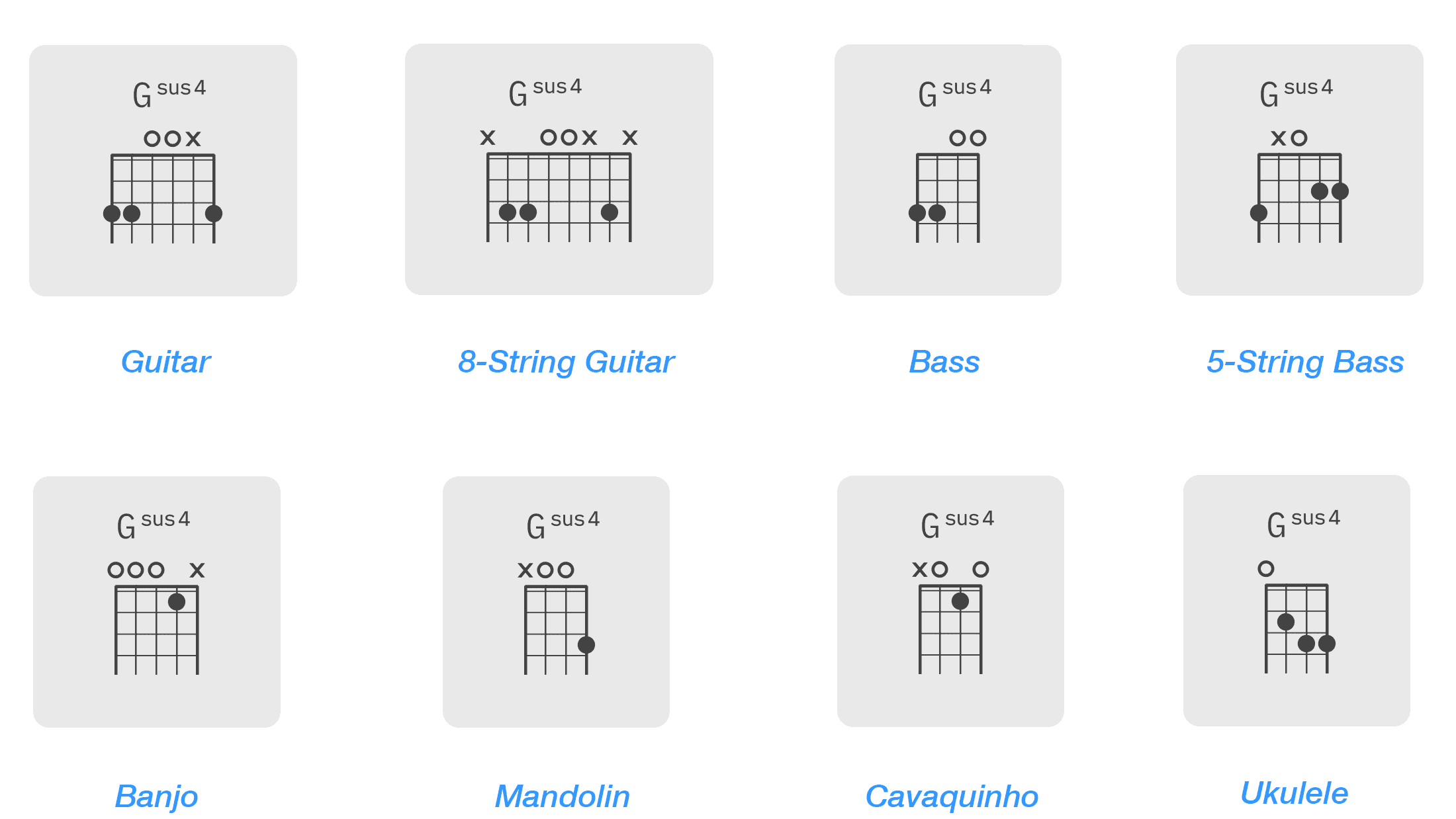
The format of the chord diagram can be changed by selecting a desired instrument. (See Virtual Fretboard to learn more.) |
Piano
Piano chord diagrams show you how to play a chord on a keyboard instrument. The Individual notes of a chord are indicated by dots. The Songs app automatically creates piano chord diagrams in the root position. (You may toggle between guitar chord diagrams and piano diagrams in the theme panel.)
The Songs app’s preferences (settings) offer an option to always 'start keyboard diagrams with C' ('Song Editor' > 'Diagrams').
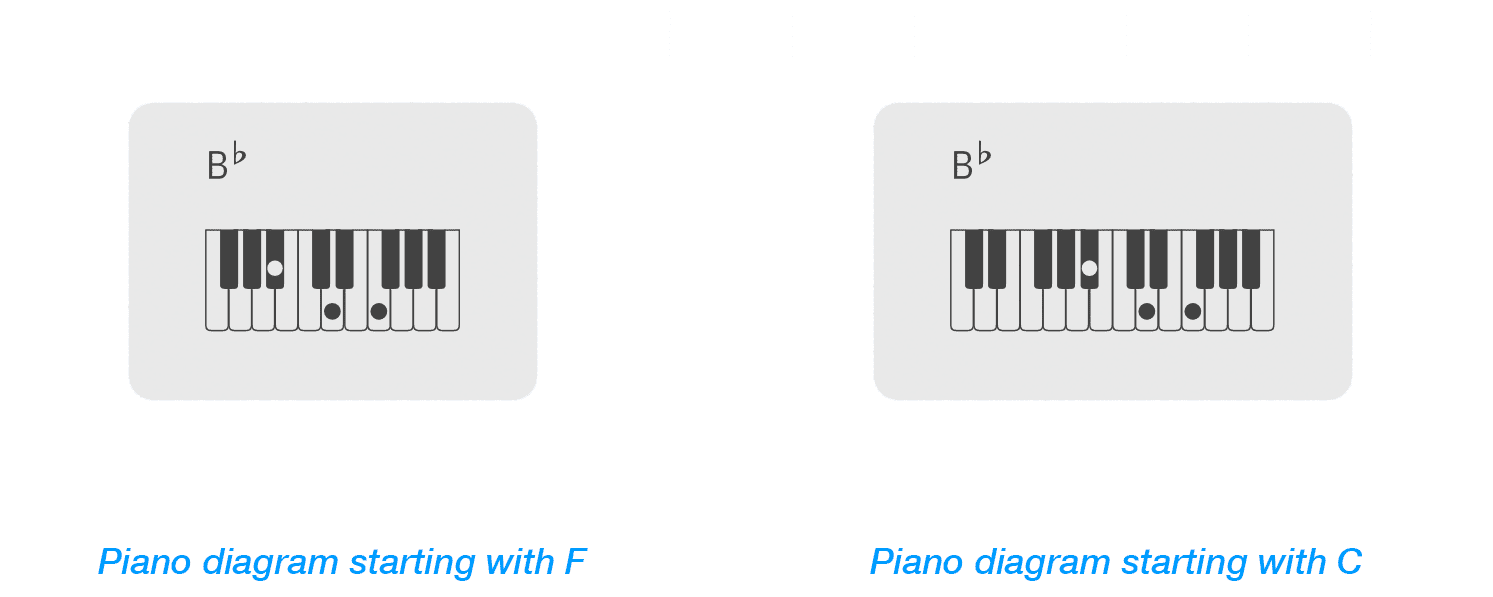
|
|
Tap/Click on a chord symbol in the song editor to show its chord diagram in a pop-up window (upper right corner). |

Chord Chart
The Songs app is able to automatically maintain a collection of chord diagrams for each song. This collection is referred to as a chord chart.
|
|
To add a chord chart to the lyrics tap/click on the tag icon in the left corner of the bottom toolbar and select 'Chord Chart' from the pop-up menu: |
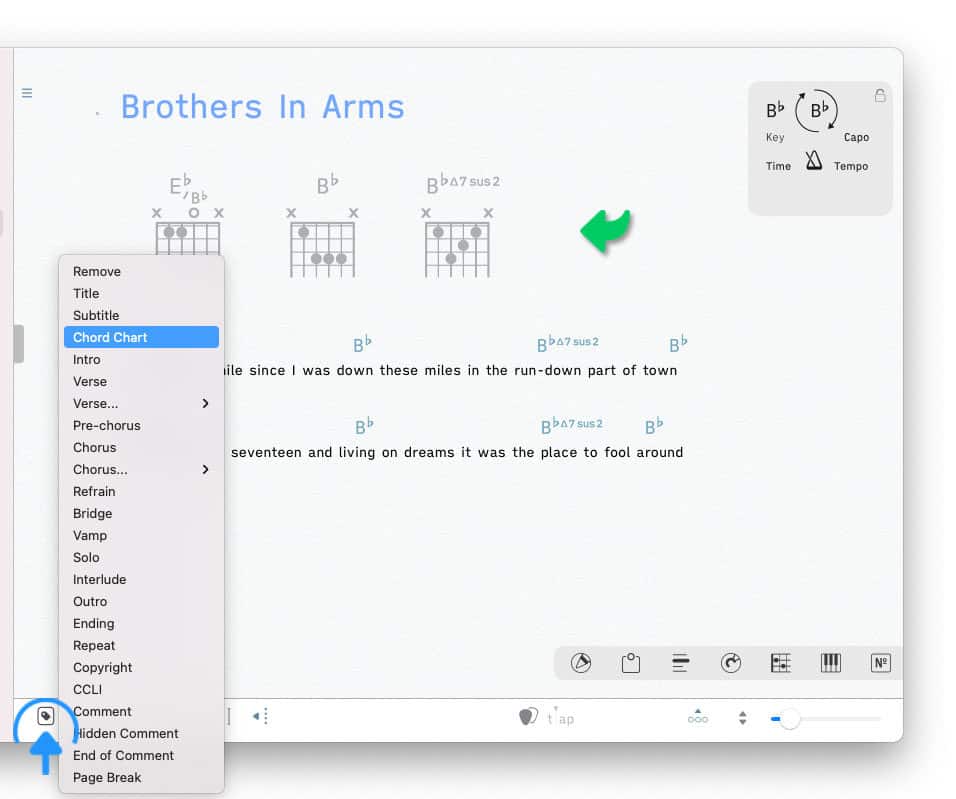
The chord chart will be placed at the current cursor position. The most commonly chosen area is at the beginning of a song below the song title.
The Songs app will update the diagrams of a chord chart when you…
-
add or remove chord symbols in the lyrics editor. (See Song Editor to learn more.)
-
change the selected instrument, tuning, capo position or string count. (See Virtual Fretboard to learn more.)
-
change the format of chord diagrams to either show '4 Frets' or '5 Frets' in the Songs app’s settings (preferences).
|
|
The chord chart is automatically maintained and cannot be copied, pasted or modified like the lyric’s text. |
You may change the position of the chord chart by moving the cursor to a new location and selecting 'Chord Chart' from the label (tag) menu again. To delete the chord chart from the lyrics place the cursor below chord chart block and press the delete key twice.
Customizing Guitar Chord Diagrams
You may change the voicing of a specific guitar chord diagram with the help of the virtual fretboard:
|
|
Tap/Click on the chord symbol in the lyrics editor (or on the chord diagram in the chord chart) you wish to customize. |
|
|
Then tap/click on the diagram pop-up window that will appear in the top right corner of the screen. |
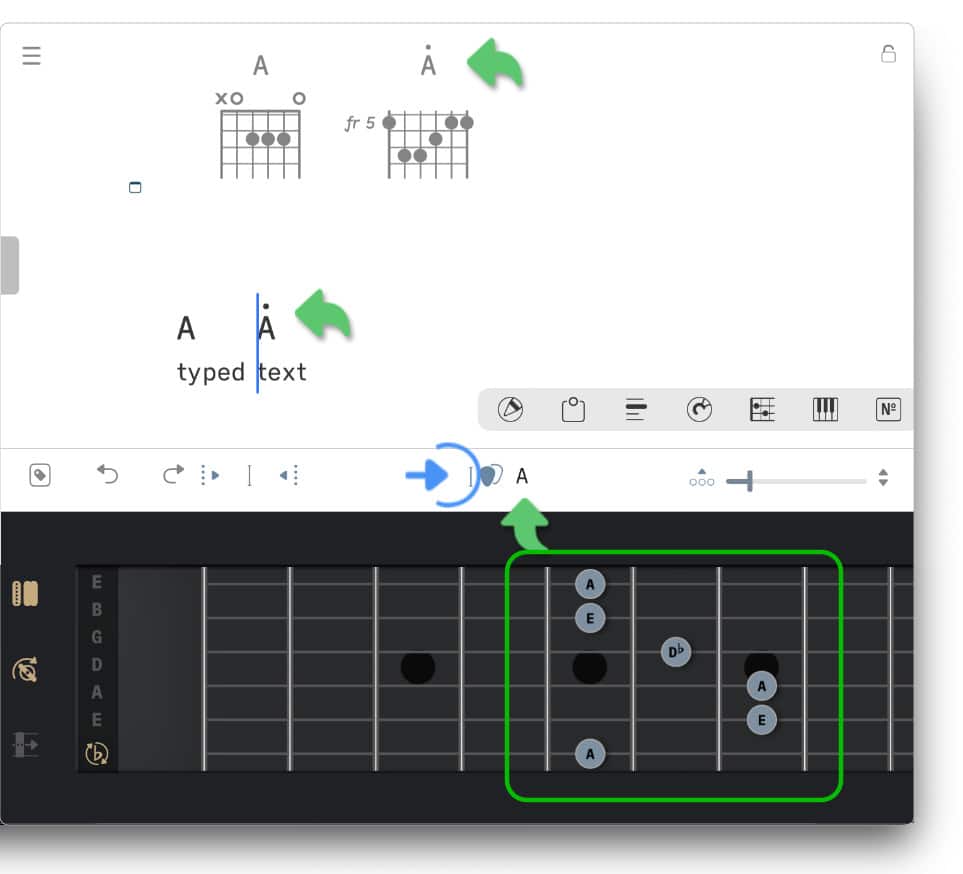
The virtual fretboard slides up to display the chord and indicate all possible string positions of the chord’s notes:
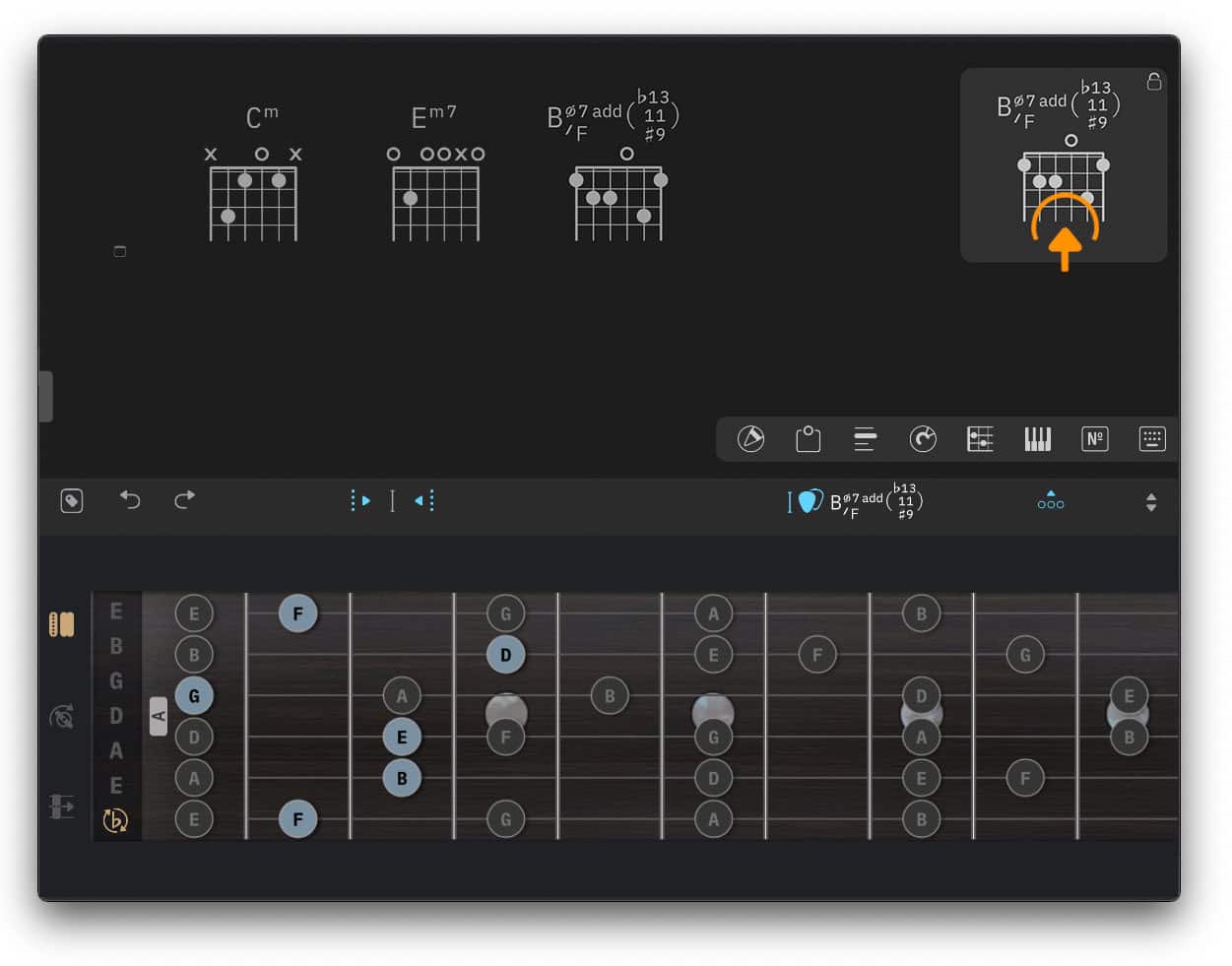
The currently selected notes are shown in blue. With the gray notes you can create a different voicing of the same chord. The number of notes of extended chords may exceed the number of availlable strings:
-
When the Songs app omits notes it will display them in the neck position of the fretboard (e.g. 'A' above).
|
|
Customize the voicing by tapping/clicking on the grey notes of the fretboard: |
A chord diagram preview in the upper right corner of the screen will show the newly formatted diagram.
|
|
Tap/Click on the icon in the lower left corner of the chord diagram preview to update the chord diagram of the selected song. |
You may also update the default chord diagrams to be used on all songs by performing a long tap/click on the icon.

|
|
When tapping/clicking on an empty string section of the fretboard the Songs app will determine a new chord for the selected notes. All grey notes will disappear. |
Customizing Piano Chord Diagrams
You may change the voicing of a specific piano chord diagram with the help of the virtual keyboard:
|
|
Access the virtual keyboard by tapping/clicking on the keyboard icon of the docked toolbar. |
If the docked toolbar is not visible tap/click on the three dots in the right corner of the bottom toolbar.
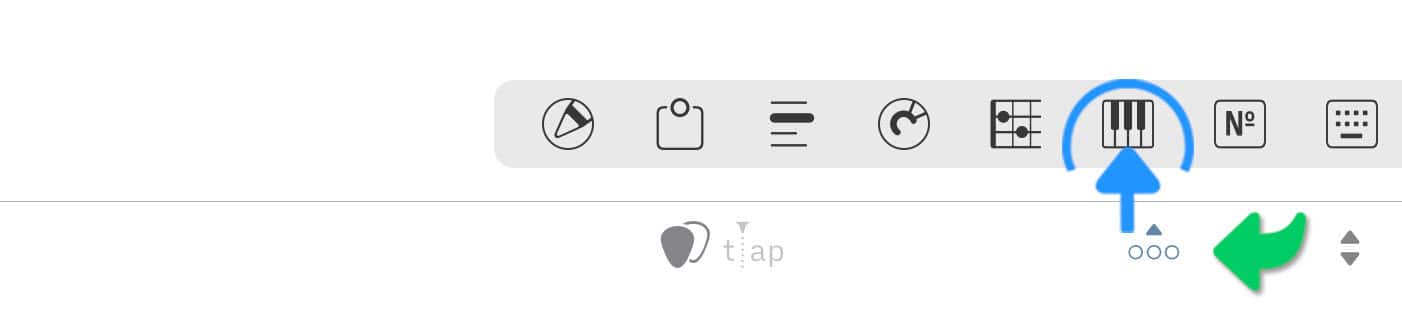
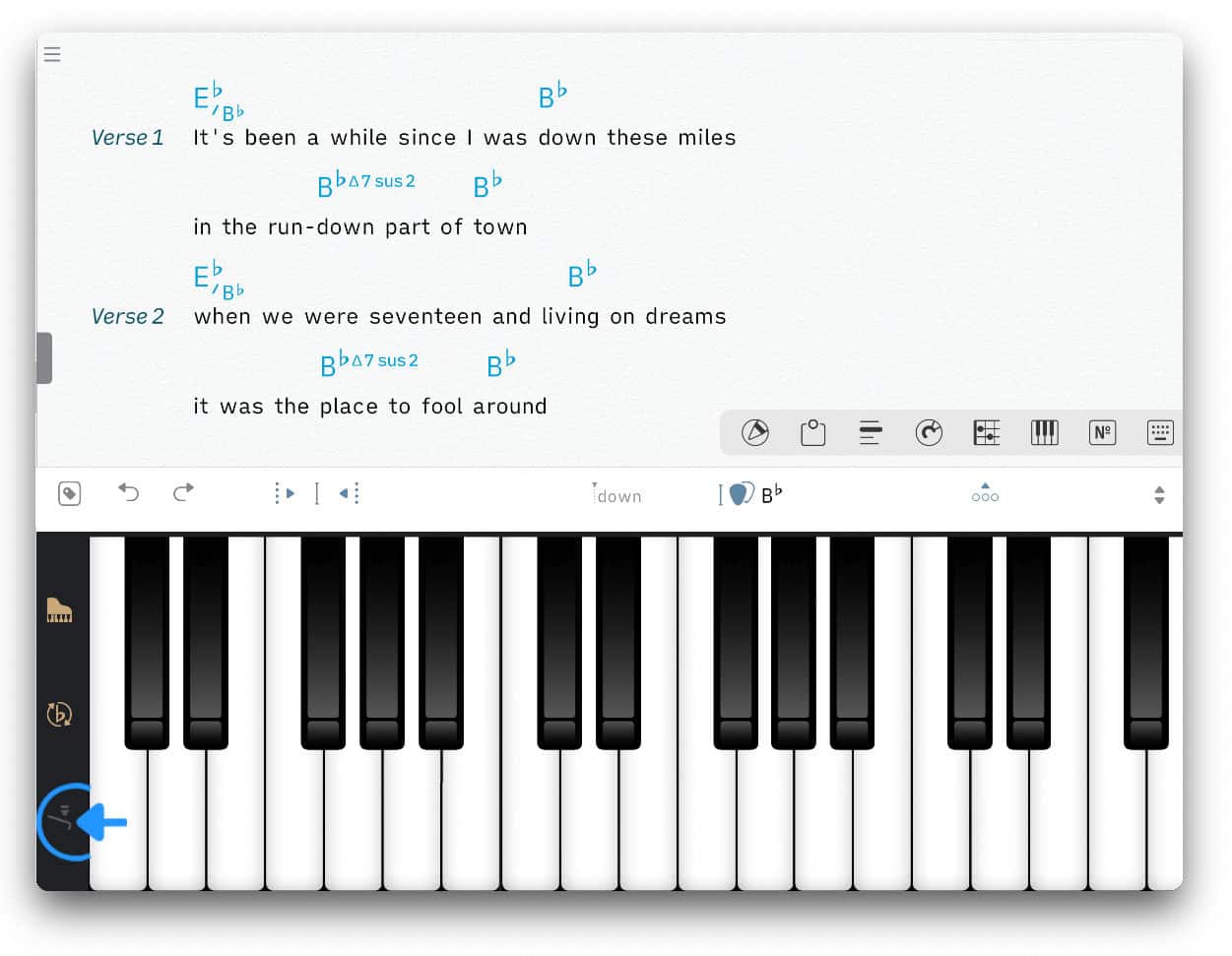
The virtual keyboard slides up. To customize a piano chord diagram:
|
|
Tap/Click on the sustain pedal icon in the lower left corner of the virtual keyboard. |
|
|
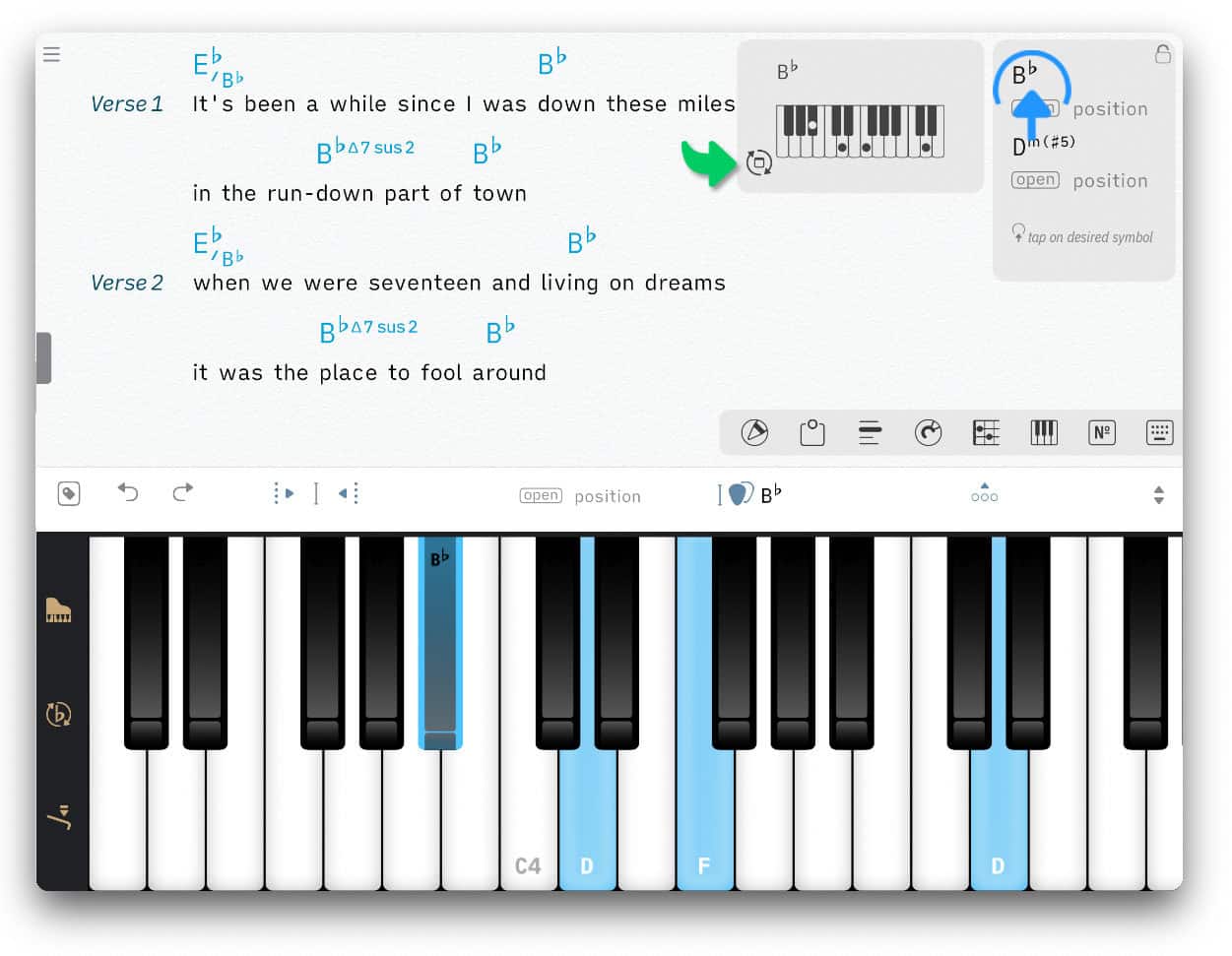
Tap/Click on the desired notes of the virtual keyboard |
|
|
Tap/Click on the desired chord symbol in the chord symbol pop-up menu (upper right corner). |
|
|
Tap/Click on the icon in the lower left corner of the chord diagram preview to update the chord chart. |
Adding Multiple Voicings Per Chord
The Songs app allows you to add up to 5 different voicings for each chord symbol per song. Adding multiple voicings requires the use of the chord chart. (See Chord Chart to learn how to add a chord chart to the song.)
Once the chord chart has been added:
|
|
Select the desired notes on the virtual keyboard or fretboard and tap/click on the guitar pick icon to add the chord to the lyrics. |
The Songs app will mark a newly added voicing of an existing chord symbol with a dot. This allows you to identify the correct voicing in the chord chart.