EXPLORING CHORDS
Virtual Fretboard
The Songs app’s virtual fretboard allows you to…
-
autoplay and show the fretboard positions of chords that are tapped/swiped in the song editor.
-
automatically identify chords of selected notes and add automatically formatted chord symbols to the lyrics.
-
explore alternative chord voicings and customize the song’s chord diagrams.
-
change the tuning, capo position and string count of the fretboard with automatic updates to the song’s chord chart.
-
autoplay and explore the chords of harmonic fields created with the circle of fifths.
-
display over 500 scales on the fretboard and practice them in any tuning.

|
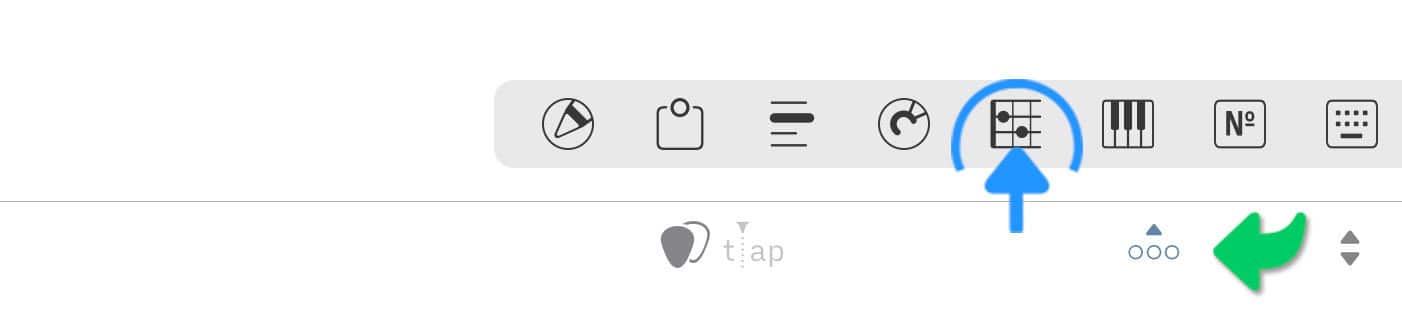
Access the virtual fretboard by tapping/clicking on the fretboard icon of the docked toolbar. |
If the docked toolbar is not visible tap/click on the three dots in the right corner of the bottom toolbar.
Chord Recognition
The Songs app automatically identifies chords while you use the virtual fretboard. The Songs app recognizes over 200 chord types and distinguishes between root positions, inversions and altered bass notes. As to string instruments the chord identification takes into account the tuning and the number of strings.
|
|
To select a note tap/click on a string at the desired fretboard position. |

|
You may tap/click on the same note a second time to deselect it. |
Once enough notes are selected the chord types will appear in a pop-up menu on the right side of the screen.
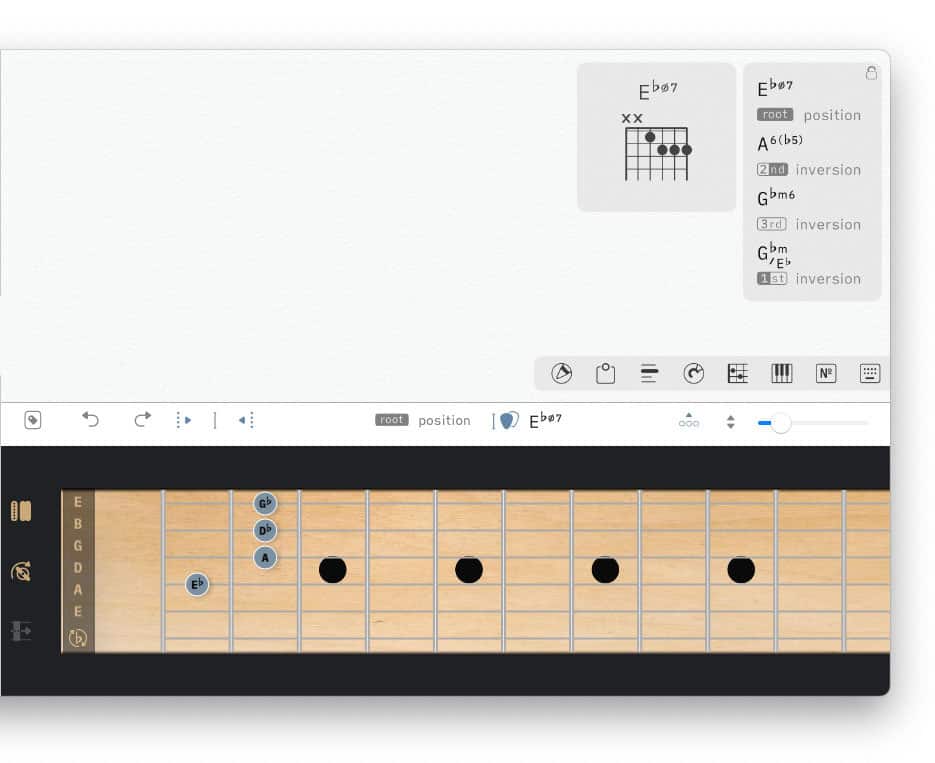
Most note combinations can form more than one chord. In the pop-up menu the first character of the chord symbol identifies the root note (see E, A, G above). If the root note is not the lowest note the chord’s inversion is indicated underneath the chord symbol.
|
|
Choose a chord from the pop-up menu by tapping/clicking on it. |
|
|
If necessary click/tap on the flat/sharp icon in the left bottom corner of the fretboard to change the key signature. |
|
|
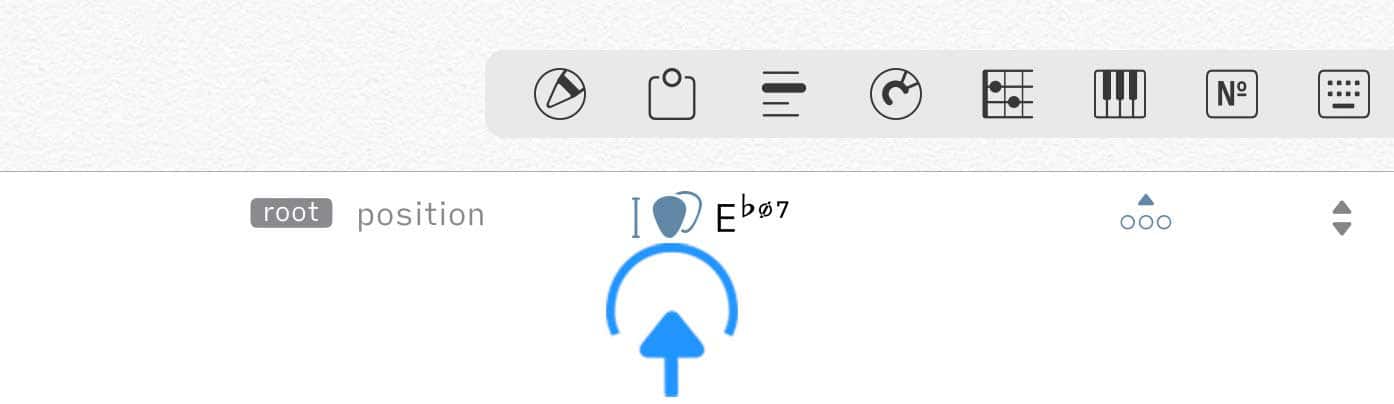
Add the chord to the lyrics at the cursor position by tapping/clicking on the guitar pick icon above the fretboard. |
Tapped/Swiped Chords
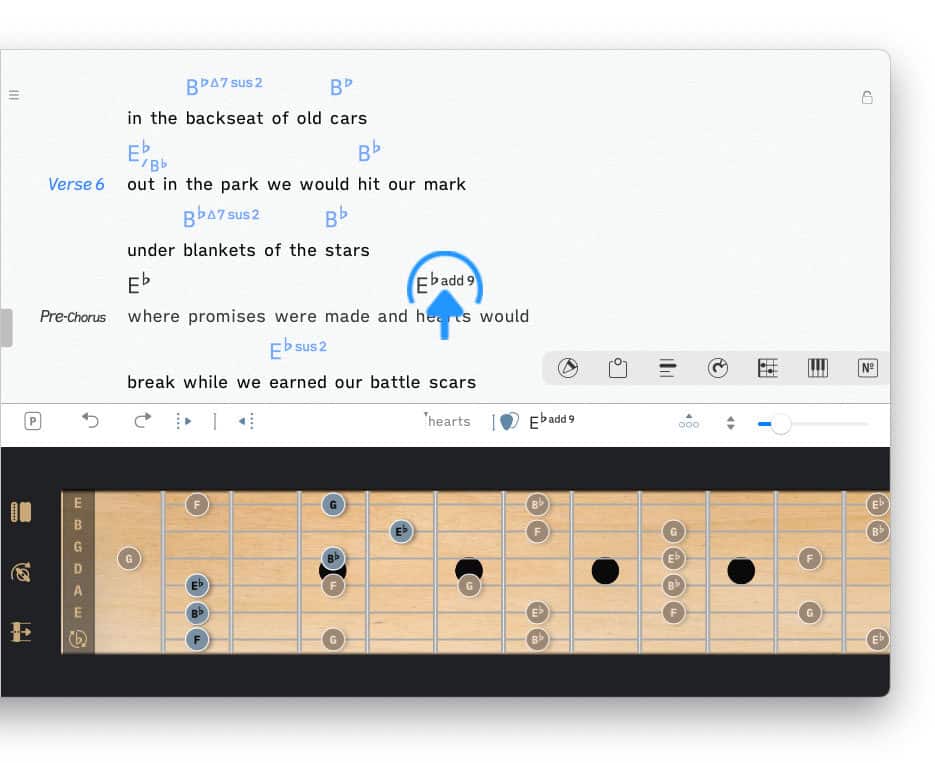
The fretboard will automatically display and play a chord that has been tapped/clicked on (or swiped) in the song editor.
|
|
The fretboard will indicate all possible string positions of the selected chord’s notes. |
The currently selected notes are shown in blue. Positions in grey represent unselected notes, which can be used to create a different voicing of the same chord. (See the 'Chord Diagrams' to learn more.)
|
|
The fretboard will also display and play a chord that has been selected with the 'Chord Matrix'. |
Tuning
|
|
Tap/Click on the tuning peg icon to the left to change the tuning and string count of the fretboard. |
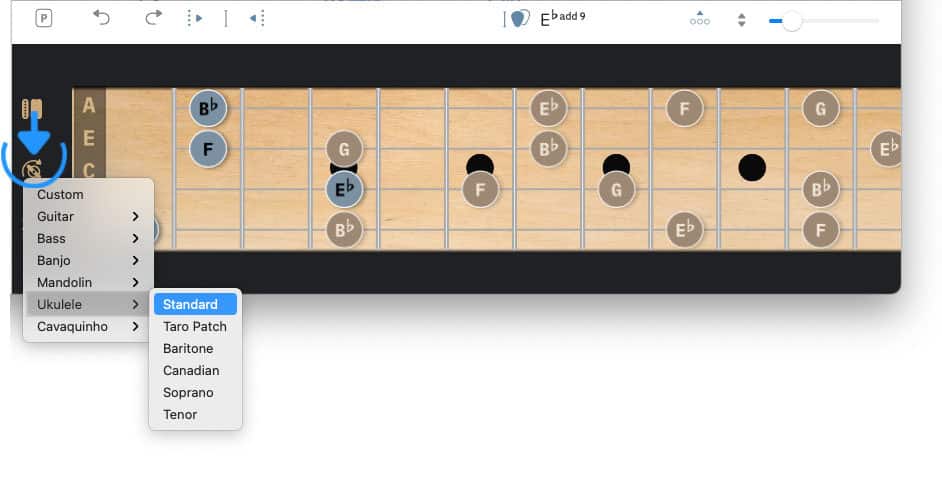
A pop-up menu appears to offer a variety of popular tunings for guitar, bass, ukulele, banjo, mandolin and cavaquinho.
Additionally you may freely set the number of strings and their tuning:
|
|
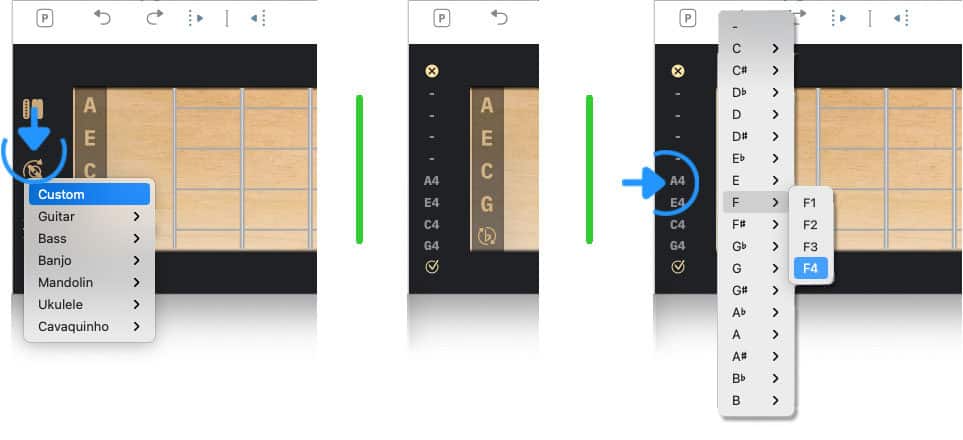
Select 'Custom' in the pop-up menu. |
Selectable labels appear to the left of the fretboard representing the pitch and octave of up to eight strings.
|
|
Tap/Click on a specific label to change its value with the help of a pop-up menu. |
|
|
To omit a specific string from the fretboard select '-' in the pop-up menu. |
|
|
Tap/Click on the checkmark at the bottom of the list of labels to save your changes. |
The chord diagrams in the song editor are automatically updated whenever the tuning is changed.
Capo Position
|
|
Tap/Click on the capo icon to the left to specify a capo position. |
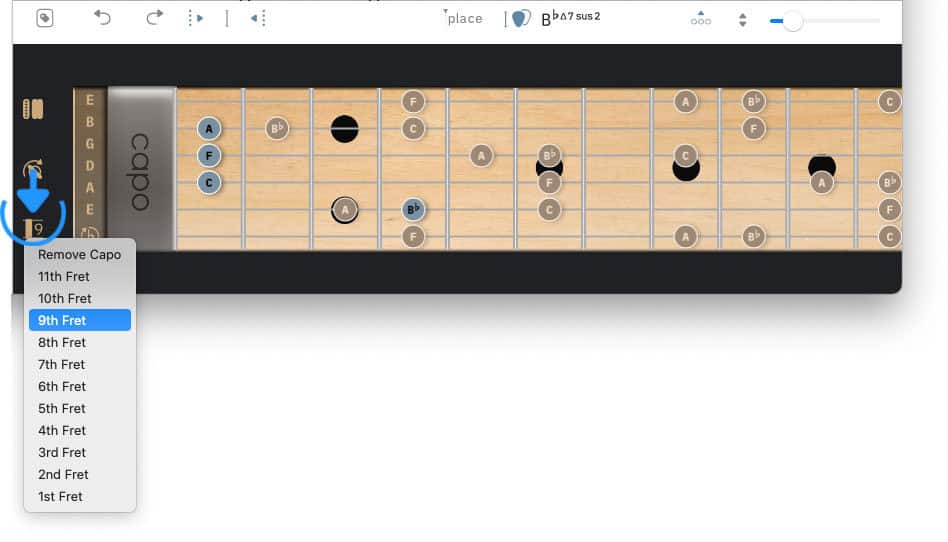
The chord diagrams in the song editor are automatically updated whenever the capo position is changed.
Sound
|
|
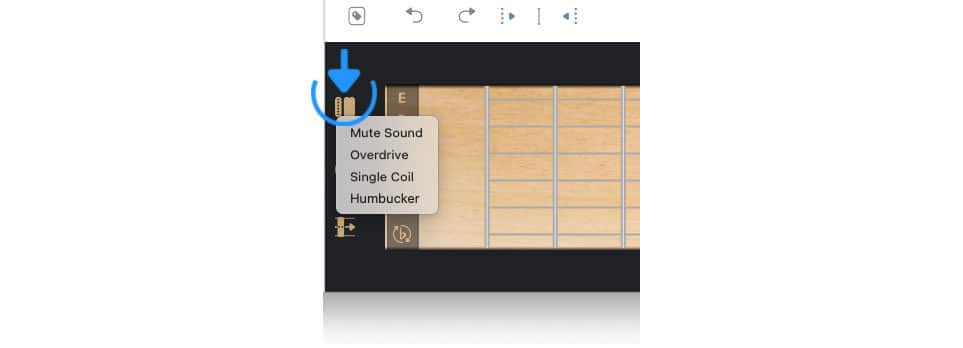
Tap/Click on the guitar pickup icon to the left of the fretboard to change the sound of the virtual fretboard. |
Scales
|
|
Tap/Click on the circle icon in the docked toolbar to explore scales on the virtual fretboard. |
If the docked toolbar is not visible tap/click on the three dots in the right corner of the bottom toolbar.

A circle will appear above the virtual fretboard:
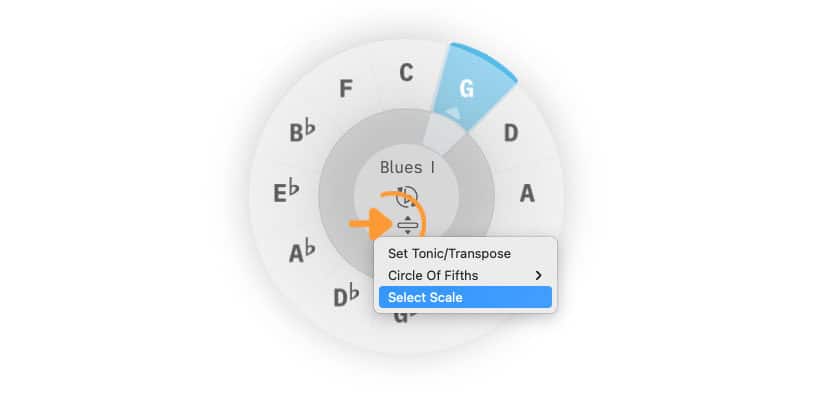
The circle has a menu icon in its center to access a pop-up menu with the following options:
-
'Set Tonic/Transpose' (set and change the key of the song)
-
'Circle Of Fifths' (analyze chord progressions and build harmonic fields)
-
'Select Scale' (explore scales on the virtual fretboard or keyboard)
|
|
Choose 'Select Scale' from the pop-up menu. |
A scrollable pop-up menu with a search field at the top will appear to allow you to find and select a specific scale (e.g. search for 'Blues' scales):

The notes of the chosen scale will be displayed on the fretboard. The tonic will be highlighted in blue. See 'G' in the example below.
|
|
You may change the tonic by tapping/clicking on a desired note in the circle. |

|
|
To highlight how the chosen scale is played in a particular section of the fretboard tap/click on the corresponding note position. |

You may go to the settings (preferences) to mute/autoplay the notes of a newly selected scale.