IMPORTING CONTENT
PDF Files
Imported PDF files are not automatically transformed into the Songs format. Once a PDF file is added you may create a native Songs file if necessary. While both the native Songs files and PDF files can be used in the same song catalog they differ in the features they offer:

|
Keep the PDF file if you wish to add annotations to the page with an Apple Pencil. |
Transform a PDF document into the Songs format to:
-
edit the lyrics or the chords in the song editor
-
use custom chord diagrams
-
transpose songs
-
take advantage of themes.

|
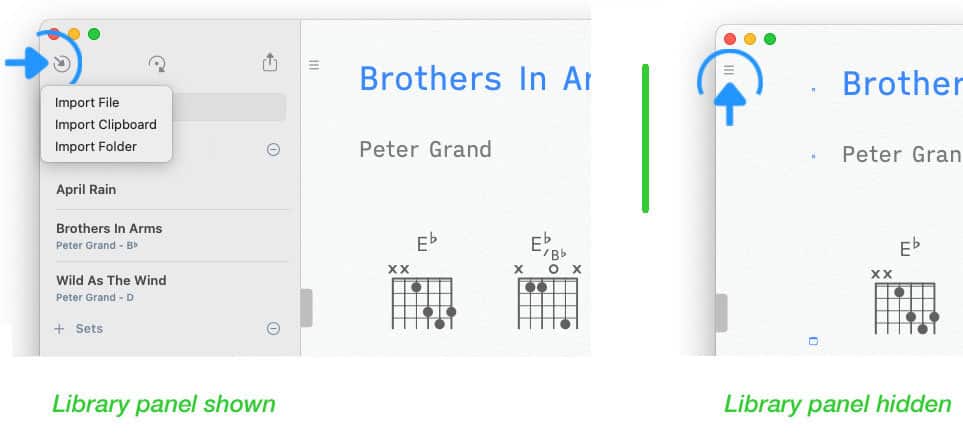
To import a song tap/click on the inward pointing arrow in the upper left corner of the Songs app’s main window. |
If the library panel is not visible tap/click on the three lines in the upper left corner of the screen.
|
|
Select 'Import' from the pop-up menu. A file browser will appear to allow you to select the appropriate file. |
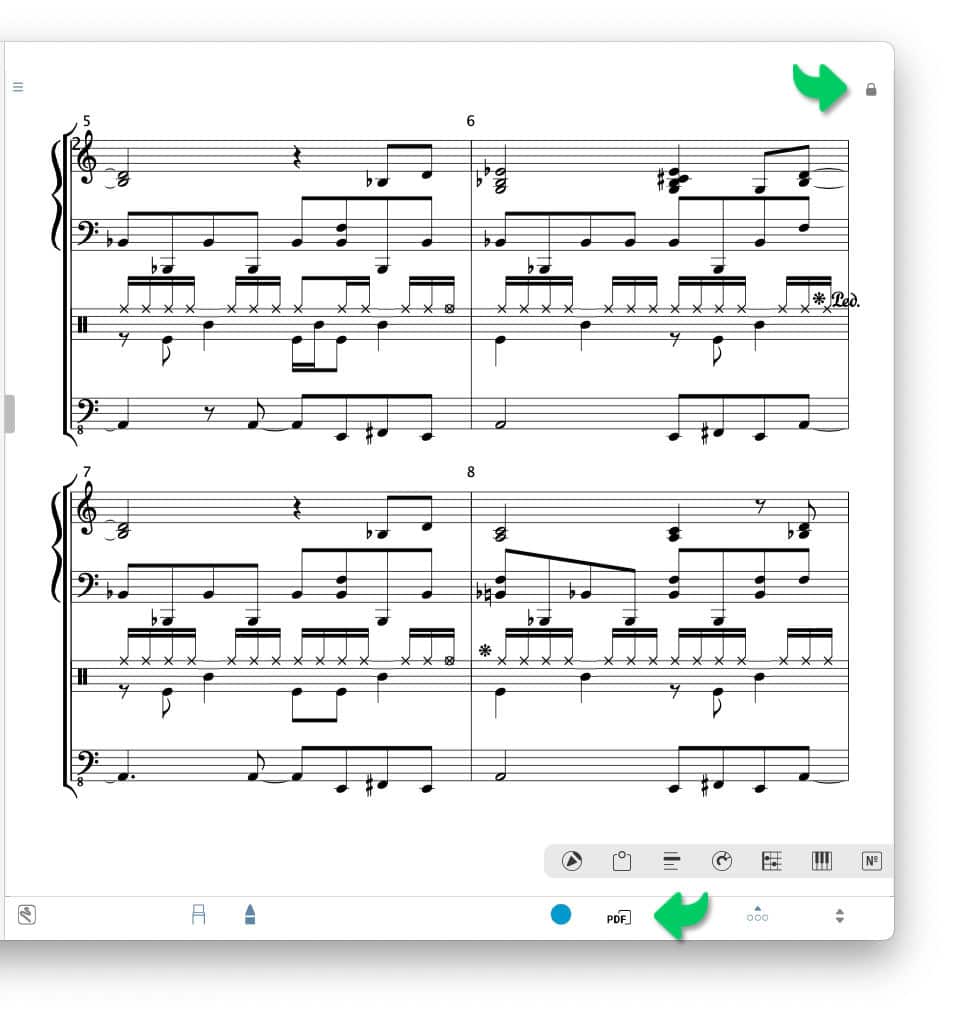
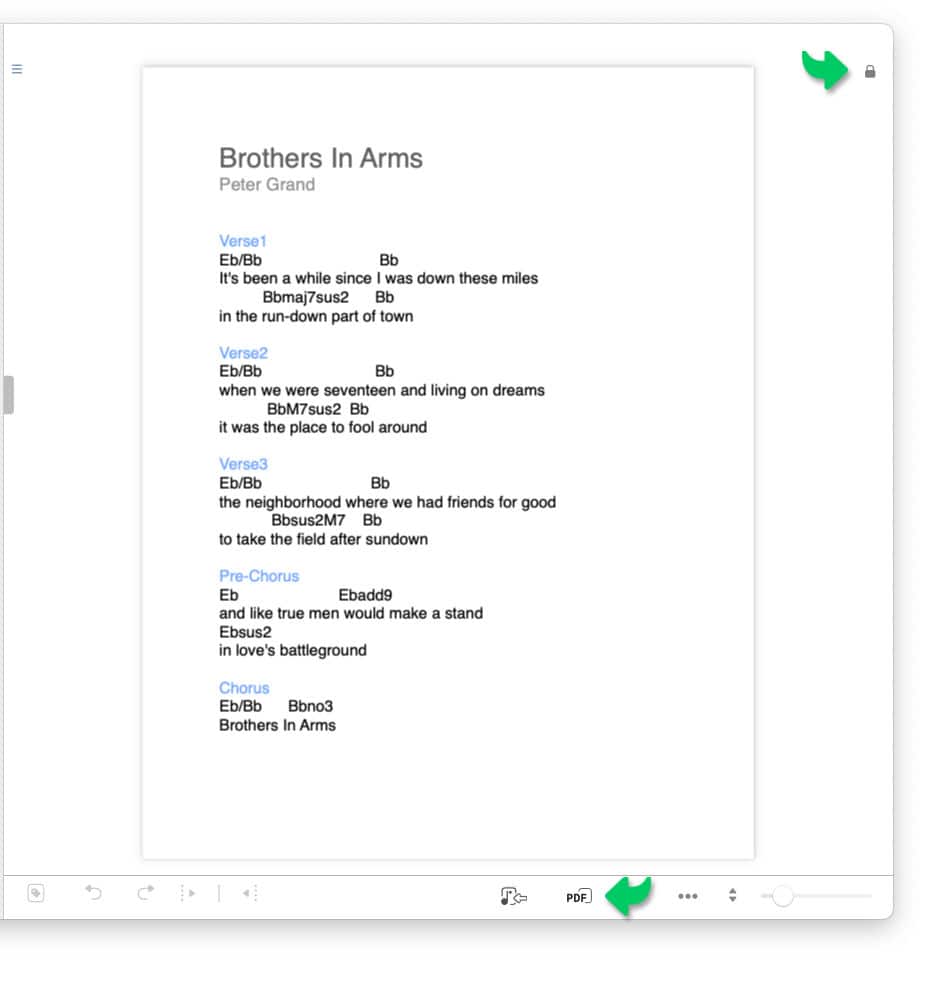
Once a PDF file has been added to the song catalog it will open in the Songs app’s main window. A PDF icon in the bottom toolbar indicates the document’s format. A black lock in the upper right corner of the screen informs you that the document cannot be edited except for annotations.
|
|
To edit the text of an added PDF document convert it into the native Songs format by tapping/clicking on the Songs document Icon in the bottom toolbar. |
A split view will appear to allow you to compare the extracted text with the PDF document.

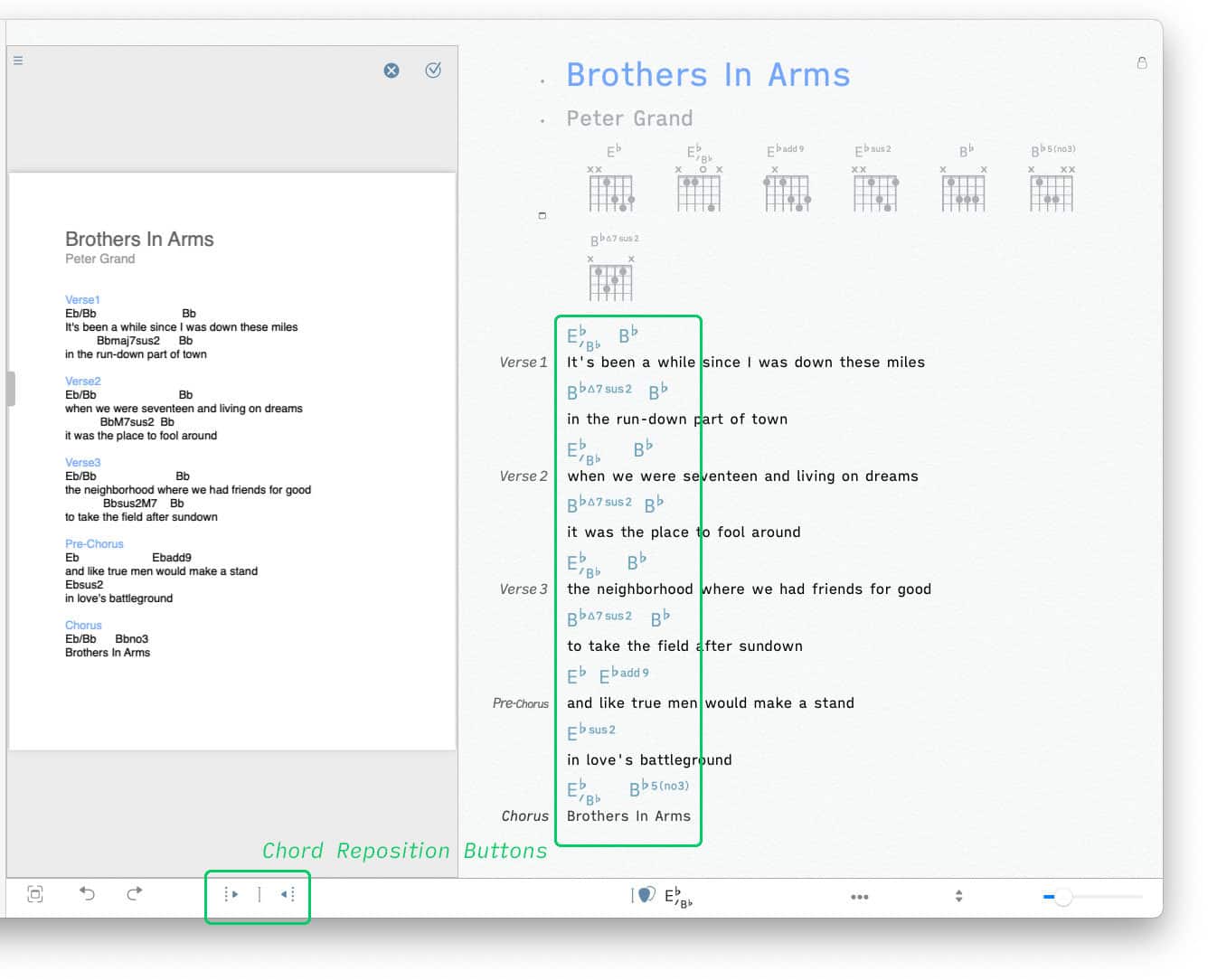
PDF files use text boxes to position the words. Single spaces which are used by traditional word processors to separate words (and to position the chords above the lyrics) are omitted from the PDF file format. This can lead to misalignments of chords (see large green frame above).
|
|
Use the chord reposition buttons in the Songs app’s bottom toolbar (see small green frame above) to fix the misalignments while the split view is shown. (See Song Editor to learn more.) |
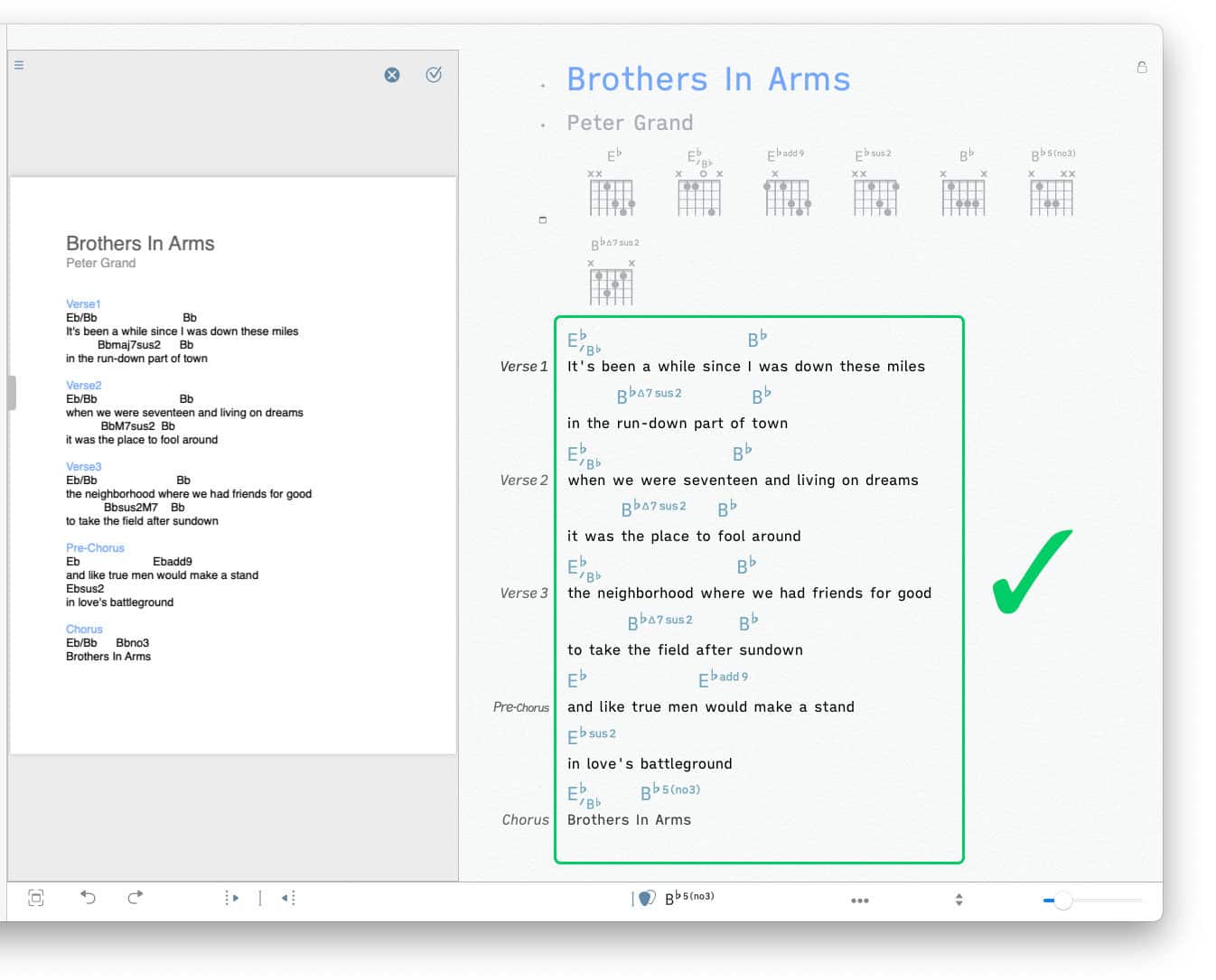
Note: Some chord symbols in PDF documents may not be recognized during the conversion and will be omitted. Add missing chords with the help of the 'Chord Matrix'.
|
|
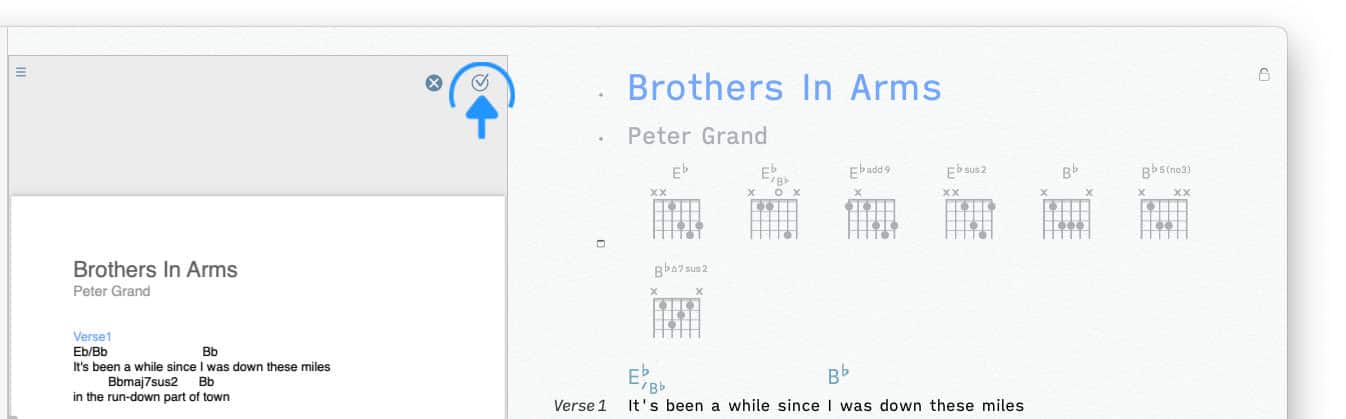
Close the split view by tapping/clicking on the button with the checkmark at the top of the PDF page. |
The PDF document is discarded and the song is saved in the Songs app’s native format. (Alternatively you can discard the edited text and keep the PDF file by tapping/clicking on the circled x.)

|
You have the option to export a native Songs document as a PDF document. However, this is not advisable if plan to re-import the document. A 'Songs' generated PDF document includes chord symbols that are not saved in plain text format. If you re-add the exported PDF document to your song catalog the Songs app will not be able to generate chord diagrams. |