IMPORTING CONTENT
SongSheet Pro
This chapter explains how to export your content from the SongSheet Pro app and import it into the Songs app. The Songs app is not affiliated with or endorsed by SongSheet Pro. Any use of third party trademarks, logos, brand names and products is only referential.
The Songs app can read SongSheet Pro files. The supported file formats include the native SongSheet Pro files and ChordPro (v5.0) or PDF files generated by SongSheet Pro. (See 'Avoid exporting files in the PDF format' at the end if this chapter.)
The Songs app automatically adds chord diagrams to imported songs that include chords. You may disable this feature or specify the tuning/string instrument to be used to generate the diagrams in the Songs app’s settings/preferences.


|
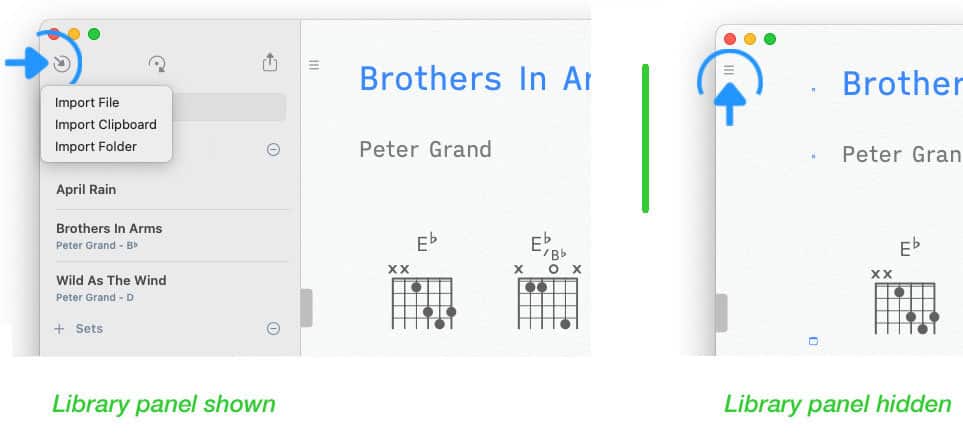
To import a song tap/click on the inward pointing arrow in the upper left corner of the Songs app’s main window. |
If the library panel is not visible tap/click on the three lines in the upper left corner of the screen.
|
|
Choose 'Import File' to select and add a single song exported by SongSheet Pro in the native, ChordPro v5.0 or the PDF format. |
See Text-Based Files and PDF Files to learn how added songs are transformed.
Importing Song Catalogs
The SongSheet Pro app can export a single file that includes all songs of your catalog. Note: The generated file includes the metadata and audio backing track links of your songs but omits the setlists.
Exporting all songs from SongSheet Pro:
-
Select 'All Songs' in your SongSheet Pro library (top left).
-
Tap/Click on the share icon at the top right of the window.
-
Tap/Click on 'Save to Files'.
Importing songs into the Songs app:
|
|
Choose 'Import File' in the Songs app’s import menu and select the newly generated SongSheet Pro file. |
Importing Folders
If you do not wish to import your entire song catalog you may also use the 'Import Folder' option to add a collection of songs in the SongSheet Pro file format (or in the 'PDF'/'ChordPro v5.0' format) to your 'Songs' catalog.
Exporting songs from SongSheet Pro:
-
Select 'All songs' in your SongSheet Pro library (top left).
-
Tap/Click on 'Select' in the upper right corner.
-
Select the desired songs.
-
Tap/Click on the share icon at the bottom of the window.
-
Tap/Click on 'Save to Files' to generate native SongSheet Pro files (or tap/click on 'Export As' to generate files in the 'ChordPro v5.0' or 'PDF' format).
-
Choose (or create) a folder in the directory of your choice and export your songs.
Importing songs into the Songs app:
|
|
Choose 'Import Folder' in the Songs app’s import menu and select the folder containing your exported Songsheet Pro files. |
See Text-Based Files and PDF Files to learn how added songs are transformed.
Avoid exporting files in the PDF format:
Text-based PDFs have to be transformed into the native Songs file format to:
-
edit the lyrics or the chords in the song editor
-
use custom chord diagrams
-
transpose songs
-
take advantage of themes.
Only import songs into the Songs app in the PDF format if you wish to keep (or add to) your PDF annotations.
* The Songs app is not affiliated with or endorsed by OnSong, Stage Traxx 3, Songsheet Pro, SongbookPro or Ultimate Guitar. Any use of third party trademarks, logos, brand names and products is only referential.