MANAGING YOUR CATALOG
AirDrop Songs & Sets
AirDrop allows Apple devices to share content without a network connection. The data is exchanged via Bluetooth or Wi-Fi. The Songs app offers the option to forward a song or an entire set via AirDrop.
By default songs are forwarded via AirDrop with 'Limited Access'. To forward your own songs unlocked without limitations go to the Songs app’s settings/preferences and make the desired selection in the 'Rights' category.

|
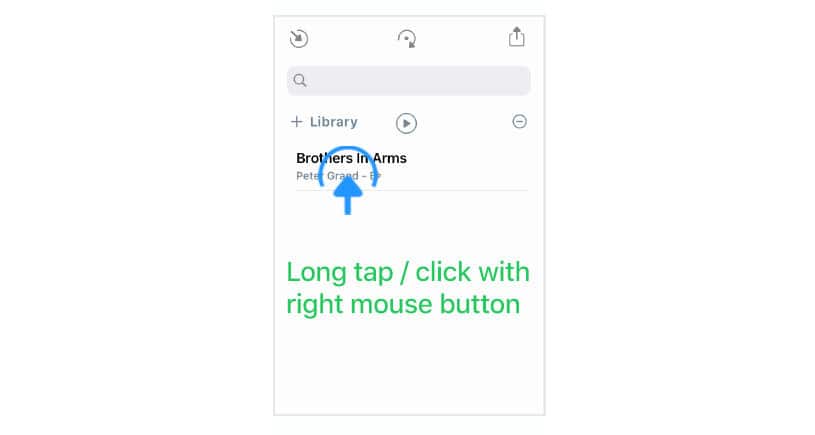
Select the song (or the set) you wish to forward from your library with a long tap / right click / two finger tap. |
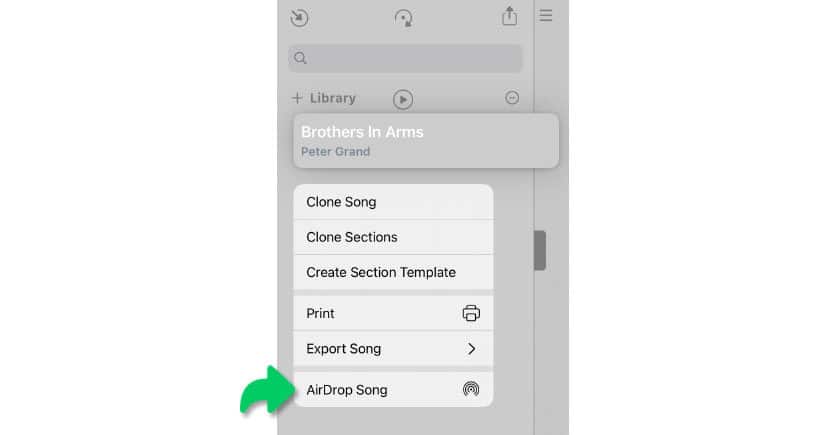
A pop-up menu appears:
|
|
Tap/click on the AirDrop icon and select one or more devices to forward the song (or the set). |

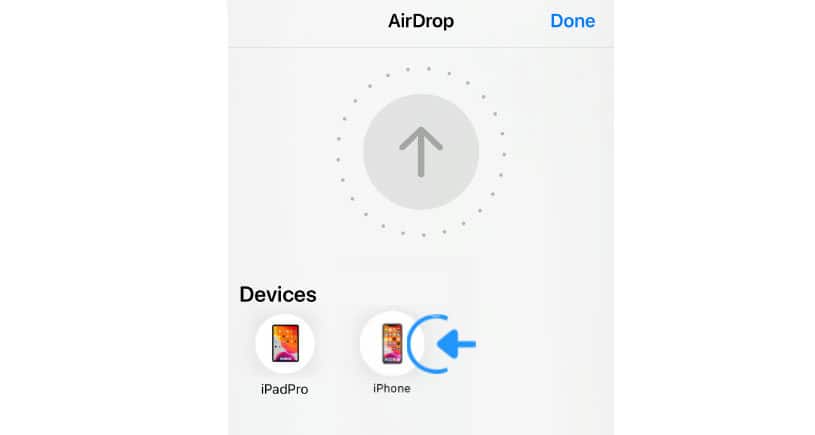
The recipient will be notified with the option to accept or deny your AirDrop file. (See 'AirDrop Guidelines' if you are unable to connect.)
To increase security Apple has changed the way AirDropped documents are opened in iOS 17:
-
On iOS17 (or higher) a file that is received via AirDrop is opened in Apple’s own files app. Open the received AirDrop file in the Songs app by tapping/clicking on the share icon of Apple’s file app and selecting the Songs app from the pop-up menu.
-
On iOS 16 (or lower) the song (or the set) is automatically added to the recipient’s song catalog once the AirDrop has been accepted.
-
On macOS the accepted file is saved to the recipient’s AirDrop/Download folder and needs to be double-clicked on to be added to the song catalog.
A dialog appears if one or more received songs already exist in the recipient’s song catalog:
|
|
Select 'Skip' to add the new songs while keeping the songs already existing in your catalog unchanged. |
|
|
Select 'Replace' to also update the existing songs. (Note: Songs may be forwarded with 'Limited Access'.) |
AirDrop Guidelines
AirDrop offers an option in its settings/preferences to restrict AirDrops to people listed in Apple’s 'Contacts' app.

|
As the sender make sure that either your Apple ID’s email address or your mobile number is listed in the recipient’s 'Contacts' app. (Alternatively ask the recipient to change the AirDrop settings from 'Contacts Only' to 'Everyone'.) |
-
AirDrop does not work if either party has set up a 'Personal Hotspot'.
-
AirDrop does not work if both Bluetooth and Wi-Fi are disabled.
-
AirDrop does not work if the devices are not within range of each other.