IMPORTING CONTENT
Scanning Documents (iOS)
On iOS the Songs app uses the device’s camera to add scanned paper documents to your library. Scanned documents are saved as PDF image files and can be auto-scrolled, annotated and enriched with metadata.
Note: PDF images cannot be converted into a native Song file format. The recognition of chord symbols and the auto-creation of chord charts require text-based PDFs. (See PDF Files to learn more.)

|
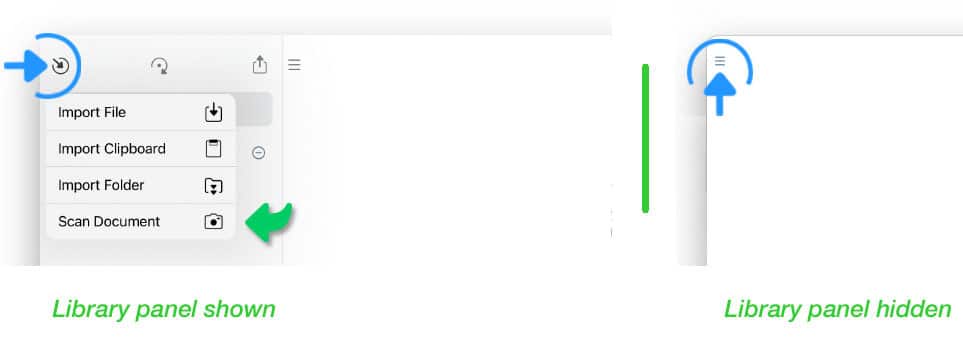
To scan a paper document tap/click on the inward pointing arrow in the upper left corner of the library panel. |
If the library panel is not visible tap/click on the three lines in the upper left corner of the Songs app’s main window.
|
|
Select 'Scan Document' from the pop-up menu (only availlable on iOS). |
When launching the scanner for the first time a pop-up dialog will ask for your permission to use the camera. (If the pop-up dialog is not shown go to the Songs app’s app settings to grant your permission.)
|
|
Use the rear camera to take a picture of the desired paper document by tapping on round shutter button to the right. |
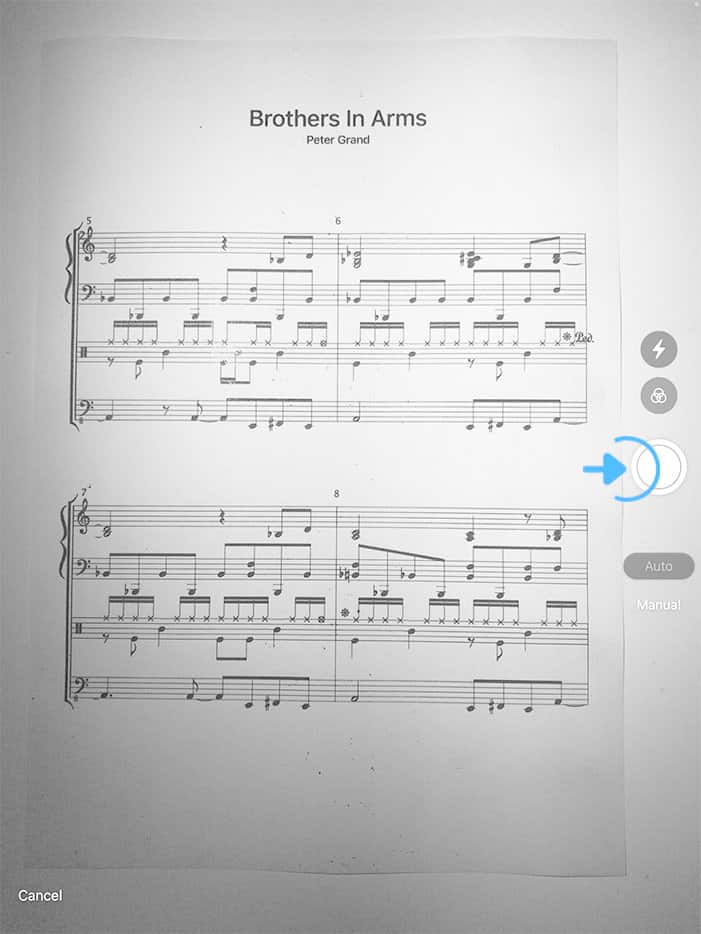
A scanned picture appears:
|
|
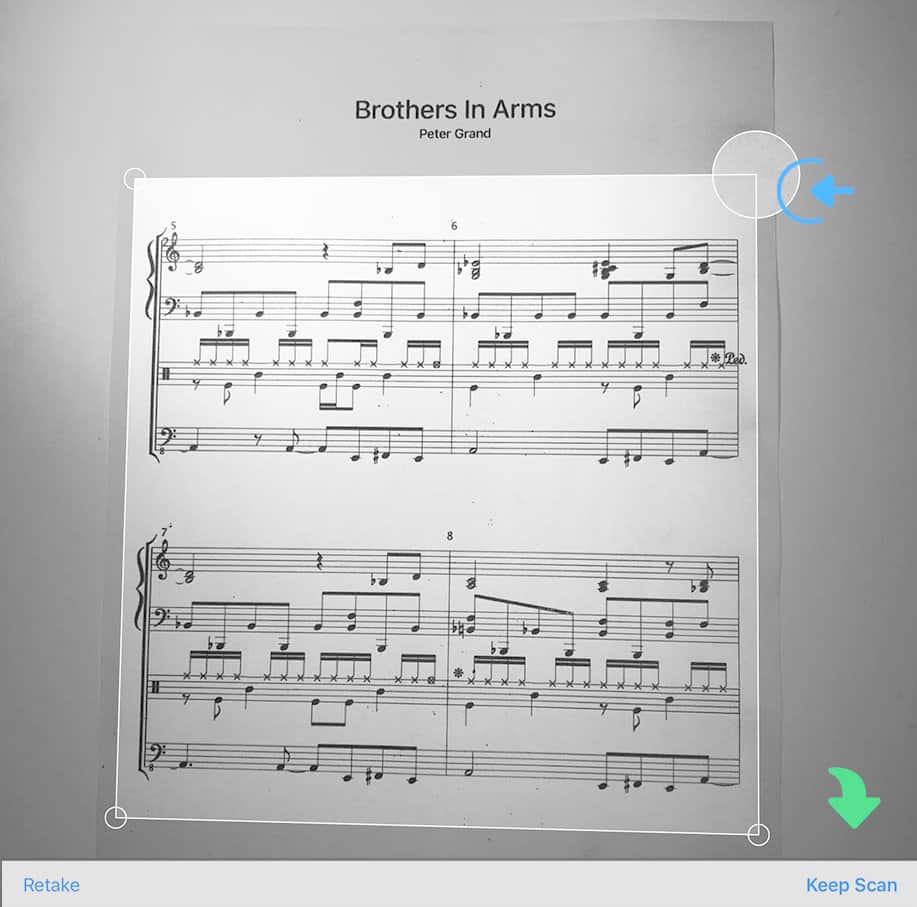
Tap on the circled corners of the preview to adjust the perspective and crop the preview: |
|
|
Tap on 'Keep Scan' in the bottom right to save the image. It will be minimized and displayed at the bottom of the window: |


|
You may add scans before saving the document. Tap on the round shutter button to the right to add additional pages |

|
|
Tap on the save button to the right of the preview to add the scanned document to your library. |