MIDI
MIDI Setup
MIDI is a communications protocol that is used to recall sound presets of synthesizers and guitar pre-amps, change the settings of effect processors and remote control audio mixers.
Song One is able to send outgoing MIDI events to:
-
select a specific sound or effect preset with MIDI 'program change' messages.
-
change the characteristics of a synthesizer sound or control the effects of a guitar processor with MIDI 'control change' messages.
-
play notes and melodies on a keyboard or remote control presentation software with MIDI 'note on/off' messages.
-
control external hardware devices 'system exclusive' messages.
Song One is able to receive incoming MIDI events to:
-
let you control Song One’s virtual keyboard with an external keyboard and auto-generate chord symbols (to be added to your lyrics) with MIDI 'note on/off' messages.
-
let you control Song One’s auto-scroll and page-flip modes, as well as the selection of songs with MIDI 'program change', 'control change' or 'note on/off' messages.
-
initiates the playback of a song via an incoming MIDI event from third party DAWs (e.g. Ableton Live, Pro Tools, Logic Audio, Cubase) or MultiTrack apps (e.g. Playback, Prime). (See Song Trigger to learn more.)
Enabling MIDI
When MIDI is enabled Song One monitors all MIDI ports and recognizes connected MIDI devices automatically.

|
Go to the app settings/preferences and enable Song One’s MIDI functions. |
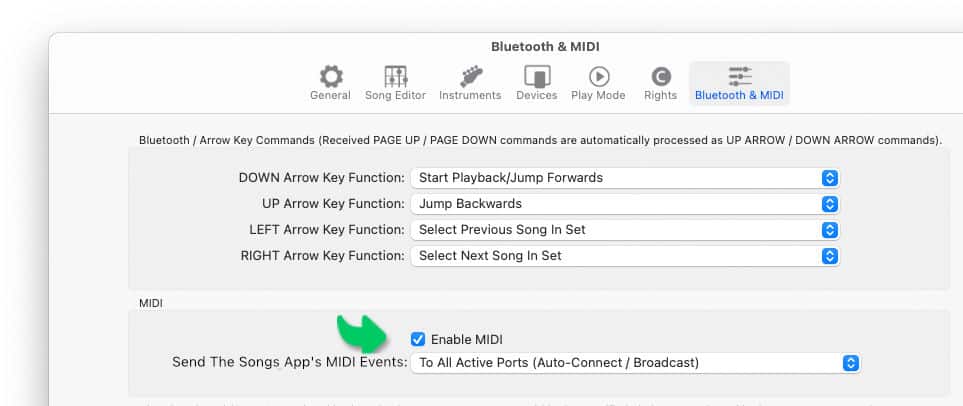
MIDI devices may be connected to an iPad via the 'iPad Camera Connection Kit' adapter. Consult the user guide of your MIDI foot/keyboard controller to learn how to:
-
connect your MIDI device to your Mac, iPad or iPhone.
-
program your MIDI device to send/receive specific MIDI messages.
Note: MIDI foot controllers can be connected with Song One via 'Bluetooth MIDI'.
MIDI Ports
Each MIDI device connected to your computer/iOS device is assigned a MIDI port by the operating system. These MIDI ports can then be activated by MIDI capable apps to send and receive MIDI messages. Song One offers three ways to activate MIDI ports:
(1) Wired MIDI Connection
Song One automatically activates all MIDI ports of a device connected to your computer/iOS device via a MIDI/USB cable.
-
All incoming MIDI events are automatically received on all available ports.
-
All outgoing MIDI events are automatically sent to all available ports.
(2) Bluetooth MIDI Connection
Use Song One’s Bluetooth MIDI device browser to create a connection with the MIDI ports of Bluetooth devices.
See 'Bluetooth MIDI' to learn more.
(3) Virtual MIDI Connection
A virtual MIDI port is used to exchange MIDI messages between two separate apps. Song One’s virtual MIDI port is automatically activated as soon as MIDI is enabled in the settings/preferences.
Use Song One’s virtual MIDI port to manage a large MIDI setup of multiple devices with a third party MIDI routing app. (See 'Audio MIDI Setup App (macOS)' to learn more.)
Enabling/Disabling MIDI Ports
If you wish to exclude a specific device from exchanging MIDI messages with Song One you may disable its MIDI port.
|
|
Tap/Click on the circle arrow icon at the top of the library panel and select 'MIDI Ports'. |
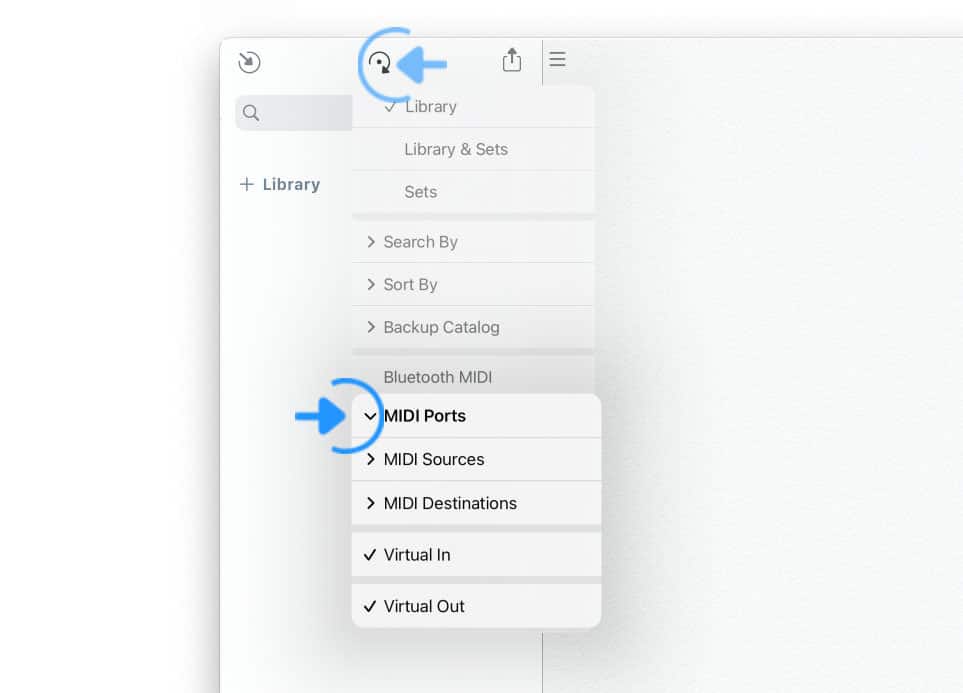

|
Access the individual ports of connected MIDI devices in the 'MIDI Sources' and/or 'MIDI Destinations' submenus: |
-
'MIDI Sources' lists the ports of devices that send MIDI events to Song One.
-
'MIDI Destinations' lists the ports of devices that receive MIDI events from Song One.
All active ports are marked with a checkmark next to the device’s name:
|
|
Tap/Click on a MIDI port in the menu to remove/add the checkmark and disable/enable the communication with the port. |
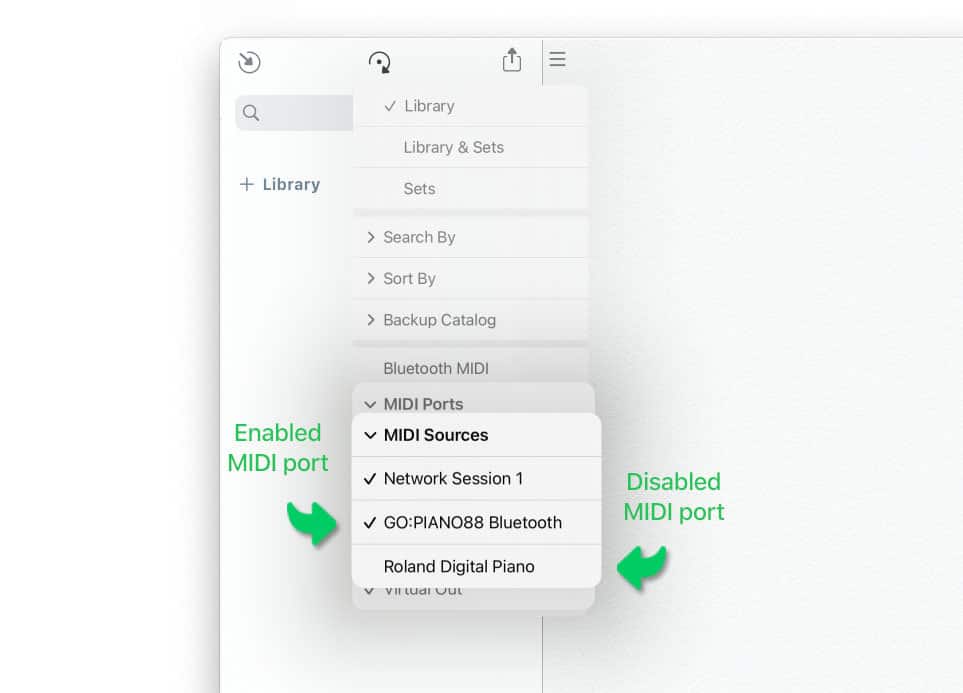
|
|
You may also disable/enable Song One’s 'Virtual In' port and 'Virtual Out' port by removing/adding the checkmarks in the 'MIDI Ports' menu. |
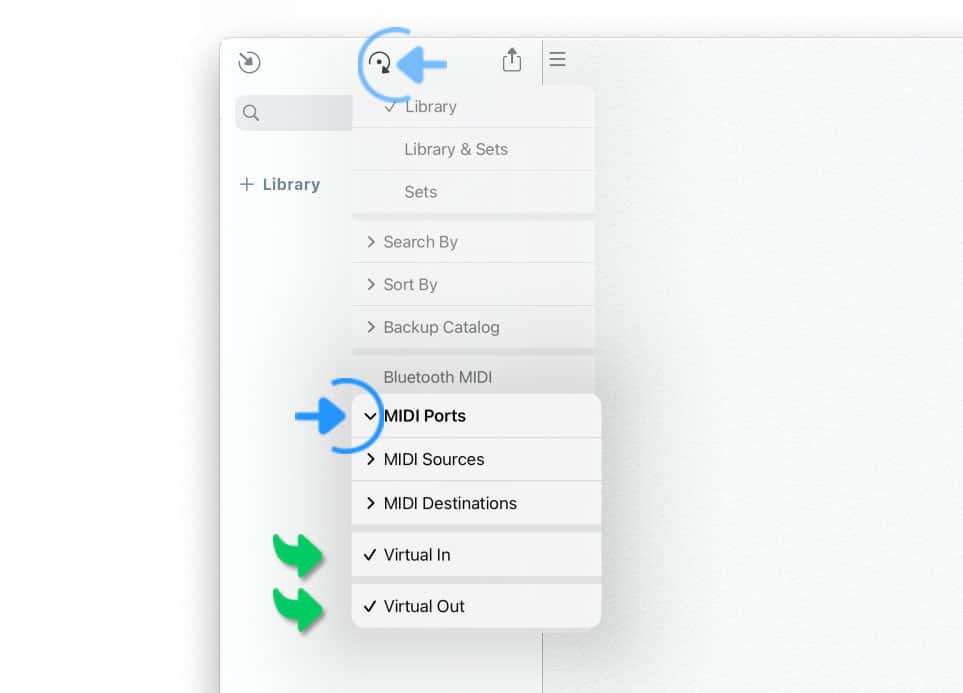
MIDI Out Port Configuration
Song One allows you to customize the routing of outgoing MIDI events:
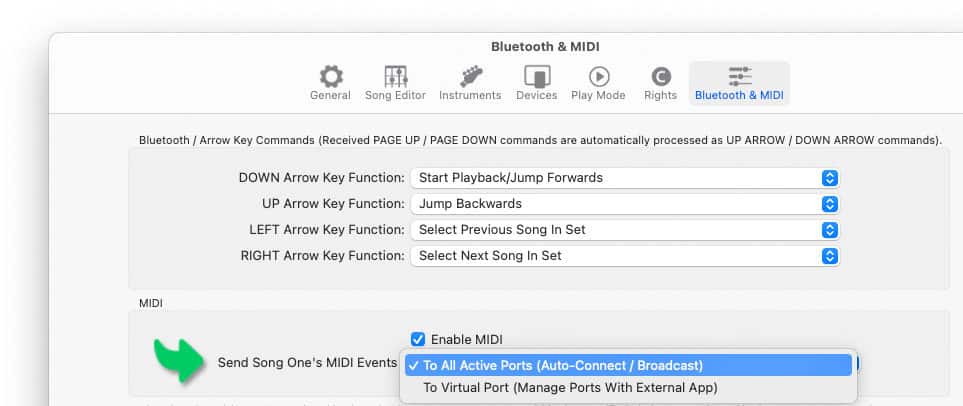
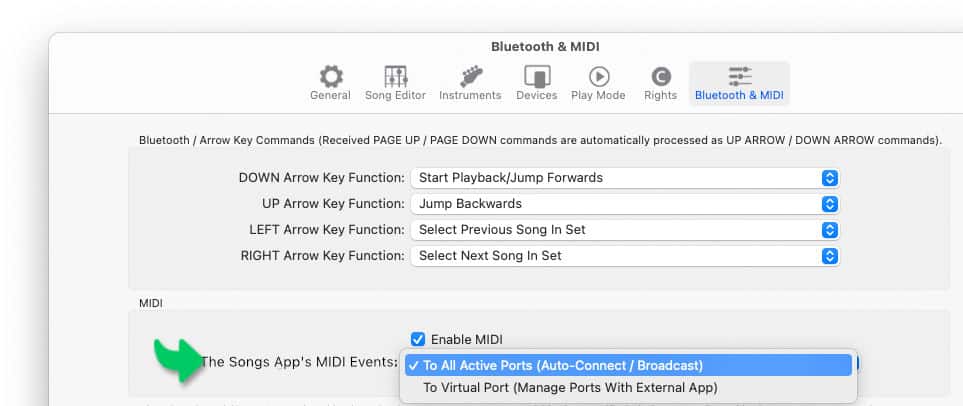
Go to the 'Bluetooth & MIDI' section of Song One’s settings/preferences and choose on of two options:
-
'Send Song One’s MIDI Events To All Active Ports (Auto-Connect / Broadcast)'
-
'Send Song One’s MIDI Events To Virtual Port (Manage Ports With External App)'.
Bluetooth MIDI
Song One is able to send and receive MIDI messages transmitted via Bluetooth when MIDI devices are paired with the built-in device browser.
|
|
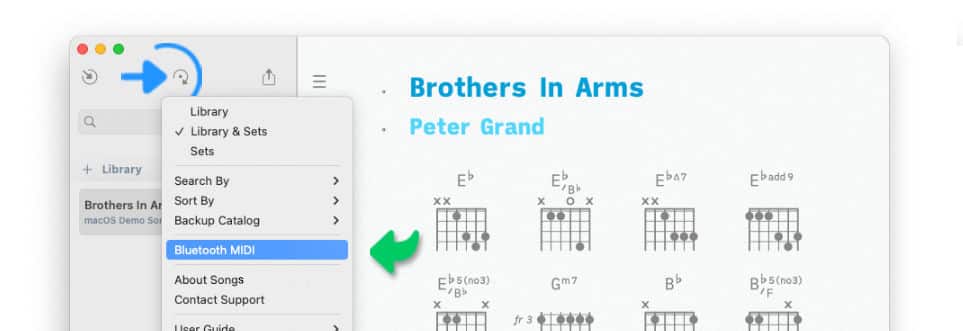
To connect a powered-on Bluetooth MIDI device tap/click on the circle arrow icon at the top of the library panel. Then select 'Bluetooth MIDI' from the pop-up menu. |
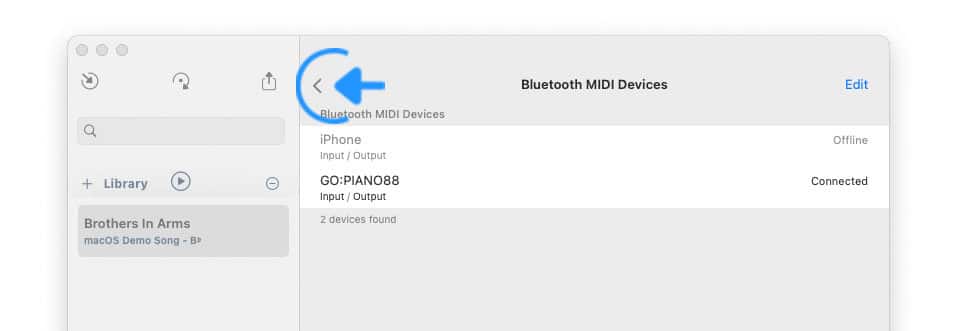
Song One displays a list of your devices that can be connected via Bluetooth.
|
|
Tap/Click on the 'Not Connected' label to establish a connection with an active Bluetooth device. |
Close the device browser by:
-
either tapping/clicking on the chevron in the upper left corner of the list. (macOS/iPad)
-
or swiping the list downwards. (iPhone)
If a signal is not received from your MIDI device enable MIDI in Song One.
A Bluetooth MIDI device can only be paired with one computer at a time. To disconnect a paired keyboard or foot controller from the computer running Song One tap/click on the 'Connected' label of the device browser. This will allow the MIDI device to be paired with a new host.
-
Note: macOS/iOS automatically disconnects paired MIDI Bluetooth devices when either the MIDI device is powered off or the app (e.g. Song One) is being closed.
Audio MIDI Setup App (macOS)
The macOS operating system inlcudes the 'Audio MIDI Setup' app which may be used to connect Bluetooth MIDI devices to your Mac computer.
|
|
Navigate to the 'Utilities' folder of macOS and double-click on the 'Audio MIDI Setup' app. |
Set up your MIDI devices as decribed in Apple’s user guide.