MIDI
MIDI Events
The Songs app can generate outgoing MIDI events to control external MIDI devices. Outgoing MIDI events can either be executed automatically or added to the MIDI queue to be executed manually via a signal from a foot controller.
The Songs app offers three options to add MIDI events to the current song:
-
The MIDI event list enables you to add/edit the MIDI events in the song editor.
-
The timeline event window allows you to add/edit the MIDI events when the play mode is active.
-
The MIDI Syntax Editor enables you to import/add/edit MIDI events in a simple text format.
The following text covers the MIDI event list and the timeline event window. See MIDI Syntax Editor to learn how to add and edit MIDI commands in the simple text format.
MIDI Event List
All outgoing MIDI events are displayed in the song’s MIDI event list.

|
Open the MIDI event list in the side panel. |
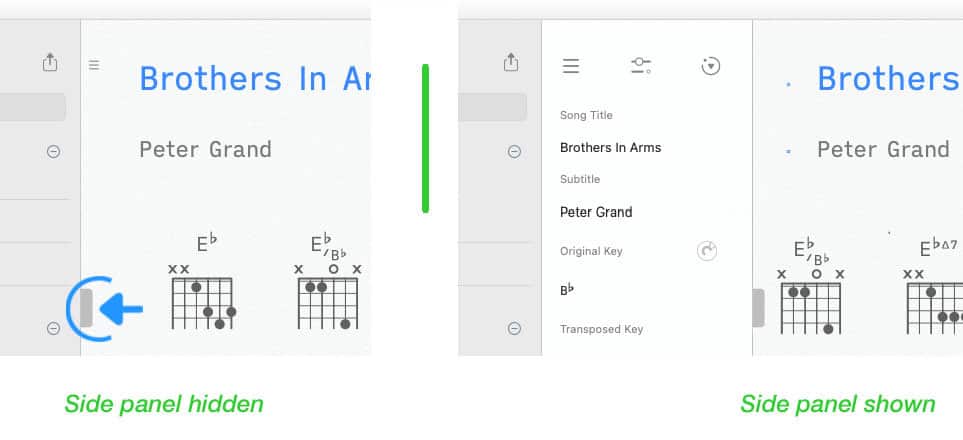
If the side panel is not visible tap/click on the vertical mark at the left side of the screen:
|
|
Tap/Click on the icon in the upper right corner of the side panel and select 'MIDI' from the drop-down menu to access the MIDI event list. |

Adding MIDI Events
|
|
To add a MIDI event tap/click on the plus sign at the top of the MIDI event list and make a selection from the drop-down menu. |
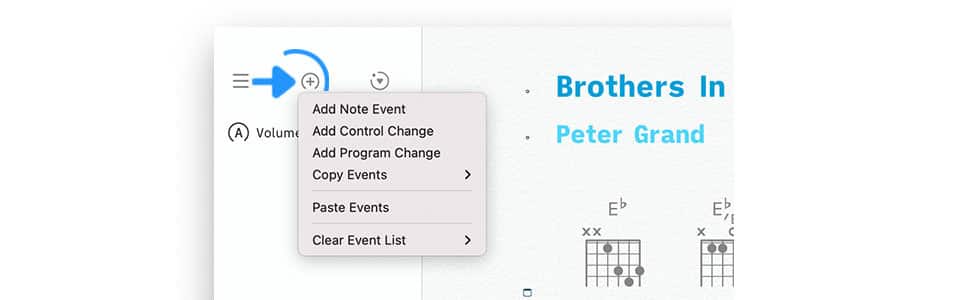
The MIDI event window pops up to allow you to customize the selected event.
|
|
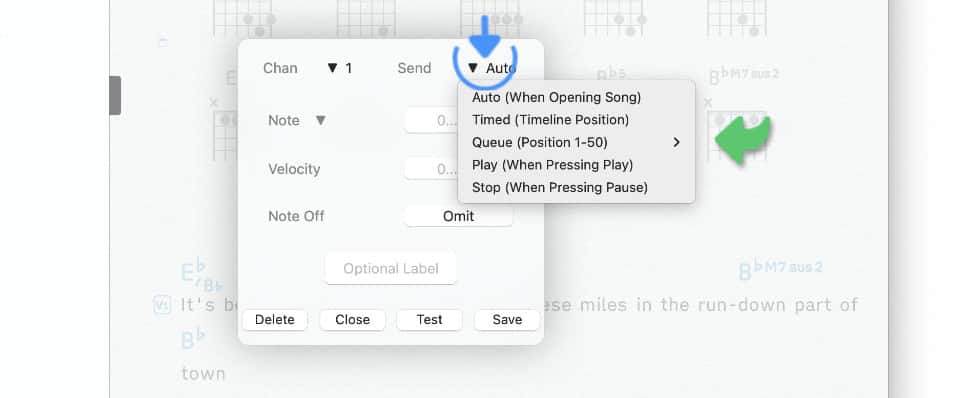
For instance you can specify the time when a MIDI event is to be executed. Tap/Click on the arrow next to 'Send' to access the following options: |

|
Selecting 'Auto (When Opening Song)' will send the MIDI event automatically when a song is selected in the library or in a set. |
-
Use this option to send 'Control Changes' and 'Program Changes' to adjust the mixer/effects settings and change the keyboard sounds for a particular song.
|
|
Selecting 'Timed (Timeline Position)' will execute MIDI events automatically when the playhead reaches the specified location. |
-
Use this option to sync the lighting, the guitar and keyboard sounds with a backing track.
|
|
Selecting 'Queue (Position 1-50)' allows you to assign the events to a specific queue position. The queue positions can be triggered via a foot controller, via screen taps, or can be placed on the Songs app’s timeline to be executed automatically during playback. |
-
Use this option to trigger beats and loops or to adjust the sound of your guitar amp and change the lighting when performing a solo. (Note: You may add an unlimited number of MIDI commands to each of the 50 queue positions.)
|
|
Selecting 'Stop (When Pressing Pause)' / 'Play (When Pressing Play)' will send MIDI events when you interrupt the playback of a song. |
-
Use this option to mute the vocal effects and change the lighting when making an announcement during a performance.
Note Events
A 'note event' is most commonly used to produce a sound at a specified pitch on a MIDI device. Foot controllers, which do not produce sounds, can assign functions to MIDI notes.
|
|
Select 'Add Note Event' from the MIDI drop-down menu (see 'Adding MIDI Events'). |
The MIDI event window appears in the center of the screen:

|
|
Specify a MIDI channel (1-16) by tapping on the arrow next to 'Chan' and make a selection from the drop-down menu. (Select 'All' to send the message on all channels.) |
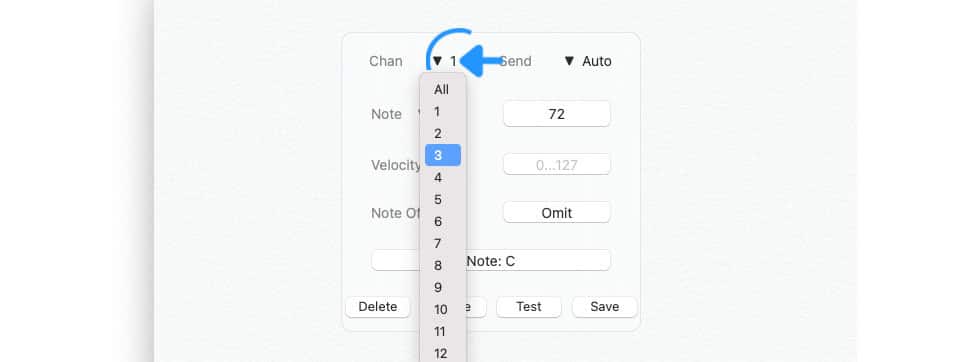
The MIDI channel number allows you to specify which of your MIDI devices is to receive the MIDI event.
MIDI devices can identify 128 notes via a MIDI 'Note' number (0 to 127).

|
|
Tap/Click on the 'Note' label and select the desired note from the drop-down menu. The corresponding MIDI number will be entered automatically. |
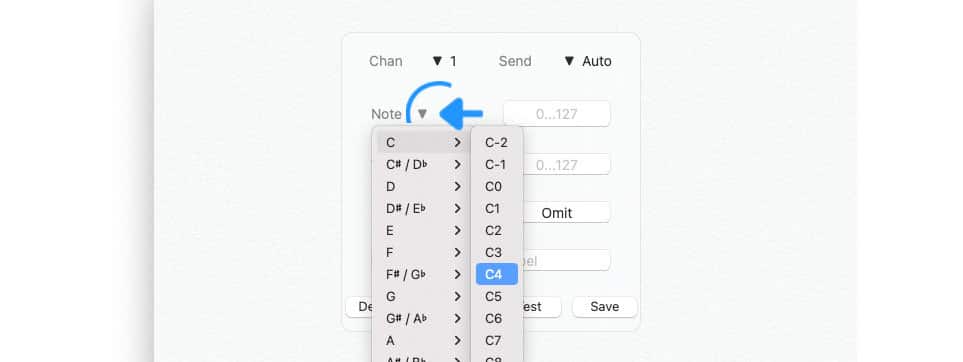
A note event includes a 'Velocity' value (0 to 127) which determines the force with which the note is played. (A high velocity produces a louder sound when the note event is received by a keyboard.)

the Songs app gives you the option to 'Omit' or 'Include' a 'Note Off' command when a note event is sent via MIDI. (When you play the keyboard of a synthesizer a 'Note Off' command is generated every time you release a key.)

|
|
Tap/Click on the 'Test' button to make certain that the MIDI event works as intended. |

|
|
Tap/Click on the 'Save' button to add the note event to the MIDI event list of the song. |
A note event can be re-selected from the MIDI event list for further editing.
Program Changes
|
|
Select 'Add Program Change' from the MIDI drop-down menu (see 'Adding MIDI Events'). |
The MIDI event window appears in the center of the screen:
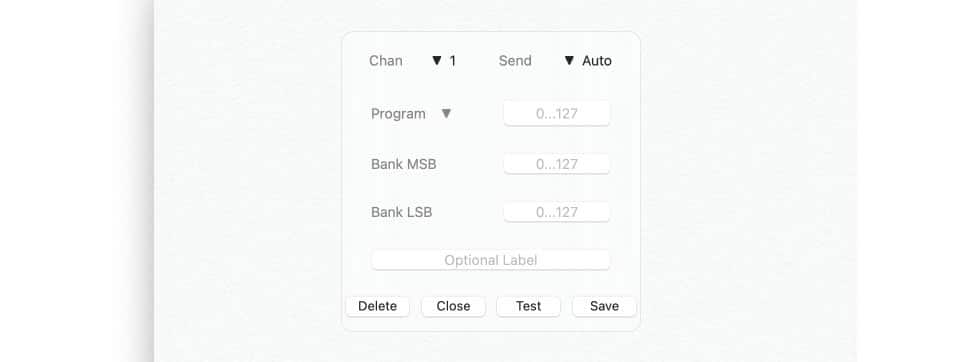
A basic program change message consists of a single 'Program' value (0 to 127) which is used to select a certain patch (sound/preset):

|
|
Enter the desired program number into the program value field. When using a 'General MIDI' device you may tap/click on the 'Program' label to select a patch from a standardized list of sounds. |
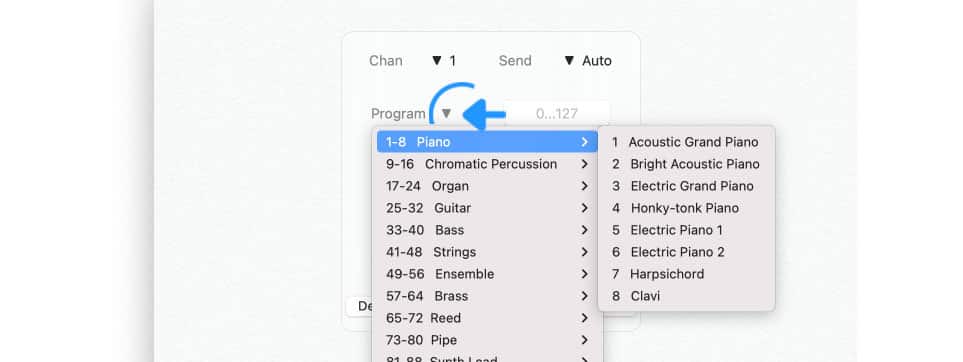
General MIDI devices display a program number from 1 to 128. The actual value that is sent/received via MIDI is always a value from 0 to 127. Subtract 1 to determine the number that needs to be entered into the Songs app’s 'Program' field.
Since most MIDI devices offer more than 128 patches a basic program change message can be expanded with up to two 'Bank Select' values (0 to 127).

MIDI devices that support 'Bank Select' MIDI messages divide their patches into banks, each bank containing 128 programs. Consult the user guide of your MIDI device to determine which 'Bank Select' values need to be entered to select the desired program.
|
|
Once you have configured the event tap/click on the 'Test' button to make certain that the correct patch is selected. |

|
|
Tap/Click on the 'Save' button to add the note event to the MIDI event list of the song. |
A program change can be re-selected from the MIDI event list for further editing.
Control Changes
|
|
Select 'Add Control Change' from the MIDI drop-down menu (see 'Adding MIDI Events'). |
The MIDI event window appears in the center of the screen:
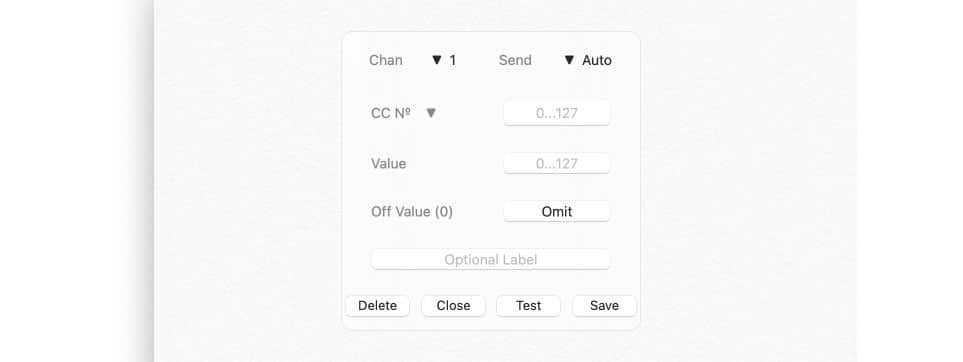
A control change MIDI event, also referred to as a 'CC' message, includes a control change number (0 to 127) which identifies a specific command from the pre-defined MIDI controller list.

|
|
Tap/Click on the 'CC №' label and select the desired command in the drop-down menu. The corresponding MIDI number is entered automatically. |
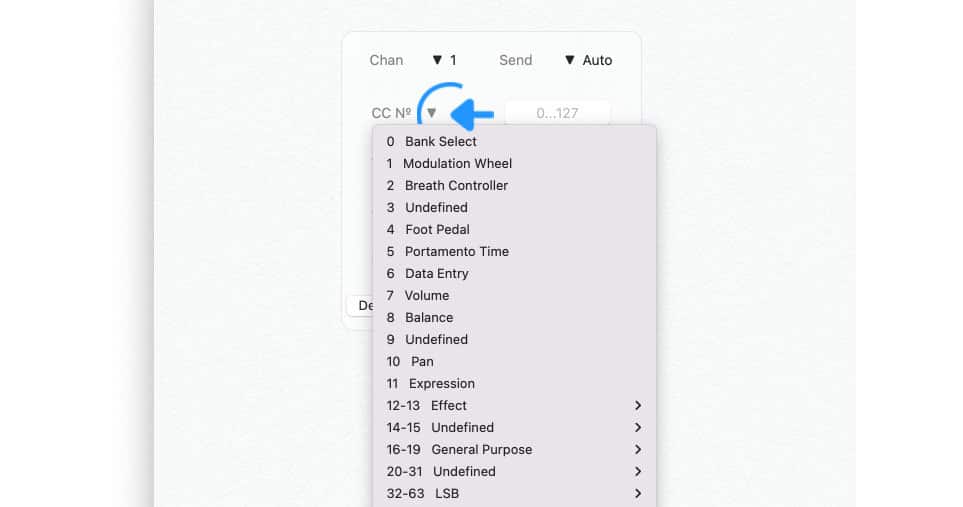
Each control change command is accompanied by a 'Value' (0 to 127). Enter a desired value:

Some foot controllers send an 'Off Value' of 0 when the pedal is released. The Songs app gives you the option to 'Include' or 'Omit' this value.

You can also select 'Toggle' to alternate between 0 and the value you have entered each time the MIDI command is executed by the Songs app.

The Songs app keeps track of the 'Toggle' values for each MIDI channel and each of the 128 available CC commands. Selecting another song from the library or a set will reset all 'Toggle' values.
|
|
Tap/Click on the 'Test' button to make certain that the MIDI event works as intended. |

|
|
Tap/Click on the 'Save' button to add the note event to the MIDI event list of the song. |
A control change can be re-selected from the MIDI event list for further editing.
Song Triggers
A song trigger initiates the playback of a song via an incoming MIDI event from a MIDI keyboard/controller, a DAW (e.g. Pro Tools, Logic Audio, Cubase, Ableton Live) or a MultiTrack app (e.g. Playback, Prime).

|
Note: Song triggers are only executed when a setlist is currently NOT selected and/or being played. (When a set is played back its songs are exclusively controlled via the MIDI commands specified in the Songs app’s settings.) |
Open the MIDI event list to assign a trigger to the currently selected song:
|
|
Tap/Click on the plus sign above the MIDI event list and select 'Set Song Trigger' from the drop-down menu. |
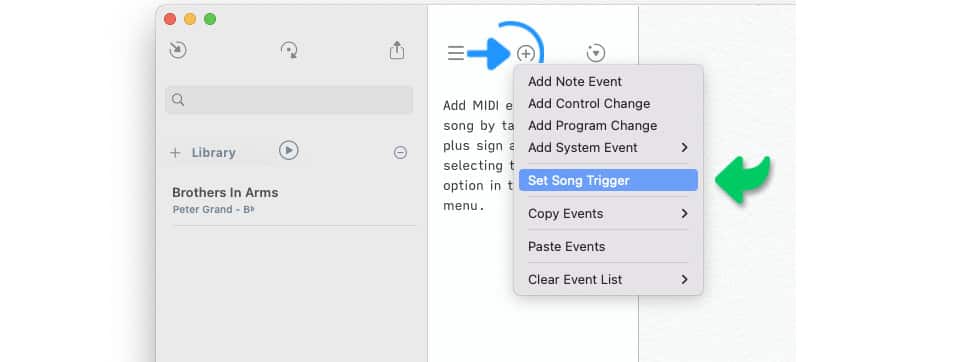
The midi event window appears in the center of the screen:

Set the incoming MIDI event (from the third party app) to be used to trigger the playback of a song by:
|
|
…tapping/clicking on the downward pointing arrow next to 'Event' and making a selection in the drop-down menu. |
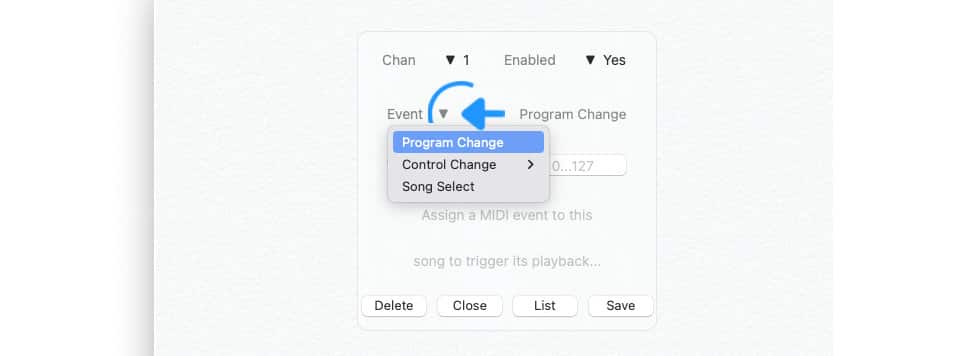
|
|
…adding the desired value of the MIDI event. |
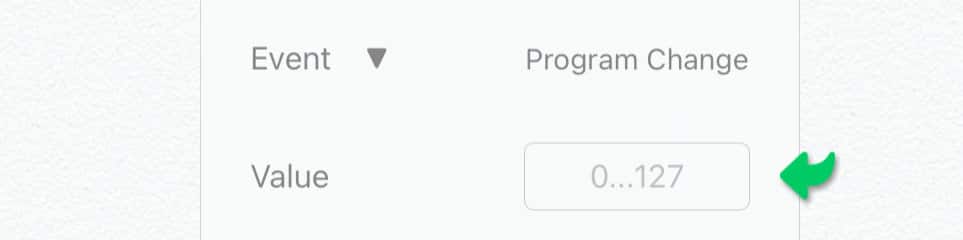
A song trigger is only executed when it is received on the MIDI channel that has been specified in the top left corner of the midi event window:

Changing the MIDI channel (1…16) allows you to assign the same MIDI event (i.e. a program change with a value of 12) to up to 16 different songs.
|
|
the Songs app would be unable to determine which song to launch if the same MIDI event and channel are assigned to more than one song. If identical song triggers exist the Songs app will automatically disable all but one of them. |
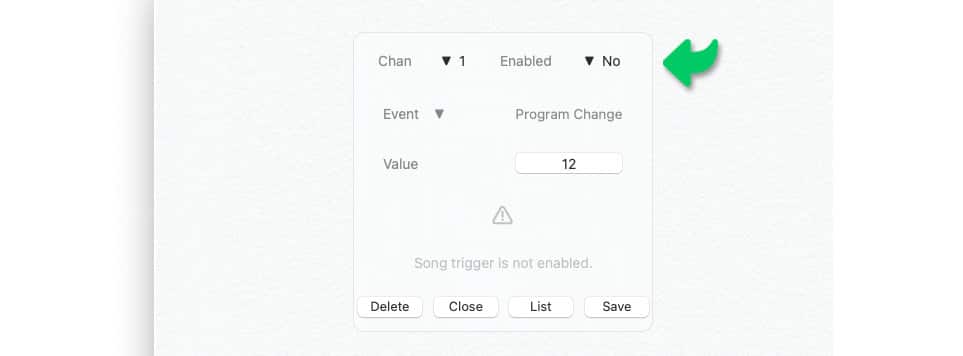
A disabled song trigger is indicated by an outlined play icon in the MIDI event list and in the library panel:
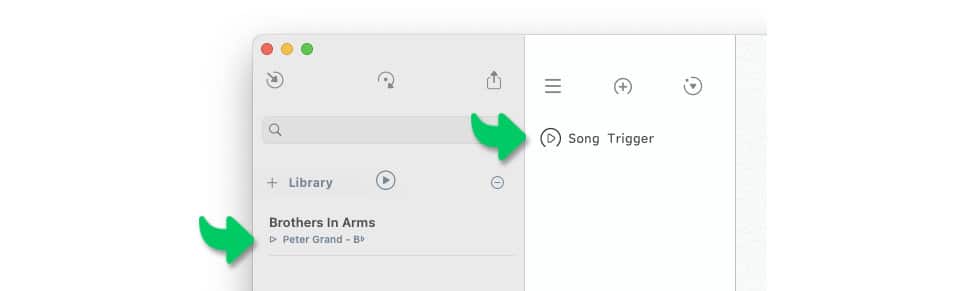
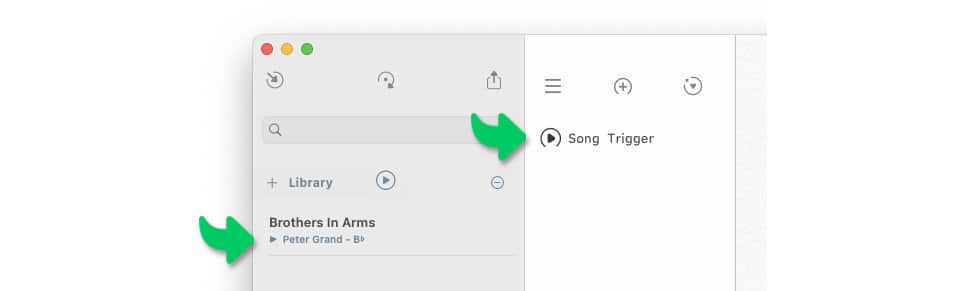
An enabled song trigger is indicated by a filled out play icon in the MIDI event list and in the library panel:
|
|
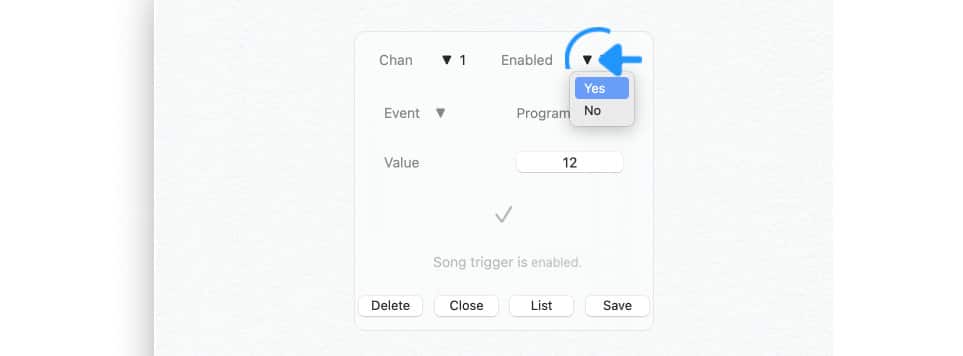
Enable or disable a song trigger by tapping/clicking on the downward pointing arrow next to 'Enabled' in the midi event window. |
the Songs app allows you to create over 36.000 unique song triggers by changing the MIDI channel, the event type and event value.
-
Make each of your band members use a different MIDI channels and/or event types when assigning song triggers to their songs. This allows songs to be easily shared via AiDrop without inadvertently disabling the triggers of newly added songs.
|
|
Tap/Click on the 'Save' button to add the song trigger to the MIDI event list of the song. |

|
|
Tap/Click on the 'List' button to export a list (in plain text format) of all song triggers that you have added to the song catalog. |
A song trigger can be re-selected from the MIDI event list for further editing.
MIDI System Events
MIDI system events are sent on all MIDI channels to all connected devices on the MIDI network. The Songs app sends MIDI system events when a song is selected and/or during the performance of a song via a MIDI queue.
MIDI system events are added to the MIDI event list of the selected song:
|
|
Tap/Click on the plus sign above the MIDI event list and make a selection in the 'Add System Event' submenu. |
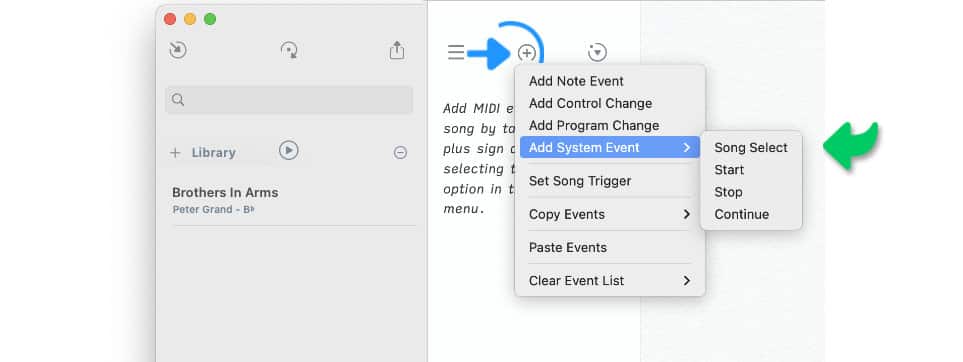
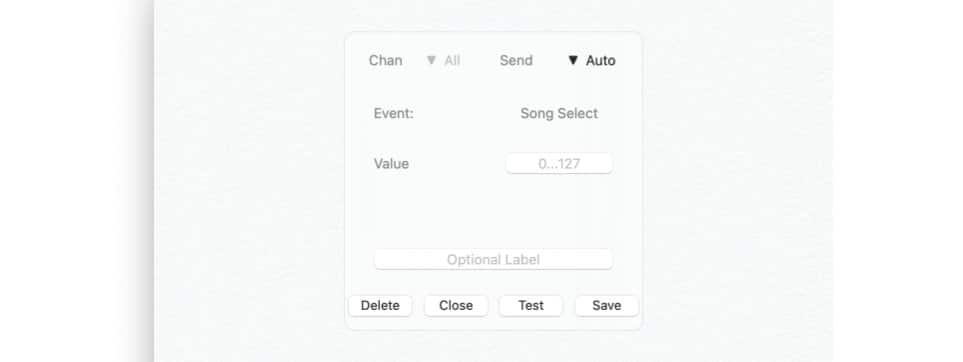
The 'Song Select' MIDI event is used to recall a specific song in a sequencer or drum machine. A 'Song Select' event includes a user specified value (0..127) to identify the desired song:
The 'Start', 'Continue', and 'Stop' MIDI events are used to control the playback of the song in the sequencer or drum machine.
SysEx Messages
SysEx messages are used by manufacturers to transmit data that cannot be transmitted via standard MIDI events.
A SysEx message may be of any length and carries information that is only understood by specific hardware devices:
-
Please consult the user guide of your hardware device to learn more about what can be controlled via SysEx messages.
SysEx messages are added to the MIDI event list of the selected song:
|
|
Tap/Click on the plus sign above the MIDI event list and select 'SysEx' in the 'Add System Event' submenu. |
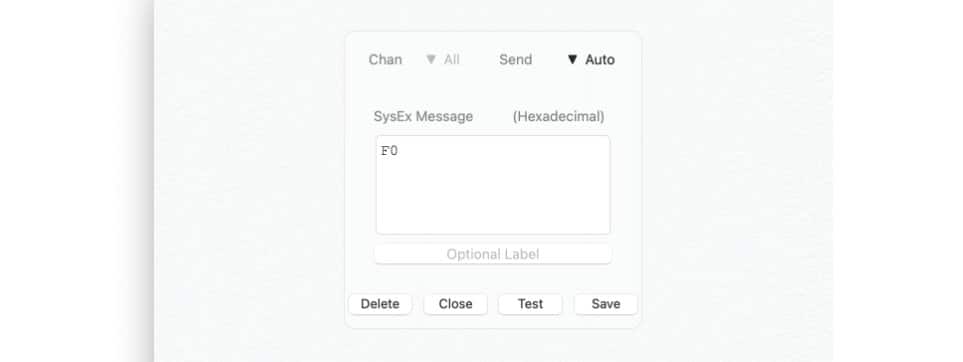
The MIDI event window with a text field (SysEx editor) will appear:
|
|
Enter the SysEx message in the hexadecimal format. |
|
|
Tap/Click on the 'Test' button to make certain that the SysEx message is executed. |
|
|
Tap/Click on the 'Save' button to add the SysEx message to the MIDI event list of the song. |
MIDI system events can be re-selected from the MIDI event list for further editing.
Timeline Event Window
When the play mode is active you can access all MIDI events via the timeline event window.
|
|
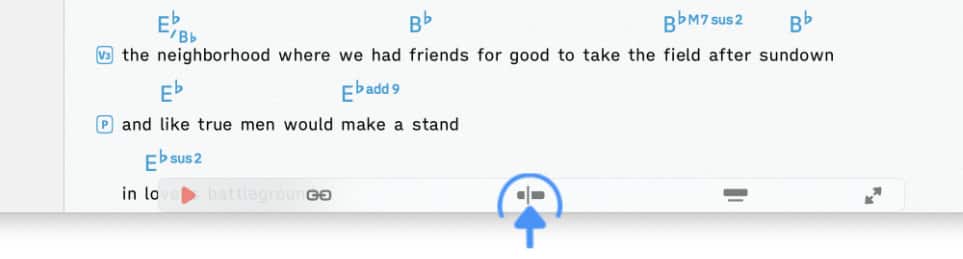
Access the timeline by tapping/clicking on the timeline icon of the play mode toolbar: |
|
|
Tap/Click on the plus sign above the time display to the left of the timeline/waveform. The timeline event window will appear: |

To add a new MIDI event to the timeline…
|
|
Tap/Click on the MIDI icon of the timeline event window to access the MIDI menu. Add/Edit events as described in the MIDI Event List section above. |

'Timed' MIDI events are automatically placed on the timeline when you tap/click on the 'Save' button of the MIDI event window.
|
|
Tap/Click on a MIDI event that has been placed on the timeline to re-open it in the MIDI event window and make changes if desired. |

|
|
Perform a long tap on a MIDI event that has been placed on the timeline to re-position it via drag and drop. |
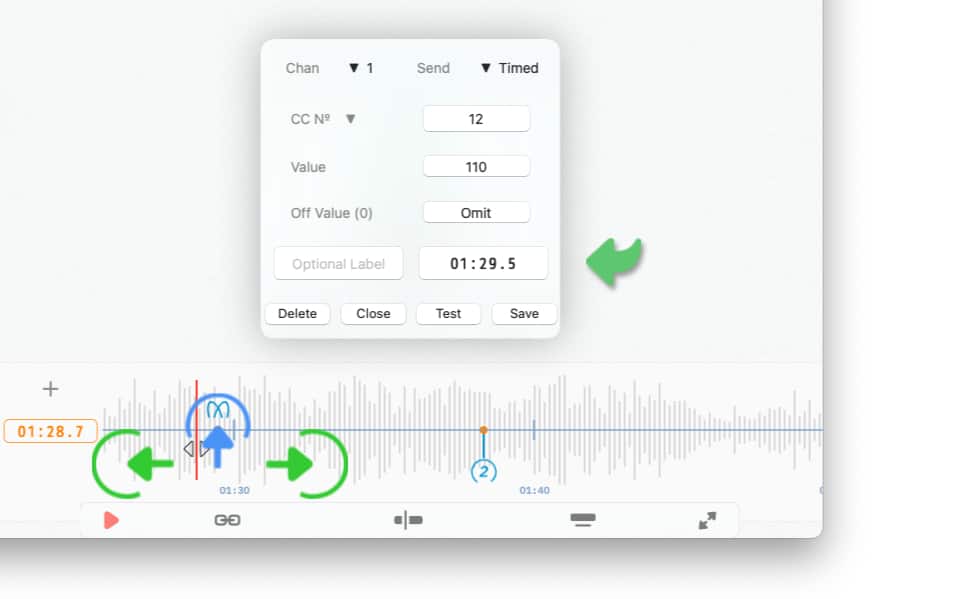
Standard MIDI events that are placed (or repositioned) on the timeline are executed with an accuracy of one decisecond (0.1 second).
|
|
To increase the accuracy create a high precision MIDI event by typing in its timeline position in a format that includes milliseconds: |

Not all digits need to be included when entering a time value. An entry of 5.221 is automatically converted to 00:05.221 and the MIDI event is added to the timeline at the appropriate position.