MIDI
MIDI Queue
The Songs app’s MIDI queue allows you to send MIDI events during the performance of a song by assigning them to up to 50 queue positions. The queue positions can be triggered via a foot controller, via screen taps, or can be placed on the Songs app’s 'Timeline' and executed automatically during playback. (See Timeline to learn more.)

|
Assign a MIDI event to a queue position by tapping/clicking on the arrow next to 'Send'. Then make a selection from the drop-down menu. |

Once events have been assigned to the MIDI queue you may step through the queue positions during the performance and execute the MIDI events by:
-
either tapping on the song info/MIDI queue pop-up in the upper right corner of the screen,
-
or by using a MIDI foot controller or the Bluetooth page turner pedals.
(Alternatively you may place the queue positions on the Songs app’s 'Timeline' to execute the MIDI events automatically during playback.)
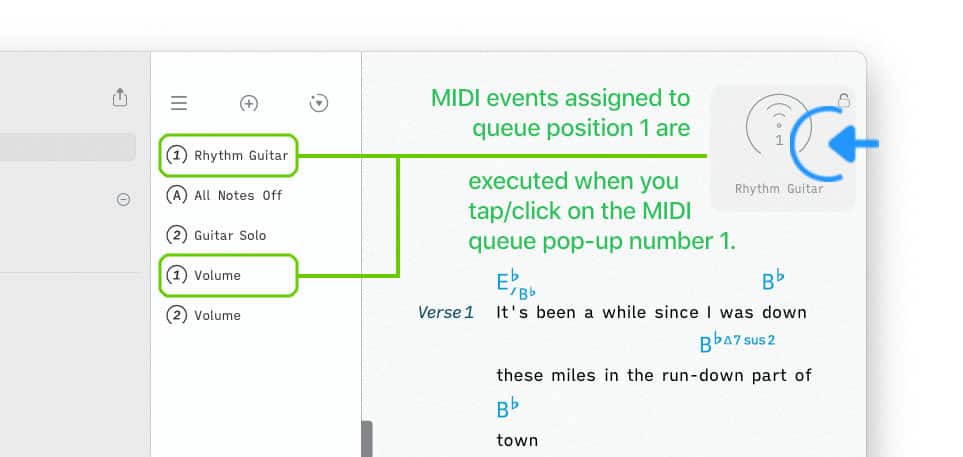
After you have tapped/clicked on the MIDI queue pop-up the next queue position in line is displayed to allow you to send its MIDI events (with another tap/click):
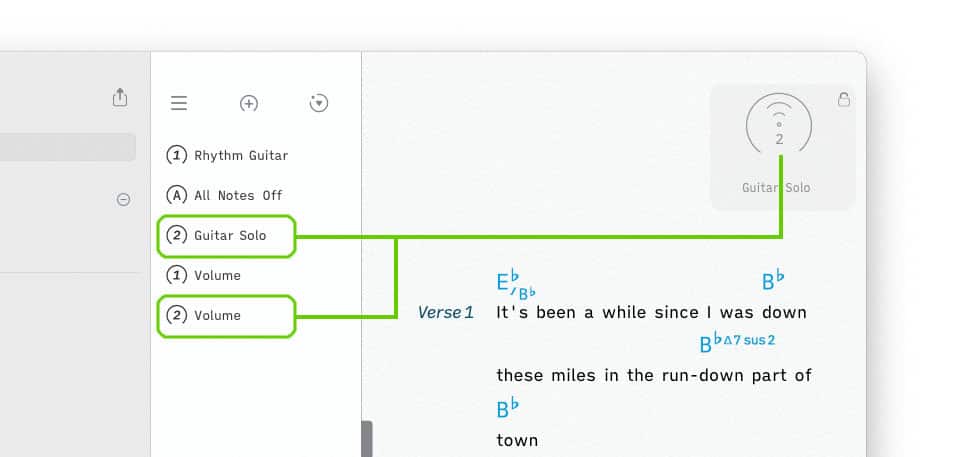
When the end of the song’s MIDI queue is reached the Songs app will go back to the beginning of the queue.
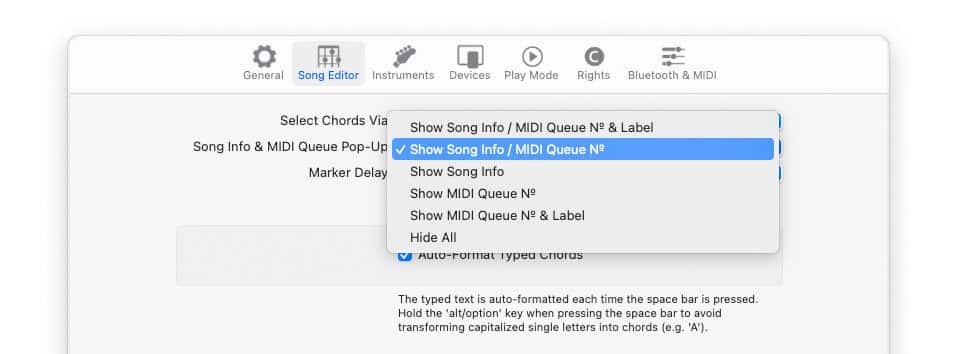
The MIDI queue pop-up can be minimized by omitting the event label:

|
|
To do so go to the Songs app’s settings/preferences and make the desired selection under 'Song Editor' > 'Song Info & MIDI Queue Pop-Up'. |
|
|
To send the MIDI events of a queue position with a foot controller use the UP, LEFT or RIGHT arrow key function in the 'Bluetooth & MIDI' section of the Songs app’s settings/preferences. |

Timeline Trigger
The MIDI queue can be triggered via the timeline. This allows you to automatically execute all MIDI events assigned to particular queue position during playback. To do so active the play mode and open the timeline event window:
|
|
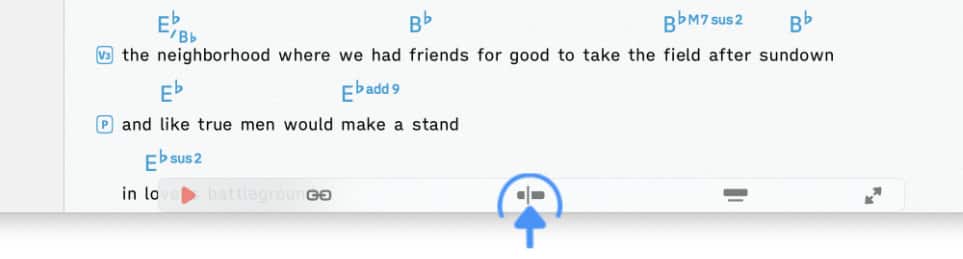
Access the timeline by tapping/clicking on the timeline icon of the play mode toolbar: |
|
|
Tap/Click on the plus sign above the time display to the left of the timeline/waveform. The timeline event window will appear: |

|
|
Tap/Click on the MIDI icon at the top of the timeline event window and select the queue position that you wish to trigger. |

|
|
Drag the timeline into position by swiping it left or right (or type in the trigger’s timeline position) and tap/click on the 'Add' button to place the trigger on the timeline. |
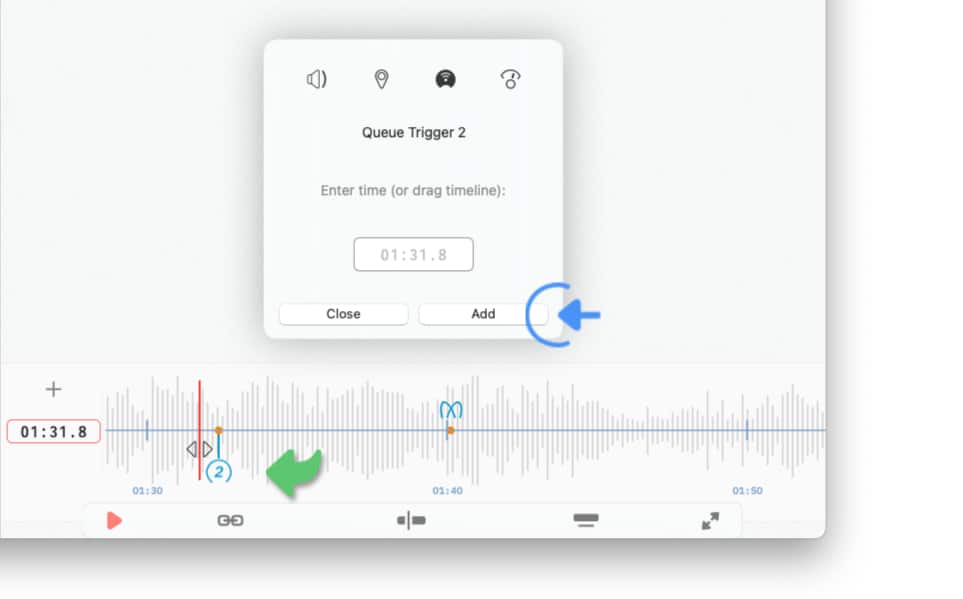
Note: Added MIDI queue triggers may later be repositioned by performing a long tap on the trigger’s icon and dragging it left or right.
-
The time display to the left of the timeline will turn orange while the event is being dragged to indicate the drop position of the trigger.

Standard MIDI events that are placed (or repositioned) on the timeline are executed with an accuracy of one decisecond (0.1 second).
|
|
To increase the accuracy create a high precision MIDI event by typing in its timeline position in a format that includes milliseconds: |


|
Not all digits need to be included when entering a time value. An entry of 5.221 is automatically converted to 00:05.221 and the MIDI event is added to the timeline at the appropriate position. |