ESSENTIALS
iCloud & Local Backups
The Songs app relies on Apple’s iCloud technology to sync data and to create a backup in the cloud. Even if you do not use the the Songs app on more than one device you should always grant the Songs app access to your iCloud account to automatically create a copy of your song catalog.

|
An iCloud (or local) backup of your song catalog is required to transfer your data after updating the Songs app. |
Without an iCloud (or local) backup your data will be irreversibly lost when you remove the Songs app from your device.
iCloud Syncing
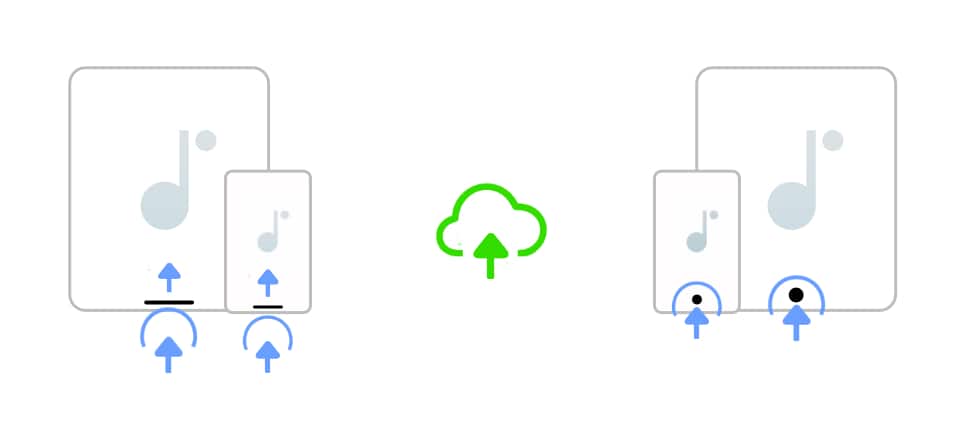
Cloud syncing is enabled by default and performed by Apple’s secure and reliable iCloudKit. Newly entered data is automatically synced in the background when it is safe to do so. When the device is unable to connect to Apple’s iCloud server the Songs app will keep track of any changes to upload them at a later time.

|
When the app is being used it may take iCloudKit several minutes to upload changes to the cloud. |
|
|
Pushing the Songs app into the background (closing/minimizing the Songs app’s app window) initiates an iCloud sync request to immediately upload the latest song catalog changes. |
|
|
Moving the Songs app into the foreground (opening the Songs app’s app window) initiates an iCloud sync request to immediately fetch the latest song catalog changes. |
Push the app into the background on your current device before editing your song catalog on another device:

|
On iOS press the home button of your device (or swipe the screen upwards from the bottom edge) to return to the 'Home Screen'. |
|
|
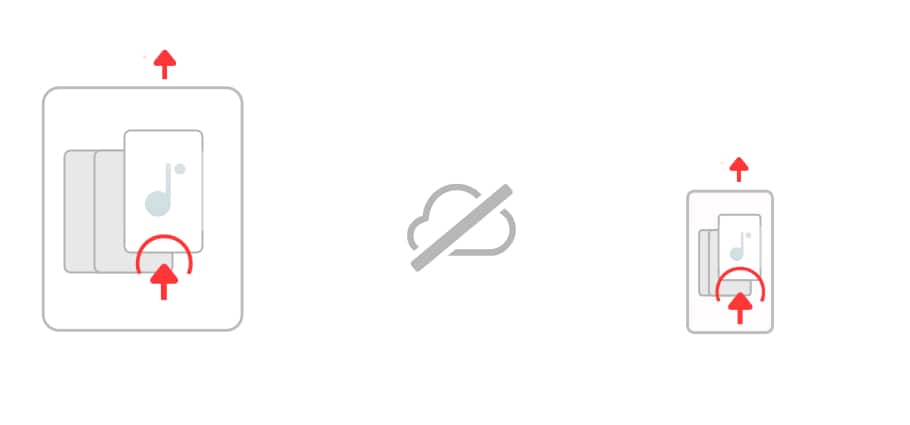
Do not swipe the Songs app’s minimized app window upwards (this would force the Songs app to quit immediately and abort syncing). |
|
|
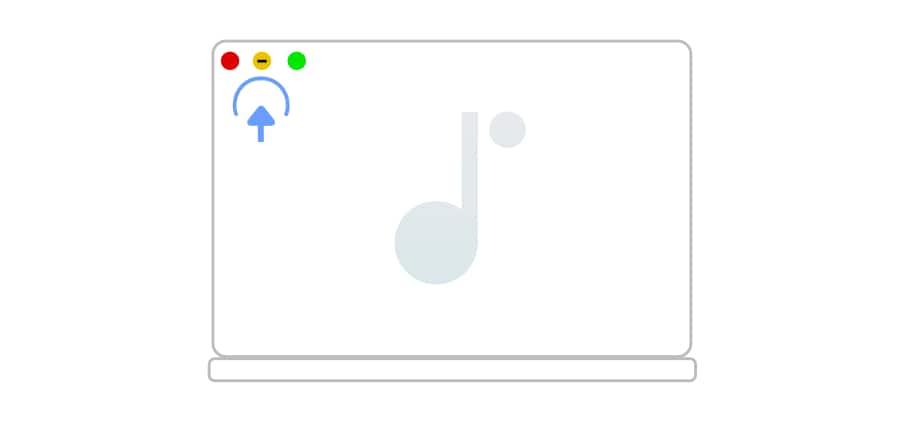
On macOS minimize the Songs app’s application window to continue editing a song on another device. |
|
|
To continue editing a song on macOS (after you have pushed the Songs app into the background on iOS) re-open the Songs app’s minimized application window on macOS. |

|
|
See iCloud Addendum to learn more if you are experiencing a syncing problem. |
Creating a Local Backup
It is recommended to keep a separate local backup of your song catalog on at least one of your devices.
|
|
A local backup is necessary if there is a major issue with your iCloud account and an older version of your song catalog needs to be restored. |
|
|
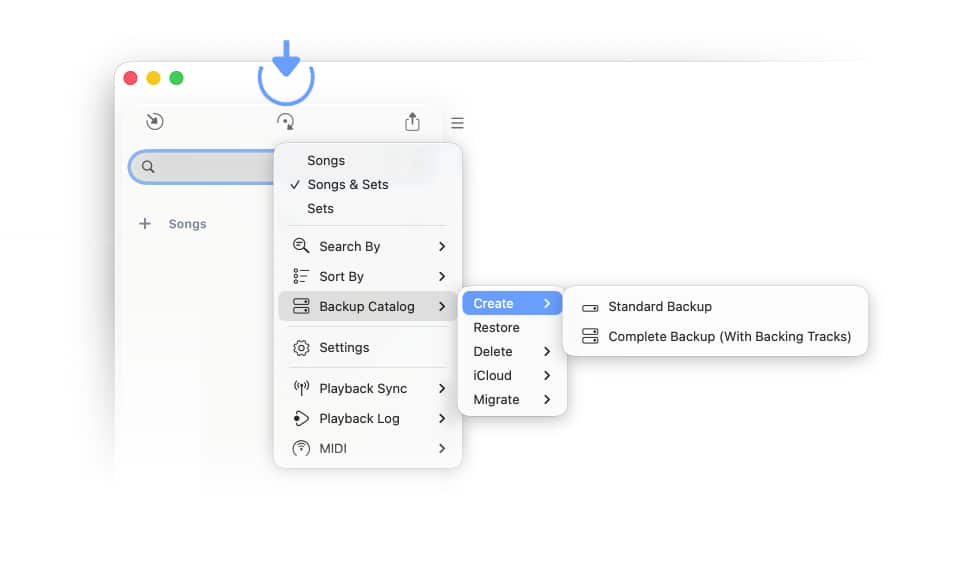
Tap/Click on the circle arrow icon at the top of the library panel and select 'Create' under 'Backup Catalog'. |
|
|
Do not store the local backup in the Songs app’s own app/document folder. (The document folder of an app is automatically removed by iOS when the app is deleted.) |
Restoring Song Catalogs
Select the appropriate backup file in the file browser to recreate your song catalog:
|
|
Tap/Click on the circle arrow icon at the top of the library panel and select 'Restore' under 'Backup Catalog'. |
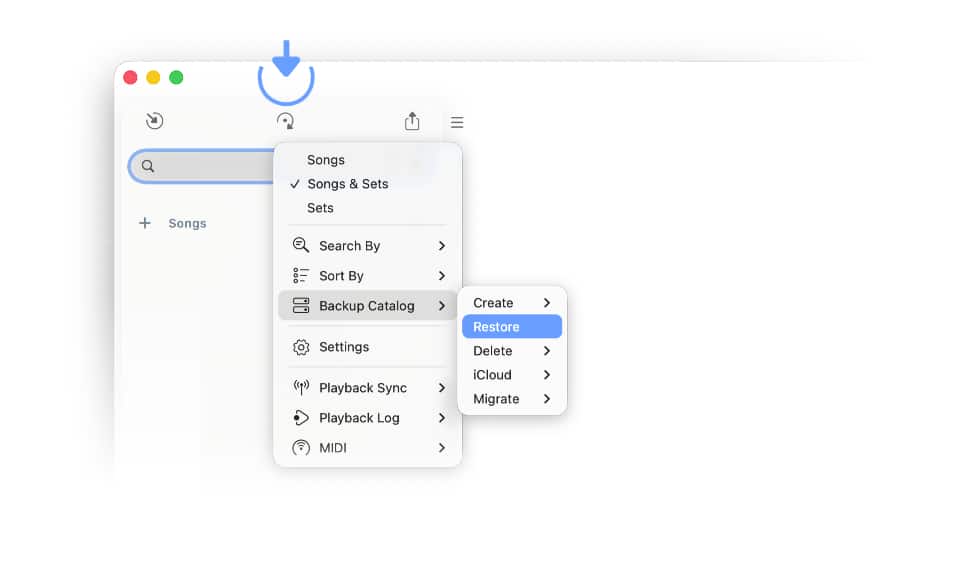
The Songs app will replace matching songs in your song catalog with the backup versions. Songs that you have added to your song catalog after the last backup will remain unchanged. All computer devices linked to your iCloud account will be updated automatically.
You can remove the new songs when restoring a backup by:
-
selecting 'Delete Songs And Sets (Device & iCloud)' (Under 'Backup Catalog' > 'Delete')
-
and selecting 'Restore' (under 'Backup Catalog').