EDITING SONGS
Highlighting & PDF Drawings
The Songs app offers a number of annotation tools. Portions of the text in both native Songs documents and PDF documents can be highlighted. You may also add drawings and handwritten annotations to PDF documents.

|
When an annotated PDF document is tranformed into the native Songs format its annotations/drawings are discarded. |
Highlighting Text
(Native Songs documents)

|
Tap/Click on the pencil tip icon in the docked toolbar to access the highlighting tools. |
If the docked toolbar is not visible tap/click on the three dots in the right corner of the bottom toolbar.
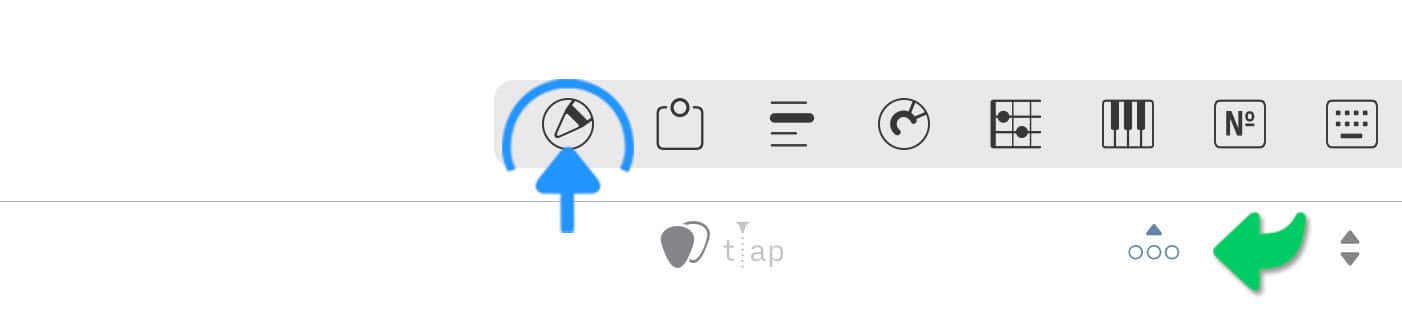
The bottom toolbar will change:

|
|
Tap/Click on the pencil tip icon in the bottom toolbar to enable the highlighting mode. |

|
|
Select the desired text area. |

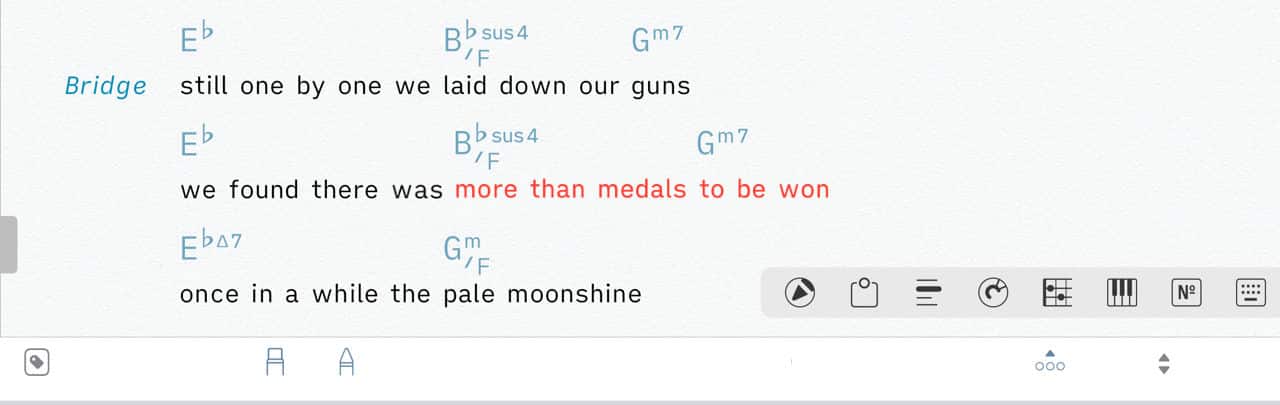
The text will be highlighted after a brief delay (specify the delay in the Songs app’s settings/preferences):
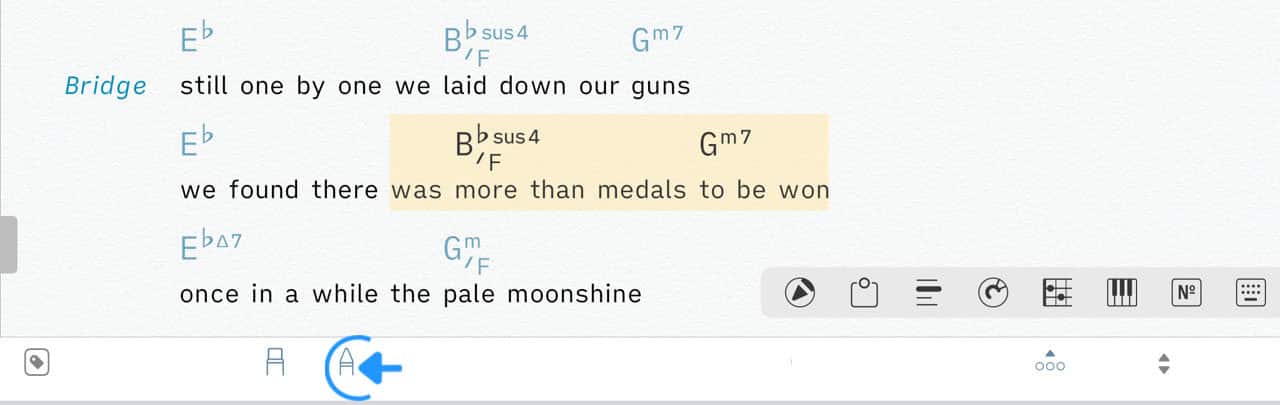
Additional passages may be highlighted.
|
|
Tap/Click on the pencil tip icon to disable the highlighting mode. |
|
|
Tap/Click on the pencil eraser icon to remove the added markings. |

|
|
Select the desired text area. |
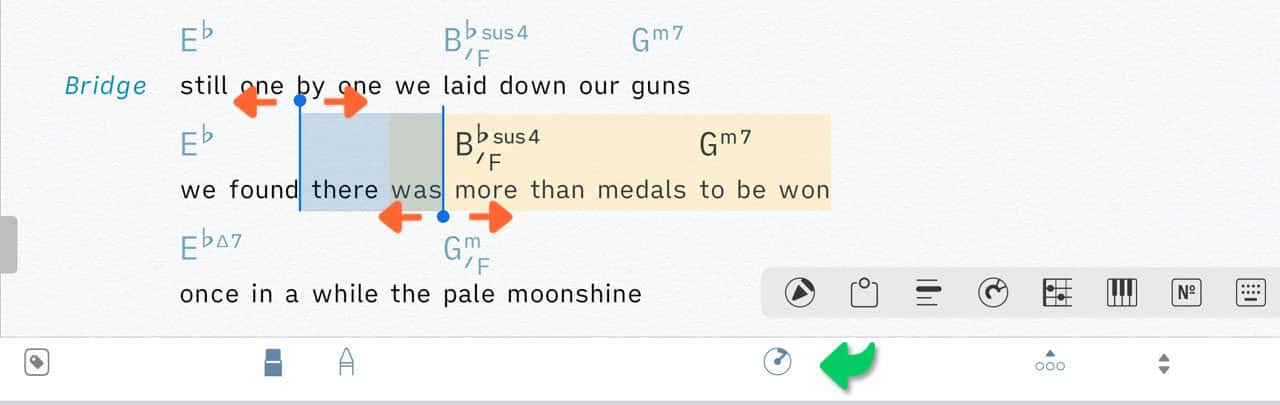
The markings will be removed after a brief delay.
-
Tap/Click on the pencil eraser icon to disable the eraser when done.
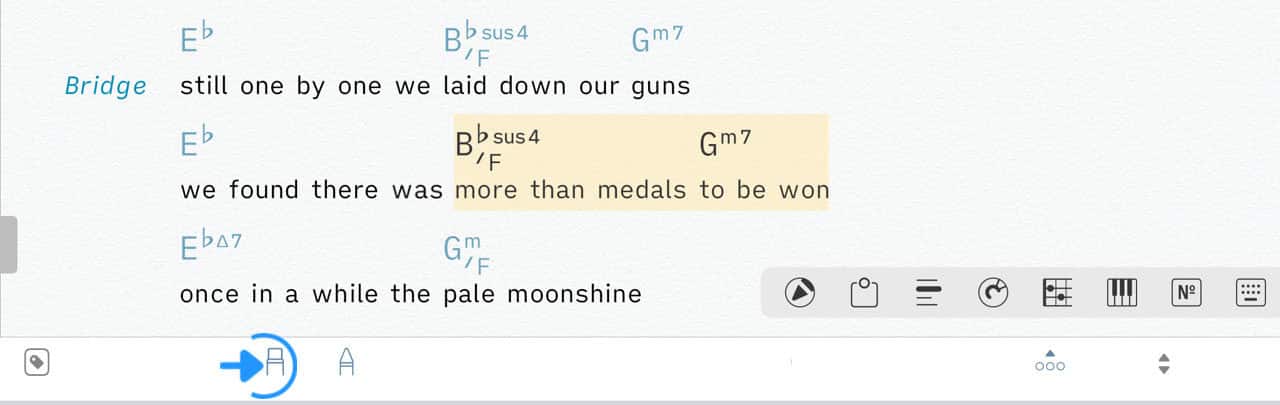
The format of highlighted text sections can be changed in the Songs app’s preferences/settings:
-
Settings > Song Editor > Marker Action

Highlighting Text & Drawing Annotations
(PDF Documents)
|
|
Tap/Click on the pen tip icon in the docked toolbar to access the annotation tools in the bottom toolbar. |
If the docked toolbar is not visible tap/click on the three dots in the right corner of the bottom toolbar.

The icons of the bottom toolbar will change:

|
|
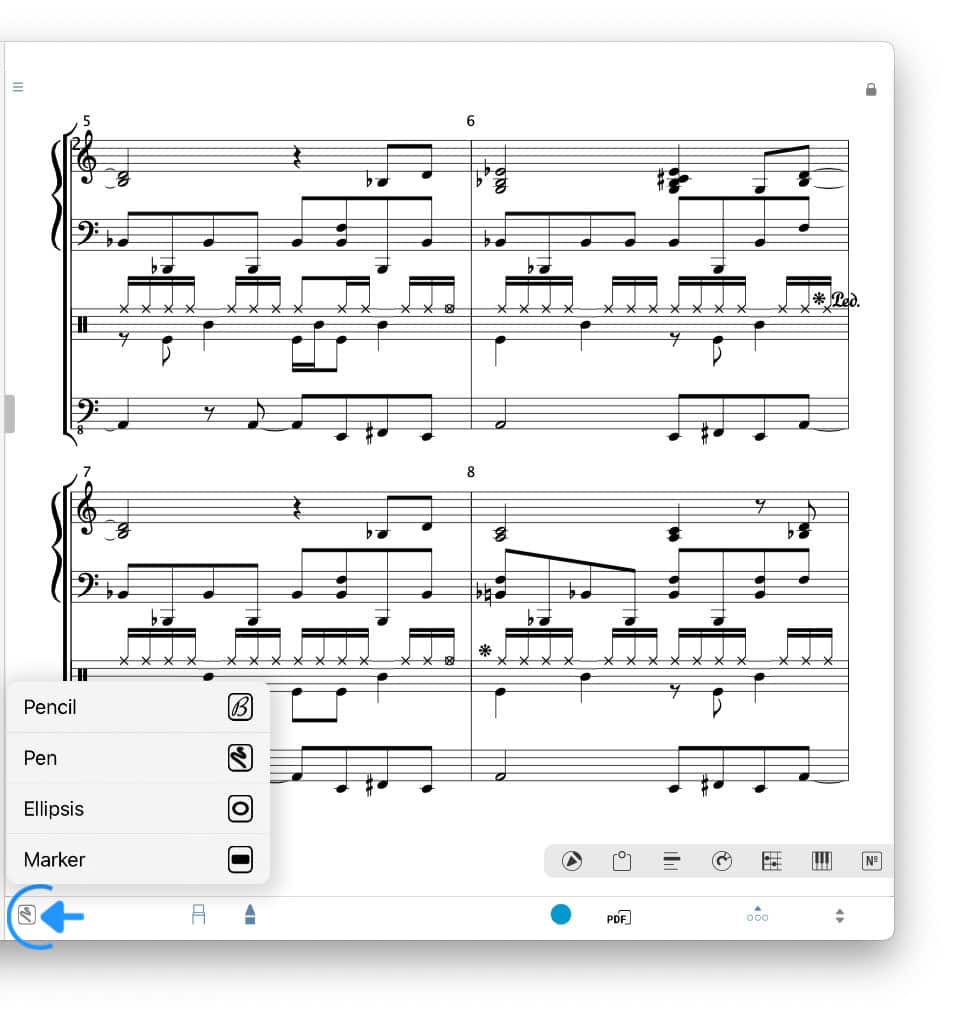
Tap/Click on the icon to the left of the bottom toolbar and select an annotation type in the pop-up menu. |
-
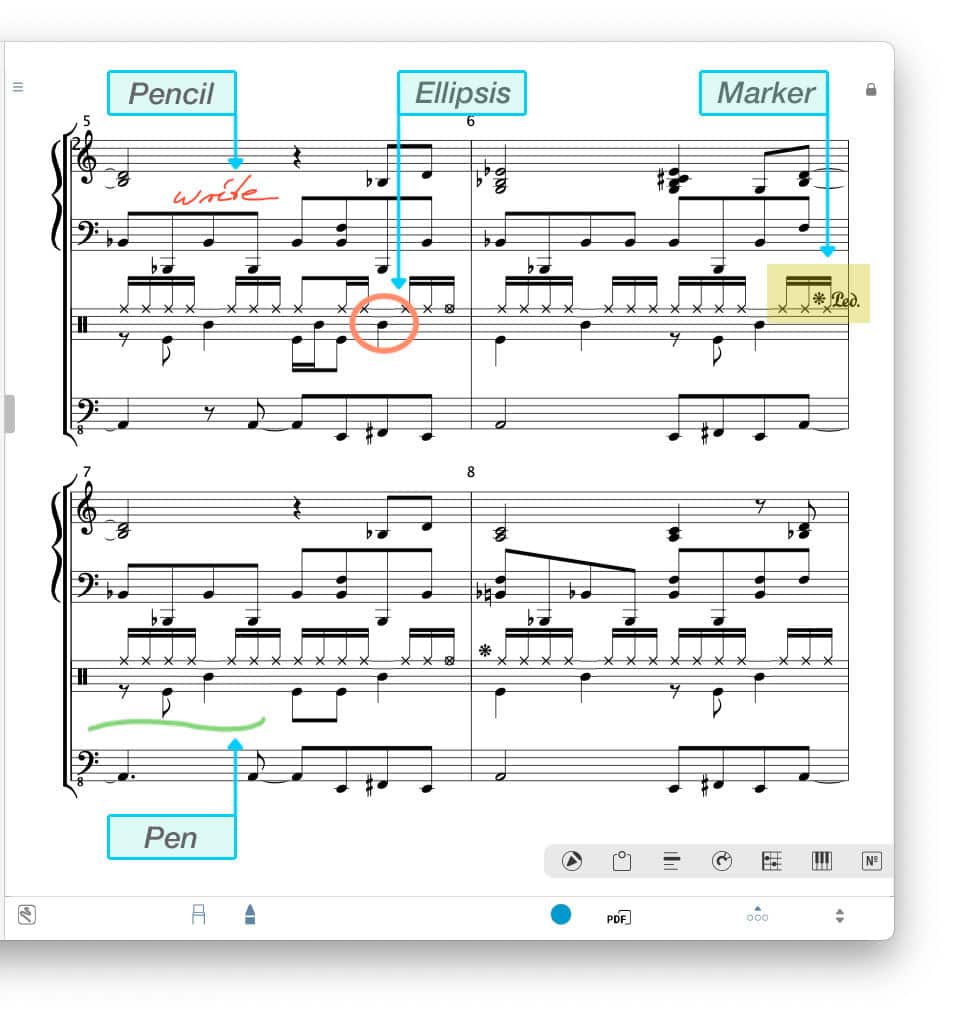
Select 'Pencil' to add handwritten notes.
-
Select 'Pen' to add drawings.
-
Select 'Ellipsis' to draw outlines to be auto-converted into ellipses.
-
Select 'Marker' to highlight areas.
|
|
Tap/Click on the pencil tip icon in the bottom toolbar to activate the annotation mode. |

The position of the PDF document will lock in place whenever the annotation mode is active.
-
To scroll to a different position deactivate the annotation mode by tapping/clicking on the pencil tip in the bottom toolbar.
Change the annotation type as needed while you add drawings to the PDF document:

|
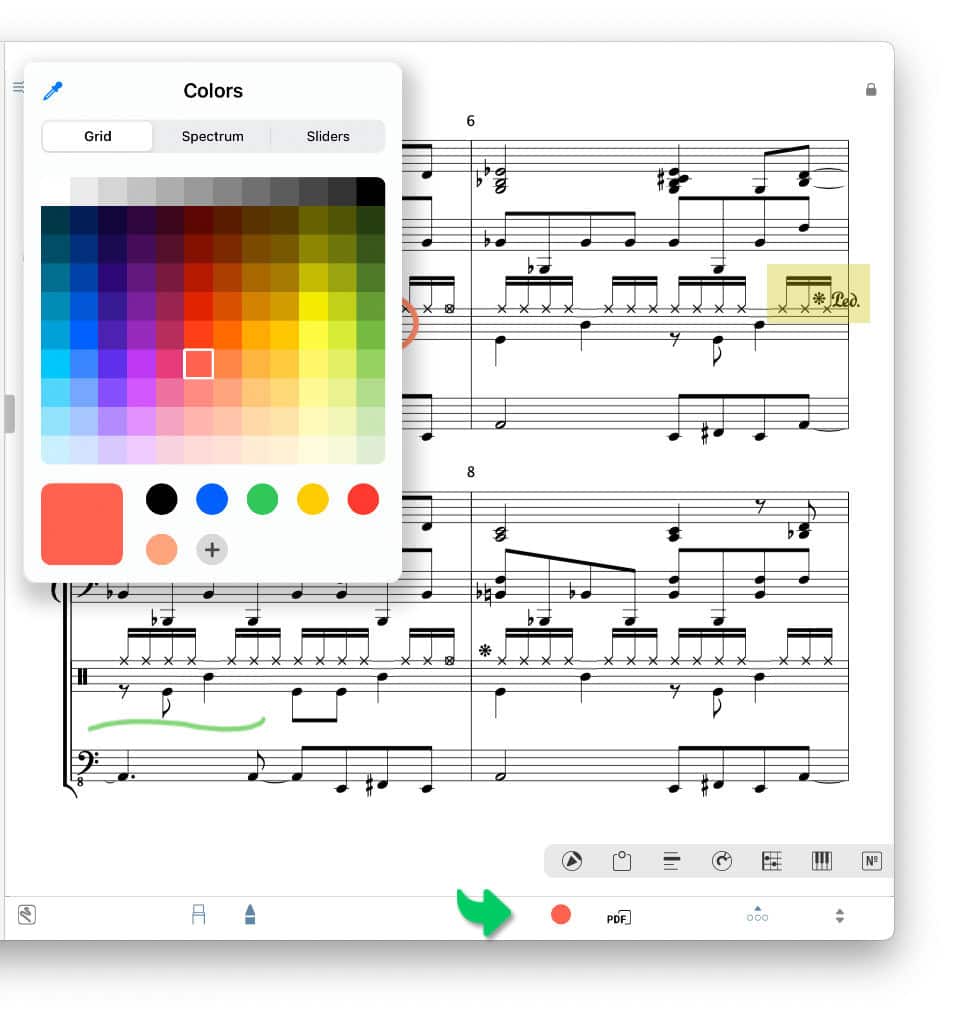
You may tap/click on the colored dot in the center of the bottom toolbar to specify a color for a new annotation. |

A color picker will appear to allow you to select the desired color:
|
|
Tap/Click on the pencil eraser icon and tap/click on an annotation to remove it. |
